
Your TIMEX Personal Computer contains many tokens. And, while they may not pay for your subway ride, they’ll surely pay off huge rewards in terms of memory conservation, simplicity of operation, and speed of data entry.
Each character (which you can see on your T/S 1000/1500 keyboard) is represented by a numeric code which ranges between 0 and 255. The entire series of (255) codes is known as the Character Set — a type of alphabet for your T/S computer.
To display the entire character set (illustrated below) on your TV screen, run the following program (press the BREAK key to quit the program):
10 FOR A = 0 TO 255
20 PRINT CHR$ A;
30 NEXT A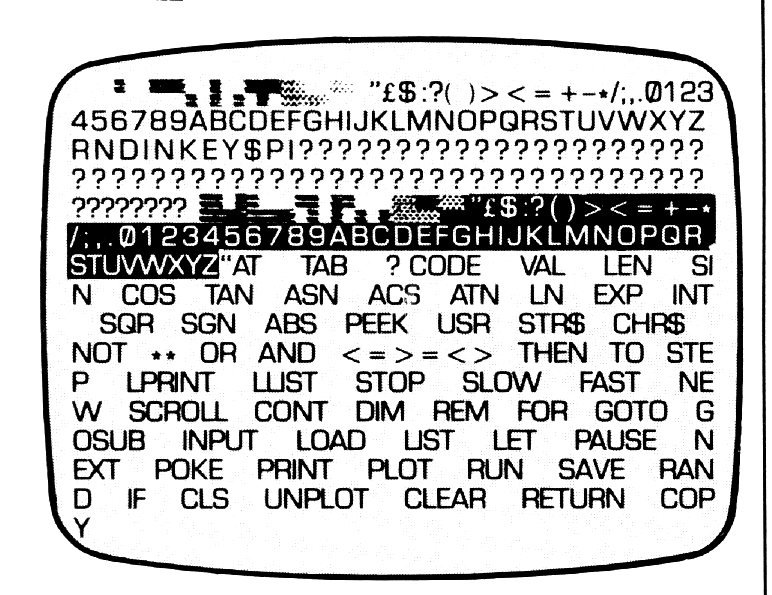
Not only is each letter, number, special character, or graphic character represented by a numeric code, but so are the keywords (or tokens).
And, this very unique idea offers a very big advantage!
For example, your T/S keyboard has a six-letter (or character — a character is also roughly synonymous with a byte) keyword labeled RETURN (Y key). If typed manually, this word would consume six-bytes of memory (one for each letter) and you would be required to type all six-letters of this word to incorporate this command within a program.
However, since RETURN is a token, only one byte is consumed in memory; press the Y key (when the K cursor is displayed) and presto, the keyword RETURN is displayed on your TV screen.
That’s exactly the reason why the cursor skips over the entire keyword when you backspace — or why the entire keyword is deleted when the delete function is employed.
Obviously, it’s much faster and easier to press a single key instead of six of them — and that’s the main idea behind the token!
TOKEN DECODING
Now that you’ve learned about a token and how it works, let’s go one step further: With the use of the appropriate T/S command, you can specify a numeric code and the computer will display the appropriate token; or conversely, you can specify a token, and the computer will display its numeric code. Let’s see how this works!
A PRINT CHR$ command (CHR$ is produced by pressing the U key when the F cursor is displayed) which specifies a particular numeric code, yields the appropriate letter, number, special character graphic character or token:
PRINT CHR$ 3            Yields: ▀
PRINT CHR$ 14           Yields: :
PRINT CHR$ 200          Yields: COS
In a similar manner the PRINT CODE command (CODE is produced by pressing the I key when the F cursor is displayed) displays the numeric code when the token has been specified:
PRINT CODE "$"          Yields:  13
PRINT CODE "B"          Yields:  39
PRINT CODE " OR "       Yields: 217
PRINT CODE " GOTO "     Yields: 236
Note that the letter, number, special character, graphic character, or token must be entered as a string (i.e.; within quotes) in order to utilize the CODE command.
Therefore, you may correctly assume that any string can be correspondingly decoded. However, since, the CODE command examines only the first element of a string, the computer will display the same answer (i.e.; 44) for all of the following strings: “GAMES”, “GEORGE”, “GOTO”.
By the way, have you tried to obtain the CODE of the GOTO command from your computer yet? I’ll bet you obtained the code of 44 instead of 236! Do you know why?
Well, there is a perfectly good and legitimate reason for this:
Because it is a keyword or token, the GOTO command can only be entered when the K cursor is displayed; it won’t work if you type GOTO manually.
Now, since you entered PRINT CODE as the first portion of the command, the L cursor has been generated; this causes the computer to reject the entry of the GOTO command as a token.
So, to get around this, you probably typed GOTO manually — which as we said, is a no … no.
Furthermore, by manually typing GOTO as a string, the computer examines only the first letter (G) of the string and displays code 44 which is correct for the G, but wrong for the GOTO.
Regardless of what happened, we still want to obtain the code of the token, and to do so, we must “trick” the computer into accepting the command. So, here’s what we must do:
1. With the K cursor displayed on the screen, enter the GOTO command.
2. Simultaneously press the SHIFT and the Backspace key (key 5) to move the cursor to the left of the GOTO command; this generates the K cursor.
3. Enter, in turn, the PRINT command, the CODE command, and the first set of quotes:
PRINT CODE "GOTO4. Advance the cursor to the right of the GOTO command by simultaneously pressing the SHIFT and the Advance key (key 8); then enter the second set of quotes:
PRINT CODE "GOTO"Press the ENTER key to run the command.
Tricky, wasn’t it? But, don’t worry, I’ll accept your token of thanks.