
Put your TIMEX Sinclair Personal Computer and the Organizer software to work for you. It’s the easiest way to reduce bundles of paperwork into a single, compact cassette tape.
Fundamentally, the Organizer is a data management tool. It is designed to store any type of information that can be listed (e.g., birthday and anniversary dates, telephone numbers, membership rosters, insurance policies, recipes; or items of a similar nature) and retrieve it — just when you need it the most.
Let’s look at how it works:
To utilize the Organizer, load the program into your TIMEX Sinclair Personal Computer. This is accomplished by following the usual loading procedure, using the command: LOAD “VU-FILE” (or LOAD “”). Once the computer has been loaded, you can establish your file, create the record layout, define the data fields, and enter the individual records. Thereafter, you can choose to utilize the various options to enter, change, or delete records; list or print them; retrieve them in a particular order; or search (and find) a single record from a large number of similar records.
BASIC DEFINITIONS
We’ll begin by defining some of the terminology that applies to the Organizer.
If we have a cabinet which pertains to employment applications, for example, that cabinet is our file — all information within applies to a common subject. And, each employment application within the cabinet constitutes one record. Instead of a cabinet, the computer is an electronic file and we will create individual records through the use of the display on your television screen.
If we look at any employment application we will note that it consists of printed areas which request information (such as name, address, and social security number) and the necessary blank spaces for the applicant’s response. Those printed areas on the application are equivalent to our record layout; and those blank spaces are analogous to data entry fields.
NOW, LET’S GET ORGANIZED
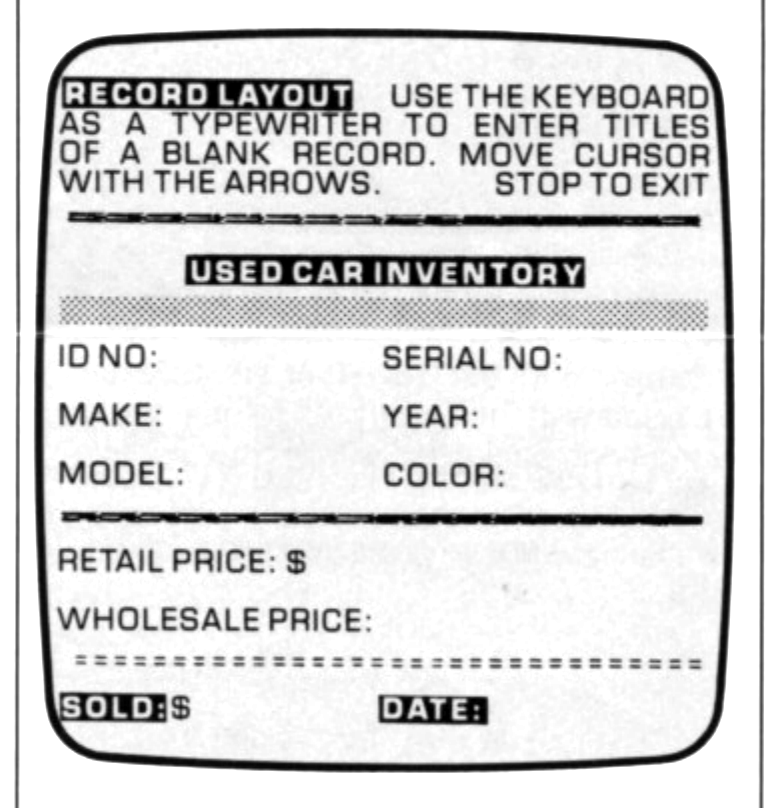
When you load the Organizer for the first time, the Record Layout Screen is displayed. But, before typing the layout onto the TV screen, it is probably a good idea to write out the record with pencil and paper. Do be sure to allow adequate room for both the preprinted data and the spaces into which data is to be entered for each record; the system supplies 32-spaces horizontally, and 19-lines vertically.
Now, using the Arrow keys (5, 6, 7, and 8 on your keyboard), move the cursor to the desired locations on the blank portion of the TV screen. Type the record layout (the illustration below will serve as a guide). To move the arrows, simultaneously press the SHIFT and the appropriate arrow keys. You can use letters, numbers, special characters, and graphic characters to create the record layout. Upon completion of the layout, simultaneously press the SHIFT and the STOP (A) keys. (Do not use the RUN and ENTER keys.)
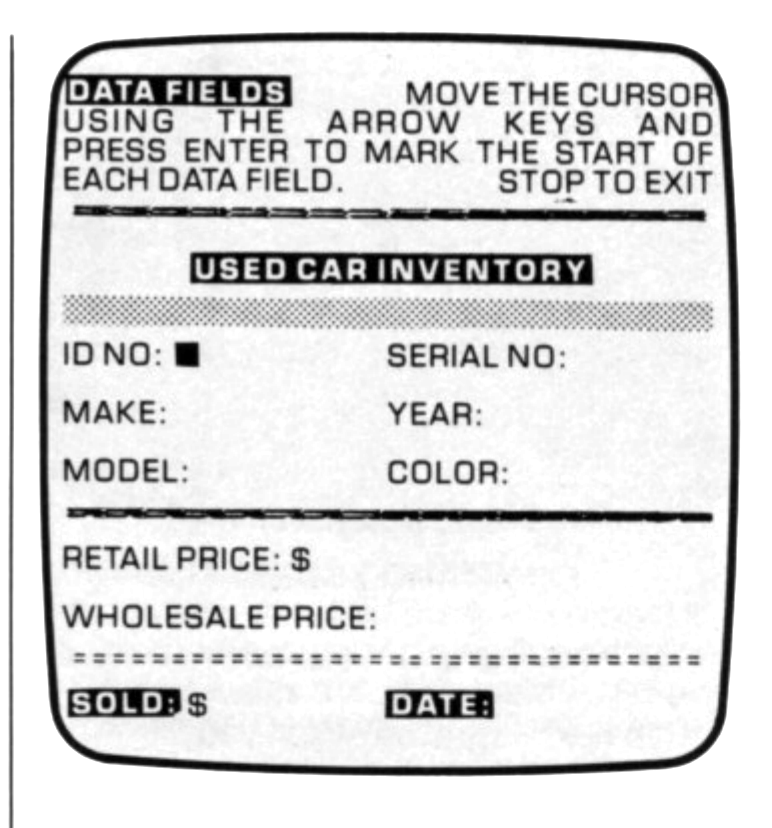
The program now displays the Data Field Screen. This screen permits you to define the size (number of characters) of each field. To accomplish this, use the Arrow keys (as previously described) to move the cursor to the location where the field is to begin; then, press the ENTER key. Upon completion of the entire screen, simultaneously press the SHIFT and the STOP (A) keys. This step is illustrated below.
One word of caution! Make absolutely certain that you establish each data field in exactly the same sequence that you want to enter the data when you create the record. (Your ingenious Editor managed to create a layout that started from the last field at the bottom of the screen, and wrapped around backwards — you don’t want to do this!)
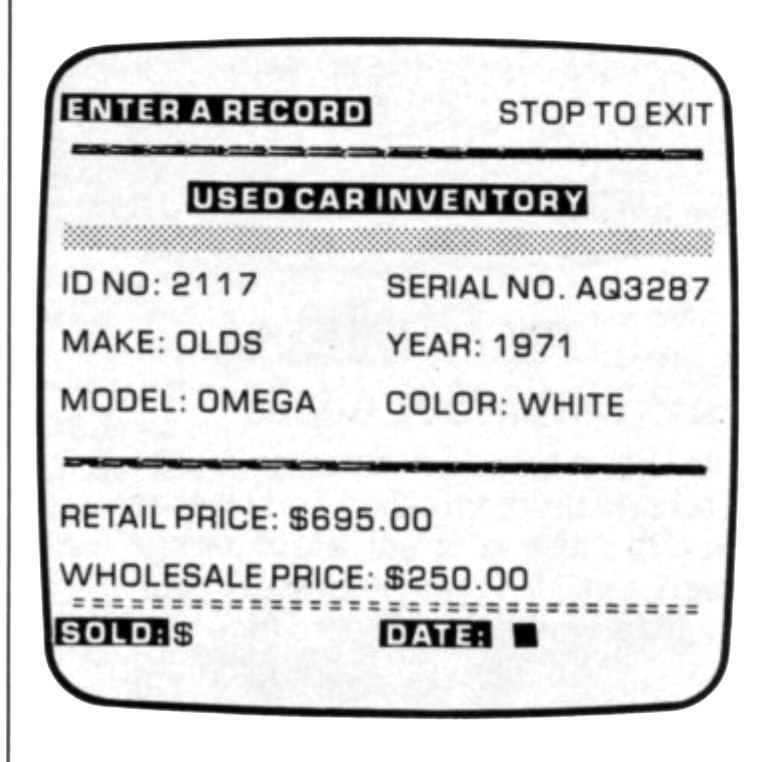
Next, enter the appropriate data to create the record. After entering data in the first field, press the ENTER key; the computer automatically advances to the next field. Should it be necessary to skip a particular field, simply press the ENTER key to do so (computer automatically enters all blanks into that field). The following illustration demonstrates a typical completed record.
Repeat the above step until all desired records have been entered. The Organizer can hold approximately 100 – records in its file. After entering the last record, simultaneously press the SHIFT and the STOP keys.
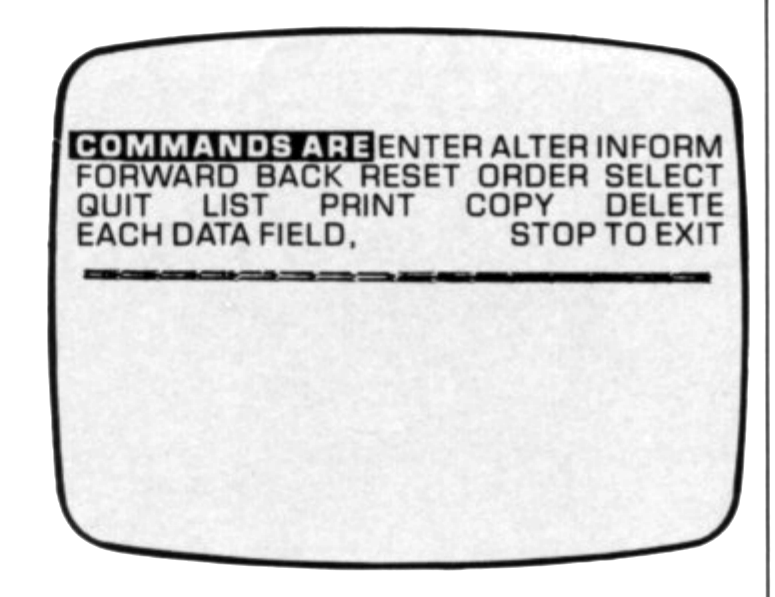
As illustrated below, the program now displays the Command screen. This permits you to select any Organizer option that you would like to use. Choose an option by typing the first letter of the command at the keyboard. Refer to the Organizer instructions for information pertaining to the operation of these options.
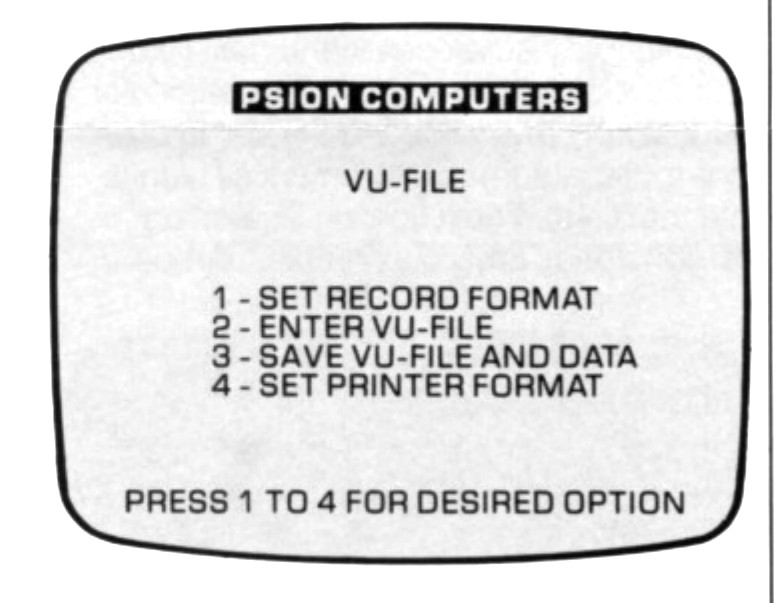
Finally, this software package is menu-driven. The Main Menu is displayed (refer to next illustration) when you select the QUIT (Q) option from the Command Screen. In addition, if you save the program and reload it, the Main Menu is displayed at the completion of the load.
AN EXTRA SPECIAL BONUS
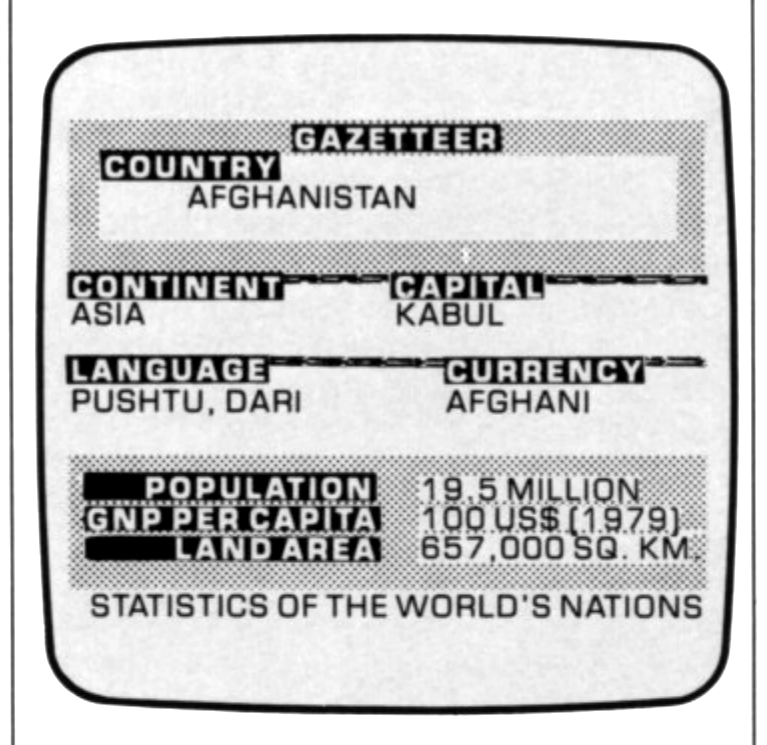
The Organizer has a bonus for you; it is a second program called the Gazetteer. The Gazetteer is, in fact, a fascinating geographical dictionary of every country in the world. Each record (one record = one country) contains information pertaining to that country — such as its capital, main language, national currency, and much, much more.
To load the Gazetteer, proceed as follows:
1. Load your Organizer in the usual manner. Upon completion of the load, stop your tape recorder.
2. Quit the Organizer program to return to the Main Menu.
3. At the Main Menu, simultaneously press the SHIFT and BREAK (space) keys.
4. At the keyboard type:
LOAD "GAZETTEER"5. Start your tape recorder by pressing the PLAY control. Then press the ENTER key.
6. When the Gazetteer is loaded, the Main Menu will appear on the screen. A new record can be created by selecting the first option from the menu; the second option can be used to display an individual record — one of which is illustrated below.
The options for the Gazetteer are those provided with the Organizer, refer to the instructions packaged within your software cassette.
TIMEX Software — gives you just a little extra.