A Major Software for SDOS
The feature program for the October 88 issue is “SDOS MAIL MERGE”, a major software that was designed specifically for this issue. There are several reasons why this software is special, and why almost all will surely want it. First, it is the ONLY “printing software” that will work AS IS with ANY Centronics printer, plus the TS-2040 printer. There is absolutely no monkeying around changing line numbers required to make it print with “brand y” printer. Second, it has many more features than just a Mailing List software. It is a “Dual Data Base” and printing software that can be used for many purposes. Third, the data products are simple Character arrays that can easily be transferred from diskette to other operating softwares, using the LOAD /”x”DATA x$() command.
The purpose for designing SDOS for SAFE DISK UP-DATE was two fold. 1. A good software of this kind was not available. 2. A vehicle was needed for illustrating the versatility of SDOS. I’ll tell you a little tale on myself to make a point. A year AFTER buying a new Edsel, I discovered that the seat would tilt forward, as well as adjusting fore and aft. We have that nice SDOS system which has many many capabilities to discover. Safe Disk Up-Date will try to reduce the discovery time. This software can unveil many tricks of SDOS programming. AND, it will definitely fill a gap in our TS-2068 software needs.
FUNCTIONS
There are two main data bases, both flexible to the user. The “main” data base is for listings of all types, “Mailing List” being the common usage. A “field” consists of 7 lines of data. The data lines are organized by “field numbers” as follows: 1. Company Name. 2. Department. 3. Street Address. 4. City, State, Zip. 5. First name. 6. Telephone Nbr. 7. Other data. The operator is prompted to “Input Number of Fields”. This allows from one to about 120 fields to be organized. Then prompts ask for inputs by line number. A listing can be discontinued at any time. Menu choice allows “adding to” the list at any field number. So, if one inputs 20 names and quits, the next entry can be started at “field 21” by prompt. Menu choices are: 1. Start New. 2. Correct. 3. ADD TO. 4. View. 5. Print/Labels/Envelopes. 6. SAVE. 7. DELETE Data. 8. Sort File. 9. LOAD File from Disk.
Ancillary functions are: 1. Centered Captions. 2. Page Management. 4. Directed Line Space. 5. Directed Page End. 6. Print a Centered Letterhead. 7. Print a Sign Off. 8. Single or Double line spacing. 9. Change Line Length. 10. Set Up a Outline. 11. Print Outline. The “Outline Functions” involve a second flexible data base to use for producing a outline with major and minor topics. Printing of the outline is in the outline format with selectable TAB for major topics. Minor topics are then indented five spaces.
OPERATION
Other uses of the mailing list data base are: Invoices, Inventory lists, Telephone lists, Magazine article indexes, or any data groups that one can set up in 7 line fields. The capacity of the mail/inventory data base is about 120 fields, as programmed. The fields may be dimensioned larger or smaller by simple line number adjustment (line nbr 2005).
Simplicity presonified! You just cannot get into trouble, and the software is crash proof. A mistake in operation will result in a “report code” stop. The cure is <GO TO FM> in every case. <GO TO FM> presents the Function Menu, and all program parameters are preserved. There is only one possible exception to this easy fix. If you have established a “outline data base” and then you select “Start New” at the Mail List Menu, it is possible to “over dimension” the mailing list data base by input of too large a number for “Number of Fields”. When a command is given to DIMENSION a character array, and insufficient memory exists, the vars file is corrupted which results in a CRASH. Now this little blurb on operation is indeed skimpy, but what can one say when words are not necessary? The Menus provide ample guidance with literal selection choices, thus no need to study instructions.
The Mail/Inventory List Printer: A prompt asks for “Input Number of Fields to print”. If printing labels or envelopes, “4” would be the correct input. Then “TAB, and Spaces between” are prompted. Inputs allow the printing to strike the labels or envelopes uniformly. The software differentiates between a three or four line address and spaces accordingly. Another prompt asks, “Twin Labels?”. If Yes, then your own return address label prints between each “out label”. When you want to print inventory or other data set-ups, an input of 7 will result in all 7 lines printing. Any number of fields 1-7 may be elected to print out.
Menu electives set up automatic SAVE or LOAD of the data bases OR a program that contains data. A prompt “Input File Number” makes each LOAD or SAVE discrete. LOAD selections result in the disk catalog presented on screen with a prompt “Input File Name”. The Load is automatic and the Function Menu appears. At that time all software functions are available.
PROGRAMMING
SDOS Mail Merge utilizes the <LET /P=0> or <LET /P=T> functions of SDOS to print with any Centronics printer or the TS-2040. Inputs allow the configuration of desired line length for any pre-set print style. The built in SDOS printer driver is used for printing. The software itself does not command the printer to change print styles. Style changes must be set manually with the printer’s dip switches, or by direct commands entered in the “K mode”. If the user desires software controlled printer style changes, it is practical to build a few more lines to do that. These custom printer control lines would be operated in the K mode by either <GO TO line> or <GO SUB line>.
“Now you see it, then you dont”. Saving memory is a necessity in order to create comprehensive software for the TS-2068. 38K of FREE poses limitations as to the number of functions that can be stuffed into a program. The Safe Disk Operating System (SDOS) provides some interesting memory conservation capabilities. We conserve a tremendous amount of FREE Ram by first creating the needed MENUS with line programming, then SAVING the Screens to diskette, and then DELETING the program lines. A 700 byte Menu is then presented when needed by this simple 10 byte command in a program line: <LOAD /”fm” SCREEN$>. Five such Menus are “canned in diskete” for a saving of about 3K of memory usage.
Other memory saving techniques are used as well. A variable file is first created in program lines. Then after the vars are imbedded in memory, the file is SAVED to disk with <SAVE /”mrg” VAL>. Then the lines of programming are deleted. Ordinarily the variables in a basic program are SAVED with the program and the vars ride in with the program when it is re-loaded. The vars file in diskette serves as back up if a program is inadvertantly CLEARED. Deleting the program lines saves nearly a K of memory. Most importantly, the vars file contains another memory saving device to be discussed next.
“Pseudo Hex” is a neat system that uses double character variables to represent numbers 1 through 20. Oo=0, oa=1, ob=2, oc=3, on through ou=20. Each usage of characters instead of numbers SAVES 5 bytes for numbers 1-9 or 6 bytes for numbers 10 through 20. There are 160 lines of programming and each will average 3 usages of numbers 1-20. The “pseudo hex” table saves between 4 and 5K of memory. The entire vars file is only 569 bytes only part of which is the pseudo hex table. Therefore some 4K of memory is saved this way. Pseudo hex lends itself to human memory. One can count on ones pinkies with it, using oa for one pinkie, ob for two, etc. Soon it becomes habit.
Another memory saving technique is the use of BOOLEAN expressions instead of IF THEN. Boolean expressions are chained in a line of programming, where IF THEN expressions would require single lines. For example, the two lines: 10 IF A=1 THEN GO TO 100. 20 IF A=2 THEN GO TO 200. A single line with BOOLEAN would be: 10 GO TO (A<ob)* VAL “100”+(A>oa)* VAL “200”. The program makes extensive use of Boolean. Some lines contain as many a 12 IF THEN logicals expressed in Boolean. Memory saving is tremendous, up to 70% as compared with conventional IF THEN expressions. The average savings realized is around 30% of total program length. In this program some 3K of memory usage is conserved.
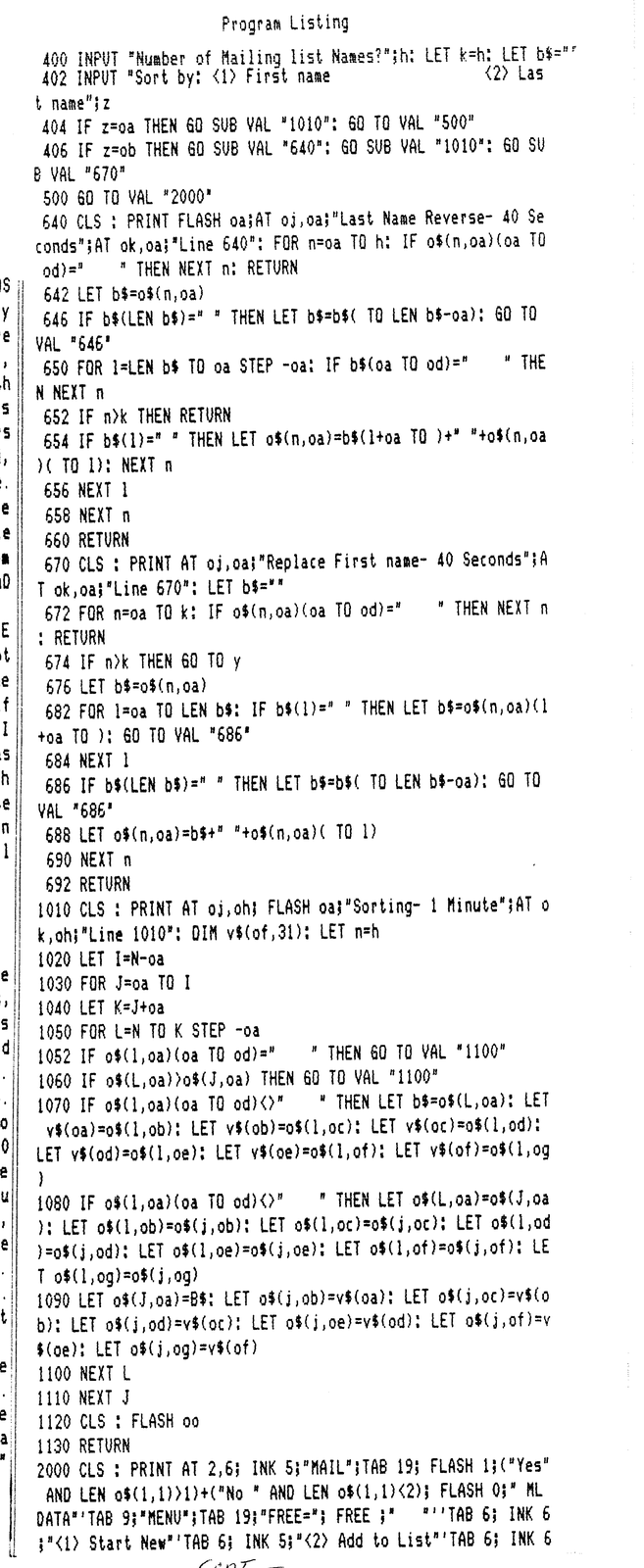
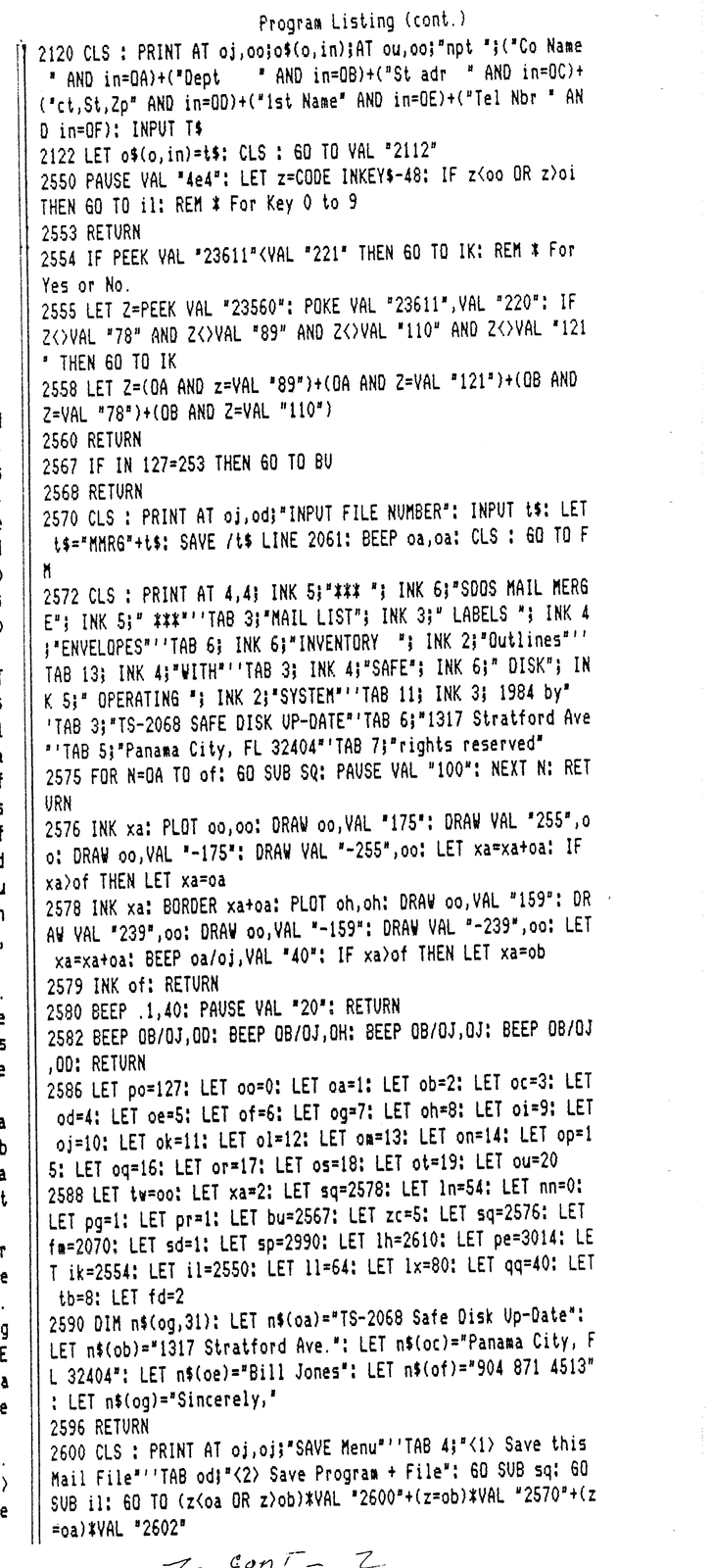
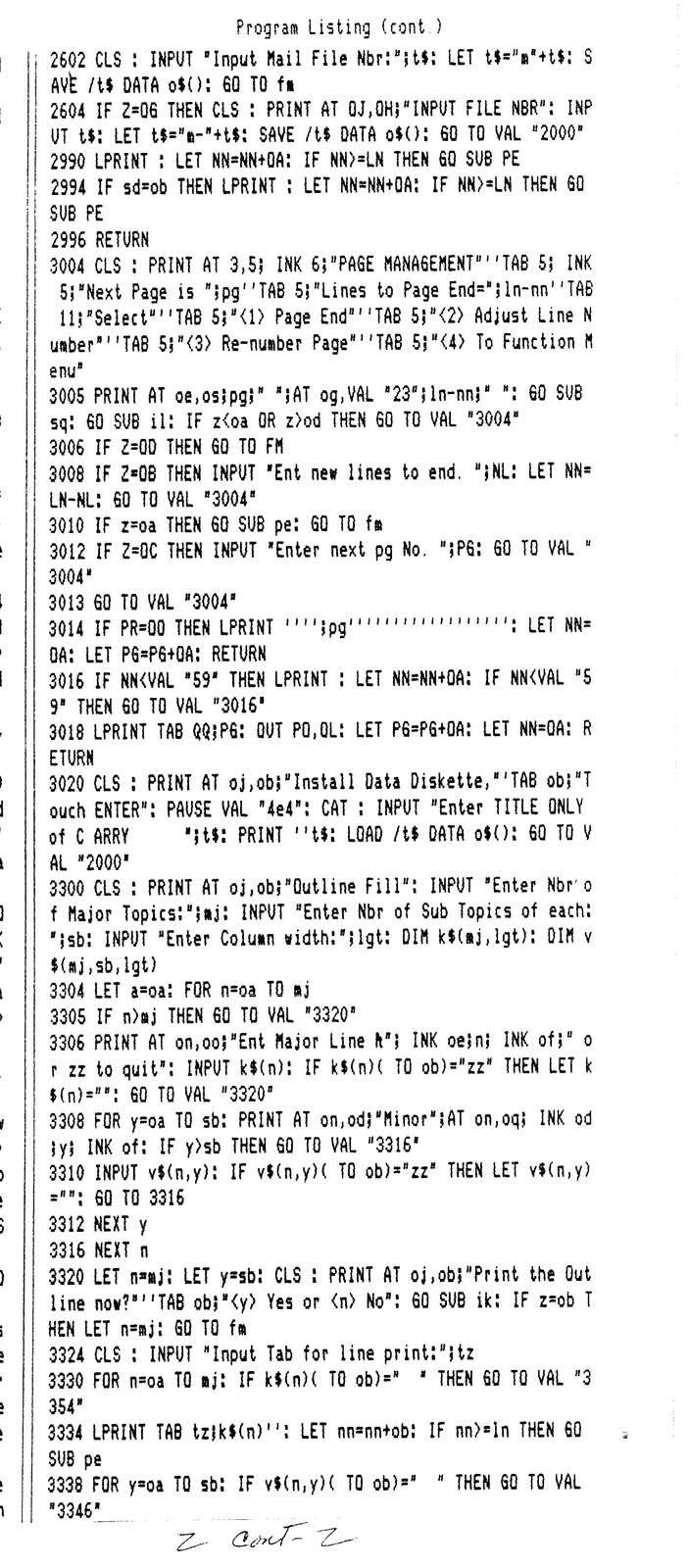
Combining the above techniques reduced the memory length of SDOS Mail Merge from around 21K to 9K total program length. These facts are given both to help you understand the cryptic programming and to whet appetites for a later article about Boolean Programming. When studying the programming, “think pseudo hex” to understand the “o vars”. Look at lines 2586 through 2590 for the variable tables. It will help to make a index card for reference to the variables. Later we will DELETE these lines and the vars will no longer be visable. While in that area, EDIT line 2590 and change the LETS for “N$()” to you own letterhead and sign off data.
The LLIST Instructions
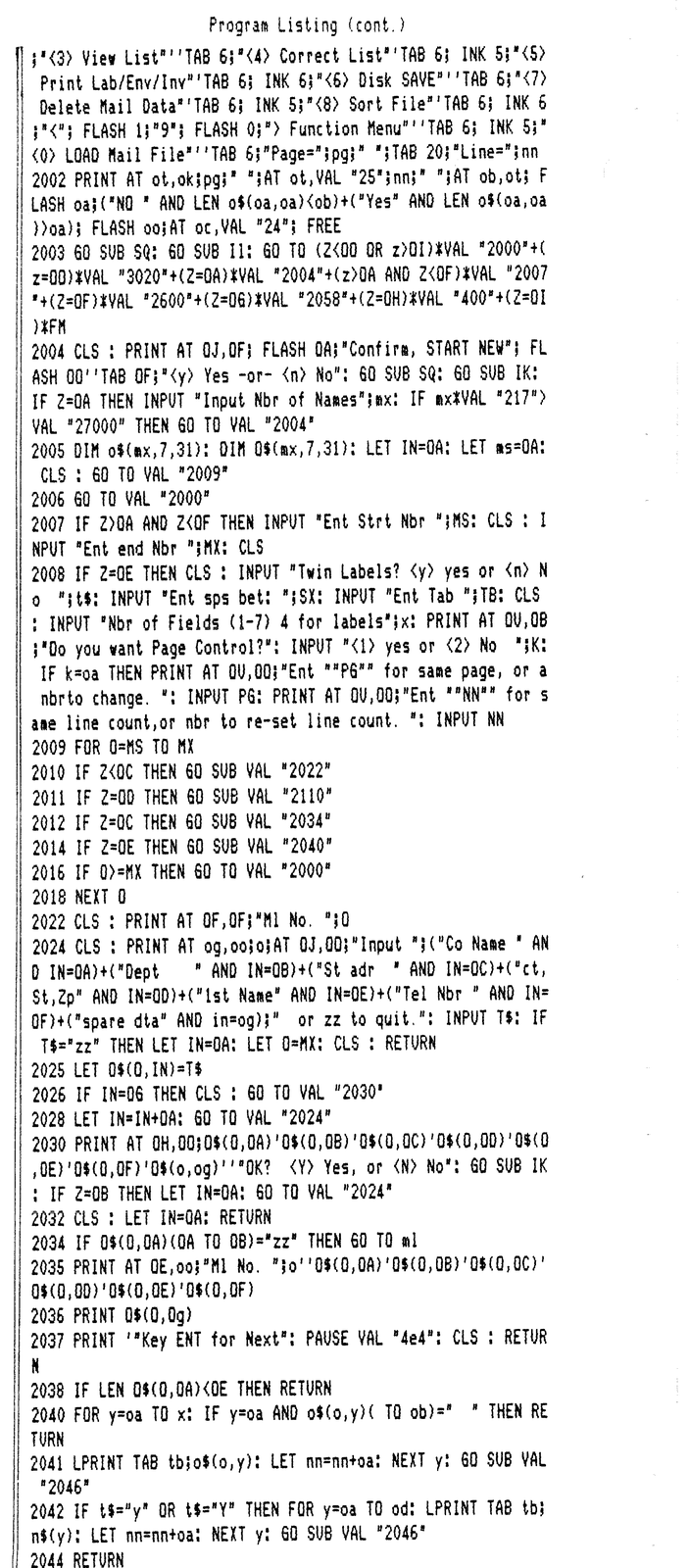
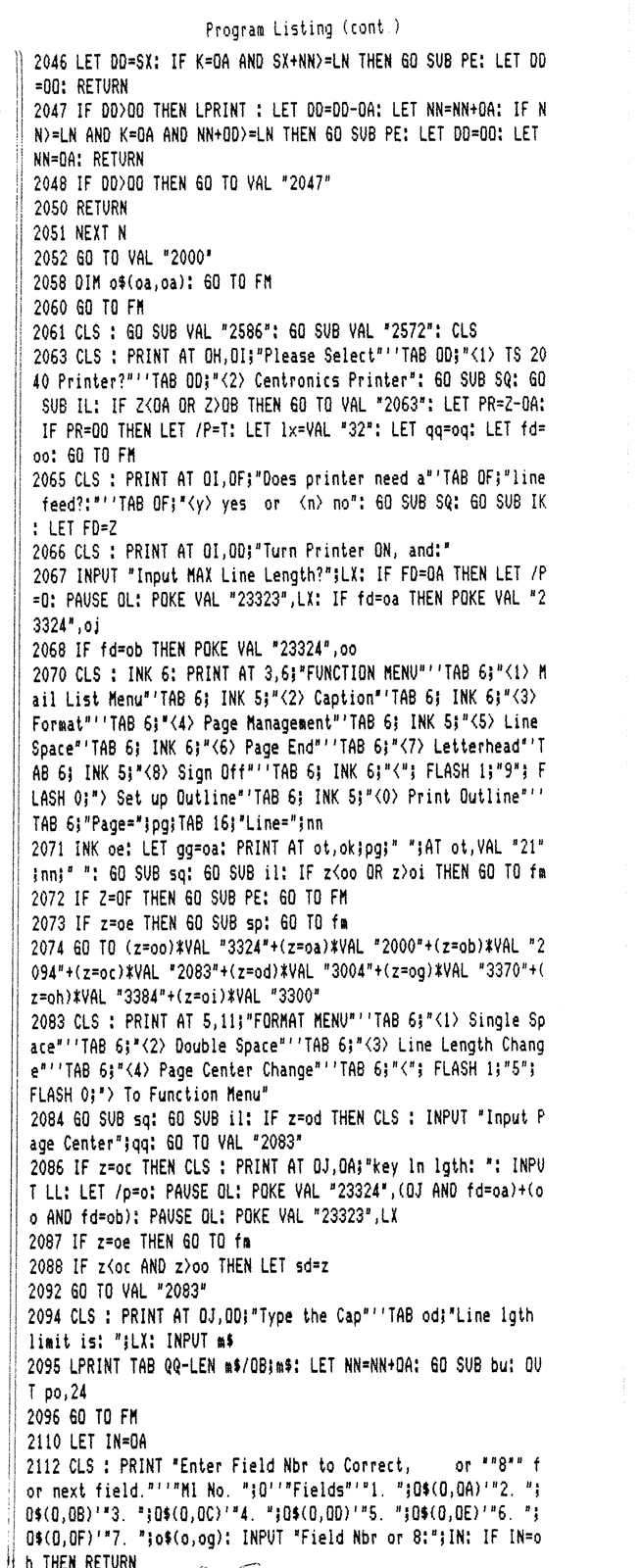
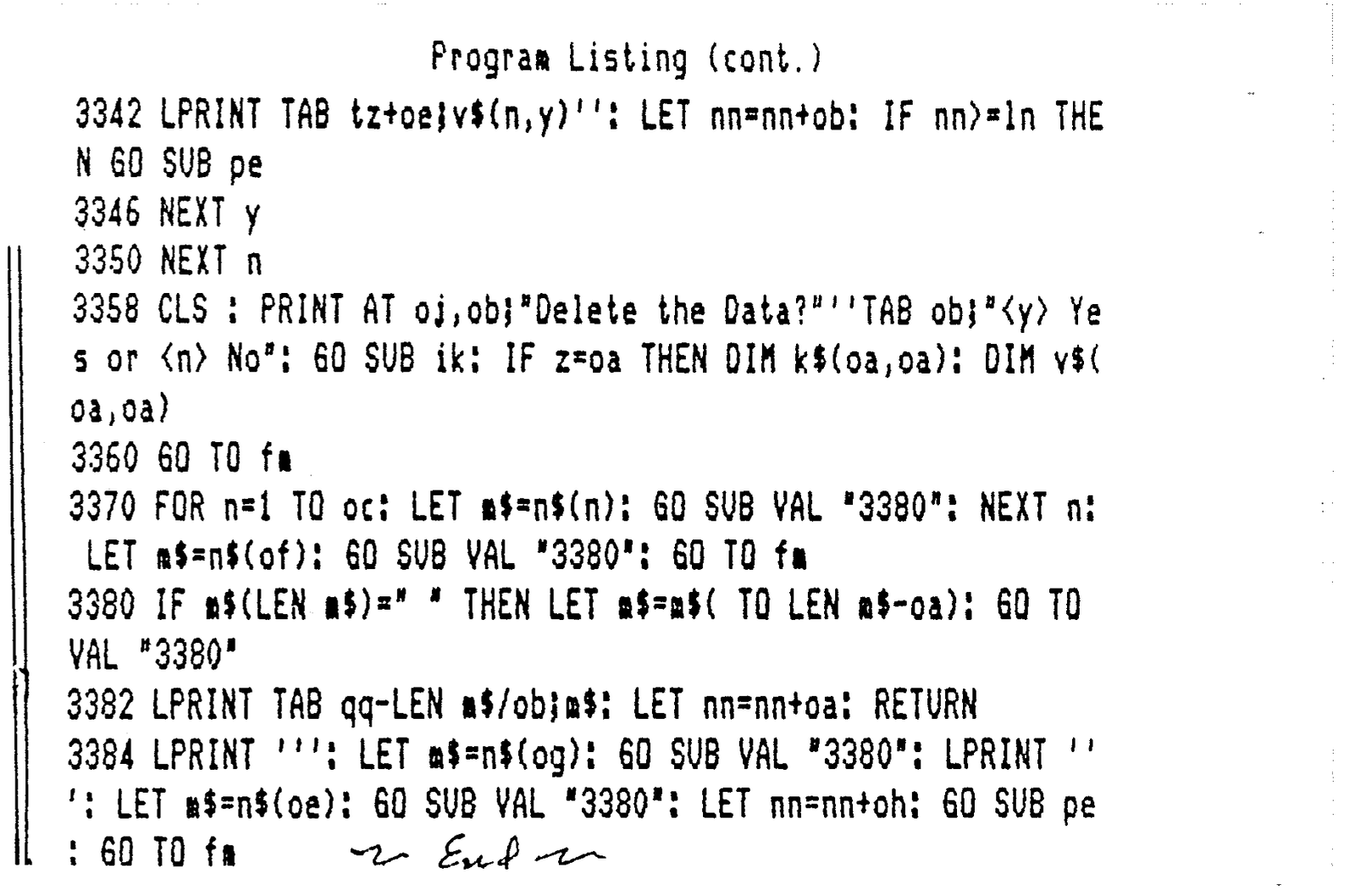
Key in the LLIST as given. This is a long and laborious task and nothing can be learned in the process that cannot be learned by studying the listing. It is likely that quite a number of key in errors will result which will have to be de-bugged. Why not save yourself the labor and order the “SDOS Issue Diskette” which is offered in the yellow pages of this issue. The diskette also contains the other utilities and program presented in this issue. At $16.95 it is quite a bargain. But whether you do or not, please follow through the logic of the following.
The program operates by <GO TO 2061>. The LLIST contains 5 programmed menus which will be SAVED as SCREEN$ files to diskette. Then the line numbers for the menus will be deleted and then each menu line will be re-created with a single <LOAD “name” SCREEN$> command. The Variable files of Lines 2586 through 2590 will be initialized, then the Vars will be SAVED to disk and those line numbers deleted. If you have completed the Key In project, Type <GO TO 2061> and follow the prompts until the FUNCTION MENU appears. If you cannot get that far, then you must re-check for key in errors in lines 2061, 2572, 2575, 2578,2579, 2578, 2579, 2586, 2588, 2590 and 2596. Continue by the following steps
1. Operate the program and exercise all menu functions. Create a mailing list, checking the menu selections of the Mailing list menu. Print the Mailing list in it’s various offered modes. Test the “Print Labels” mode. Use a spare diskette to test the SAVE and LOAD functions.
2. Check all selections of the Function Menu. Create a “Outline Data Base” of at least 2 Major Topics and 2 Sub topics of each. Then PRINT the Outline. Print a Caption, a Letterhead, a Sign Off, and test the page management functions.
3. If any of the above fail, a report code will appear at the bottom of screen. You must then check the line number reported, edit the line and correct the key in error.
4. We will now assume that SDOS MAIL MERGE is operating correctly in all modes. Now use a spare diskette and <SAVE /”mmrg”LINE 2097> ENTER. This is a temporary save, using a different title and is for SAFETY in case you lose the program for some reason.
5. <CLEAR> the computer and type <GO TO 2061> ENTER. Respond to prompts until the Function Menu appears. <BREAK> and type <PRINT FREE> ENTER. Make a note of the figure presented. Next, Install a freshly formatted diskette and type: <SAVE /”mrg” VAL> ENTER. This saves the variable file to diskette. We will call this your “program diskette” and it will be used for all SAVES from now on. Next, DELETE lines 2586, 2588, and 2590.
6. The Function Menu should still be still on screen. If not, type: <GO TO fm> ENTER. BREAK and type: <SAVE /”fm” SCREEN$> ENTER. The disk should run and the Function Menu will be saved to diskette. To make sure, type <LOAD /”fm” SCREEN$. The Function menu should boot in from disk. If not, repeat the procedure of item 6. Next, ENTER a NEW LINE 2070: <2070 LOAD /”fm” SCREEN$>. Enter the line, which will replace the existing line 2070. Type: <GO TO fm> ENTER. The Function menu should boot in from diskette.
7. Type <LIST 2083 ENTER>. BREAK and type <GO TO 2083 ENTER>. The Format Menu should appear. BREAK and type: <SAVE /”fo” SCREEN$ ENTER>. Then type <CLS> and <LOAD /”fo” SCREEN$>. The Format menu should boot in from diskette. If O.K. then type a new line 2083: <2083 LOAD /”fo” SCREEN$> Enter the line. Then type <GO TO 2083 ENTER>. Again, the format menu should boot in from disk.
8. BREAK and LIST line 2572. Then add Line 2574: <2574 STOP>. Type <GO TO 2572 ENTER>. The title screen should appear. Type <SAVE /”cpr” SCREEN$ ENTER>. Type <CLS> ENTER. Type <LOAD /”cpr” SCREEN$. The title screen should boot in. Type an new line 2572: <2572 LOAD /”cpr” SCREEN$. Type <CLS> <GO TO 2572 ENTER>. The title screen should boot in from disk. Now DELETE line 2574 which has the STOP.
9. Type <LIST 2000 ENTER>. BREAK and type <GO TO 2000 ENTER>. The Mail List menu should be on screen. BREAK and type <SAVE /”ml” SCREEN$ ENTER>. Type <CLS> <LOAD /”ml” SCREEN$ ENTER>. The Mail list menu should boot in. Type a new line 2000: <2000 LOAD /”ml” SCREEN$>.
10. Type: <LIST 3004 ENTER>. BREAK and type: <GO TO 3004 ENTER>. The Page Management Menu should appear. BREAK and type: <SAVE /”pg” SCREEN$>. Type <CLS> <LOAD /”pg” SCREEN$ ENTER>. The menu should boot in from disk. Type a new line 3004: <3004 LOAD /”pg” SCREEN$ ENTER>. Type <CLS> <GO TO 3004 ENTER>. The screen should boot in.
11. BREAK and type: <SAVE /”SDOS MMRG”LINE 2061 ENTER>. This SAVES the main program to disk.
12. Type: <CAT ENTER>. The disk directory should show the programs: <mrg VBLS> <fm BYTES> <fo BYTES> <cpr BYTES> <pg BYTES> <SDOS MMRG>. Now we will install the file zero auto load line. NEW the computer. Then type this one line program: <10 BORDER 0: PAPER 0: INK 6: CLS: LOAD /”SDOS MMRG”> ENTER. Next type a direct command: SAVE /0 ENTER. Next, type: <LOAD ENTER>. The main program should AUTO LOAD and operate.
13. BREAK and type: <PRINT FREE ENTER>. Compare this FREE report to the earlier FREE report and you will see the savings of memory resulting from the use of disk for major parts of the program. You may go ahead and operate the software now and benefit from the extra FREE memory to use for data storage.
The concepts of “Disk Dependant” software should now be clear. The disk drive, employed with ingenuity, can mitigate the basic deficiency of the TS-2068, namely “insufficient FREE memory” to use for programming. As the Oliger EPROM developments continue, Safe Disk Up-Date will explore each new capability in detail. In the meantime, follow on issues will discuss subscriber questions and comments about this softare “SDOS Mail Merge”. Feel free to write. A quick letter response will be sent and the questions comments will appear in the next issue.
Program Listing