
The Zebra Graphics tablet is a hardware and software combination using the popular Koala Pad graphics tablet–the same type used with Radio Shack, Apple, Commodore, and other computers.
The hardware portion consists of an I/O board with two integrated circuits, a few resistors and diodes, and two sockets into which the Koala Pad is plugged.
The Koala Pad has a pressure sensitive surface in the shape of your TV screen which can convert the touched portion of this surface to computerese which tells the 2068 where to draw on the TV screen. A special stylus comes with the pad, but any blunt object (even your finger) works well. Two buttons are also provided for screen control (such as writing or erasing). The drawing surface itself is 4.25″ by 4.25″. The entire unit is slightly larger than the 2040 printer.
The important part is the software. This is where the control comes in. The package is supplied with Zebra Painter. Zebra Painter takes the information sent from the Koala Pad and allows you to draw on the screen with the colors of your choosing. You can also give coordinates to make circles and straight lines.
Of the two control buttons, one is used for draw/erase, and the other is for command/select. You can choose what button does what with the “LEFTY” command. The screen commands are made by positioning the drawing stylus such that the corresponding pointer on the screen is over the command word and pressing the command /select button.
The keyboard commands are activated by positioning the screen pointer over the extreme right side of your menu and press the command/ select button. You are then prompted with “COMMAND?” So you type it in on the keyboard. Keyboard commands include: COPY screen to 2040 printer, CLS, WRITE text on screen, LEFTY button swap, STORE active screen to inactive screen, RESTR inactive screen to active screen, EXCHG inactive & active screens, SAVE screen to tape, and LOAD screen from tape.
You can choose any color INK, PAPER, and BORDER colors with screen commands and change them at any time. You have two sizes you can draw with, PEN is one dot wide and high and BRUSH is five dots wide and high. Precision drawing can be accomplished by setting two points and selecting the LINE command which draws a straight line between the two defined points. Circles can be drawn by defining the center and edge. Directional drawing can be vertical only, horizontal only, or both.
Zebra Painter worked well and was easy to use. I found that I had the best control over the drawing by pressing the pad with the stylus perpendicular to the pad and don’t rest any part of your hand on the surface (it may confuse it).
This article is really more of a software review of the different software packages available for the Zebra Graphics tablet. I also got Tech Draw and Zebra Circus Coloring Book. Tech-Draw is the program to get!
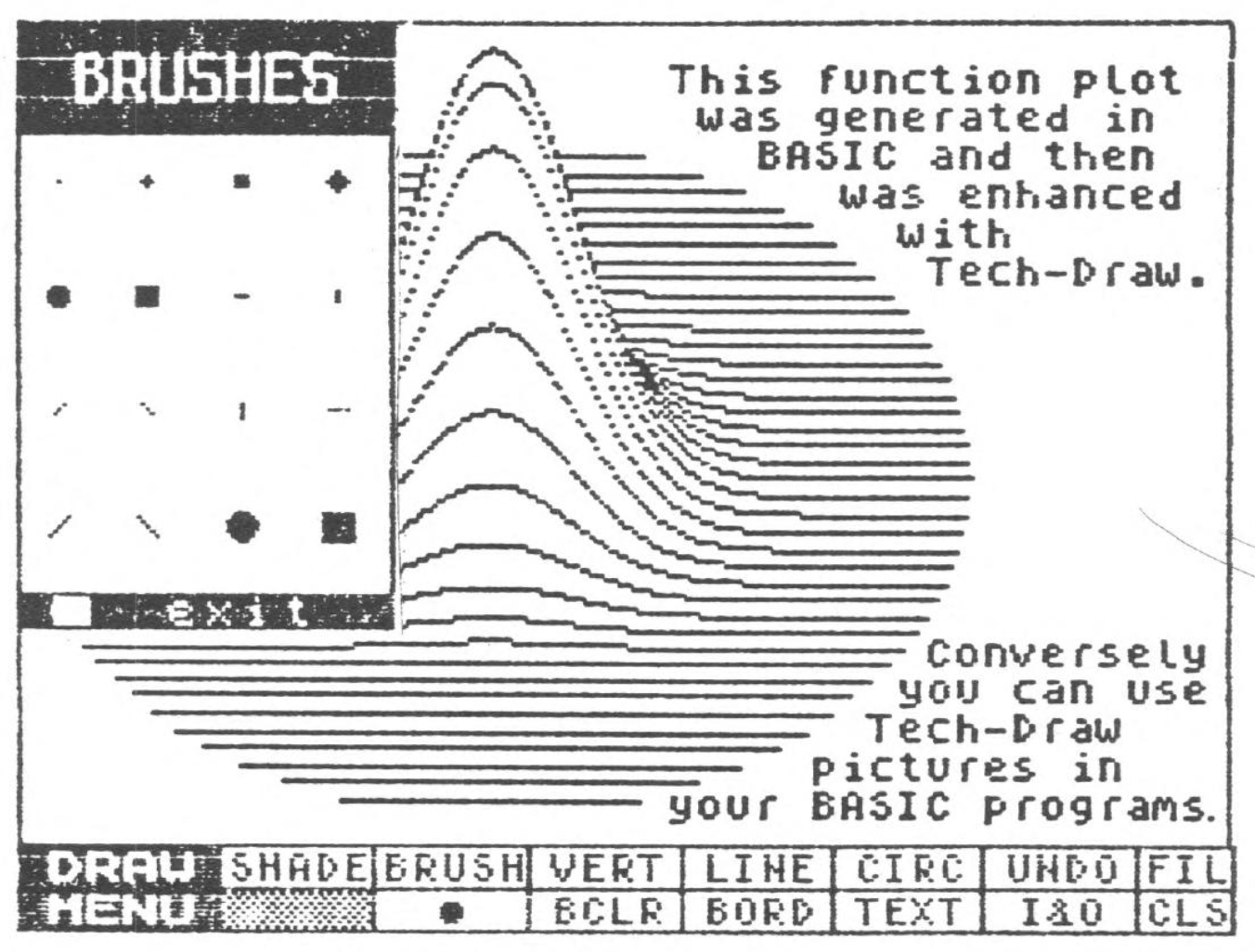
Tech-Draw was inspired by Apple’s MacPaint for the Macintosh computer. Like MacPaint, Tech-Draw works in black and white, so what you see on your TV screen is what you get on your printer. Tech-Draw provides up to 35 black and white shades and patterns which gives you resolution to one pixel.
Tech-Draw can be printed out on either a large sized printer (with Aerco or Tasword interface), or the TS-2040. Copies to the large printer can be screen size or turned sideways to fill up a whole 8 1/2 by 11 sheet of paper.
Pop-up menus are given when choosing shades and patterns or brush sizes and shapes (16). A FILL command is provided to fill in enclosed areas with the current shade or pattern. The shade and brush type can be changed at any time. Text can be mixed in with the graphics in three sizes and fonts (normal, italics, or bold). The current setting is always given in the sample box. The UNDO command allows you to undo the last segment done.
The different options are selected by positioning the pointer over your choice and pressing the select button. The commands listed in the ZebraPainter section are also available in Tech-Draw but everything except text is entered from the graphics tablet itself.
I found Tech-Draw more enjoyable to use than ZebraPainter. To satisfy my own curiosity, and to test out the features of Tech-Draw, I took a picture of a cat and cut it down to fit the face of the cat on the drawing surface and traced it onto the screen! It worked remarkably well, when you consider that I am no artist.
You can see from the sample that the face was widened when transferred over, but other than that, it traced very well. I used as many of the different paint brushes and shades as I could to aid me in enhancing the drawing.
The manual which comes with Tech Draw is very informative and contains many ideas and sample pictures. Uploading and downloading information for the modem is also given.
Tne third program I got for use with the graphics tablet was Circus Coloring Book which is just a fun program in which you go through and color in different pictures as you would with a regular coloring book.
At first I wasn’t all that excited about the system; I just didn’t see any use for it. But after I used Tech-Draw for awhile and made the cat and a few other drawings and discovered how easy it was to Graw, I became very impressed and can see all kinds of uses for it! Other than not having a full 2068 edge connector feedthrough, I have really no complaints.
Once again, this works the same no matter what computer its on. The software is what makes it work so well. The software (particularly Tech-Draw) is very professional and puts this system in the same league as say the MacPaint series for the Apple, Speaking of Apple, it would be nice if a mouse could be used with this interface as well. Rumor has it that one is being developed for the Spectrum in England.
Available from: 78-06 Jamaica Ave, (718) 296-2385. Zebra Systems, Inc., Woodhaven, NY 11421