
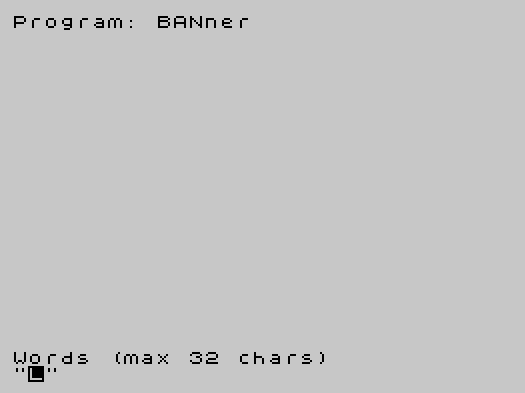
BANner is a banner-printing utility that renders user-entered text (up to 32 characters) in large dot-matrix style on a ZX Printer-compatible device (the 2040 printer). The program first displays the input string on screen using the built-in INVERSE attribute, then reads the pixel data back with POINT to reconstruct each character at a large scale. Two output sizes are supported, controlled by varying the STEP value in the horizontal scan loop (1 or 0.5), and the user can choose between normal and inverse rendering. Each screen pixel that is set triggers an LPRINT of a solid block graphic character, building up the enlarged banner row by row.
Program Structure
The program is short and linear, structured as a single input-process-output loop that returns to line 60 after each banner is printed. The main phases are:
- Introduction and prompt (lines
10–40) - User input: text string, size, and normal/inverse flag (lines
60–120) - Screen rendering and pixel scanning (lines
130–170) - Clear screen and loop back (line
180) - Auto-start SAVE (line
190)
Core Technique: Screen as Pixel Buffer
The central algorithm uses the display itself as an intermediate raster buffer. Line 130 prints the user’s string at a known screen position using PRINT AT b,b; INVERSE i; a$, which renders the text using the machine’s normal character generator. Lines 140–170 then scan the relevant pixel rows using POINT (x,y), and wherever a pixel is lit, an LPRINT statement outputs a solid block graphic (█) to the printer. This avoids any need for a custom font table or machine code character data — the ROM font does all the heavy lifting.
Size Control
Two output sizes are offered. The variable t (line 100) is set to 1 for size 1 or 0.5 for size 2. It is used as the STEP value in the outer FOR x loop (line 140), meaning size 2 samples every half-pixel column rather than every full pixel column, doubling the horizontal resolution of the output and producing wider characters. The STEP T on the inner loop (line 150, note the uppercase T — treated as the same variable t in BASIC) similarly doubles vertical sampling, though the Y scan range of 166 to 175 covers exactly 10 pixel rows, corresponding to the height of one character cell (8 pixels) plus a small margin.
Variable Usage
| Variable | Purpose |
|---|---|
a$ | The input text string |
l | Length of a$, used to bound the pixel scan |
s | User-selected size (1 or 2) |
t | Loop STEP derived from size |
i | Inverse flag (0 or 1) |
a | Printer row counter (LPRINT AT row) |
b | Printer column counter, also reused as row in PRINT AT |
x | Horizontal pixel scan index |
y | Vertical pixel scan index (screen Y coordinate) |
Notable Idioms and Techniques
- INKEY$ busy-wait: Line
40uses the standardIF INKEY$="" THEN GO TO 40idiom to pause until a key is pressed before clearing the screen and beginning input. - Validation loops: Lines
80–90and110–120use simple boundary checks withGO TOto re-prompt on invalid input, a common BASIC pattern. - LPRINT AT: The use of
LPRINT AT a,b;positions output on the printer with row and column coordinates, allowing the block graphics to be laid out spatially to form the enlarged characters. - SAVE LINE: Line
190saves the program withLINE 60, causing it to auto-run starting at the main input prompt rather than the introductory text, which would not re-display on a warm start.
Bugs and Anomalies
- Variable
bdual use: On line130,bis used as both the row and column argument ofPRINT AT b,bwhile simultaneously serving as the printer column counter. At that pointb=0, so the text is printed at row 0, column 0, which is correct. However, if the loop were re-entered without resettingbproperly, this could cause issues; fortunatelybis reset to0inside the inner loop. - Y scan range mismatch: The inner loop scans
yfrom166to175(10 rows). Standard character cells are 8 pixels tall, so 2 extra rows are scanned below each character row. For normal text this produces a blank line gap between banner rows, which may be intentional for readability but could add unwanted spacing. - STEP 0.5 behavior: Using a fractional STEP of
0.5withPOINT, which takes integer pixel coordinates, means the pixel coordinate passed alternates between whole and half values. The behavior ofPOINTwith non-integer arguments depends on the implementation’s rounding, which could produce slightly uneven sampling artifacts in size 2 mode. - 32-character limit vs. screen width: The screen is 32 characters wide, so a 32-character string will fill the entire row at
PRINT AT 0,0. This is correctly validated on line70.
Image Gallery
Source Code
  10 PRINT "This program is another banner  generator for the 2040 printer. It will print any character, andwill give you the choice of two sizes of output as well as nor- mal or inverse."
  20 PRINT '"Turn on your 2040 printer."
  30 PRINT ''"Press any key to begin......."
  40 IF INKEY$="" THEN GO TO 40
  50 CLS
  60 INPUT "Words (max 32 chars)",a$
  70 LET l= LEN (a$):IF l>32 THEN PRINT "sorry, too long":GO TO 60
  80 INPUT "Size (1 or 2)";s
  90 IF s<1 OR s>2 THEN GO TO 80
 100 LET t=1:IF s=2 THEN LET t=.5
 110 INPUT "0=normal and 1=inverse";i
 120 IF i<0 OR i>1 THEN GO TO 110
 130 LET a=2:LET b=0:PRINT AT b,b; INVERSE i;a$
 140 FOR x=0 TO (l*8)-1 STEP t
 150 FOR Y=166 TO 175 STEP T
 160 IF POINT (x,y)=1 THEN LPRINT AT a,b;"█";
 170 LET b=b+1:NEXT y:LET b=0:LPRINT :LET a=a+1:NEXT x
 180 CLS :GO TO 60
 190 SAVE "BANNER" LINE 60
Note: Type-in program listings on this website use ZMAKEBAS notation for graphics characters.