
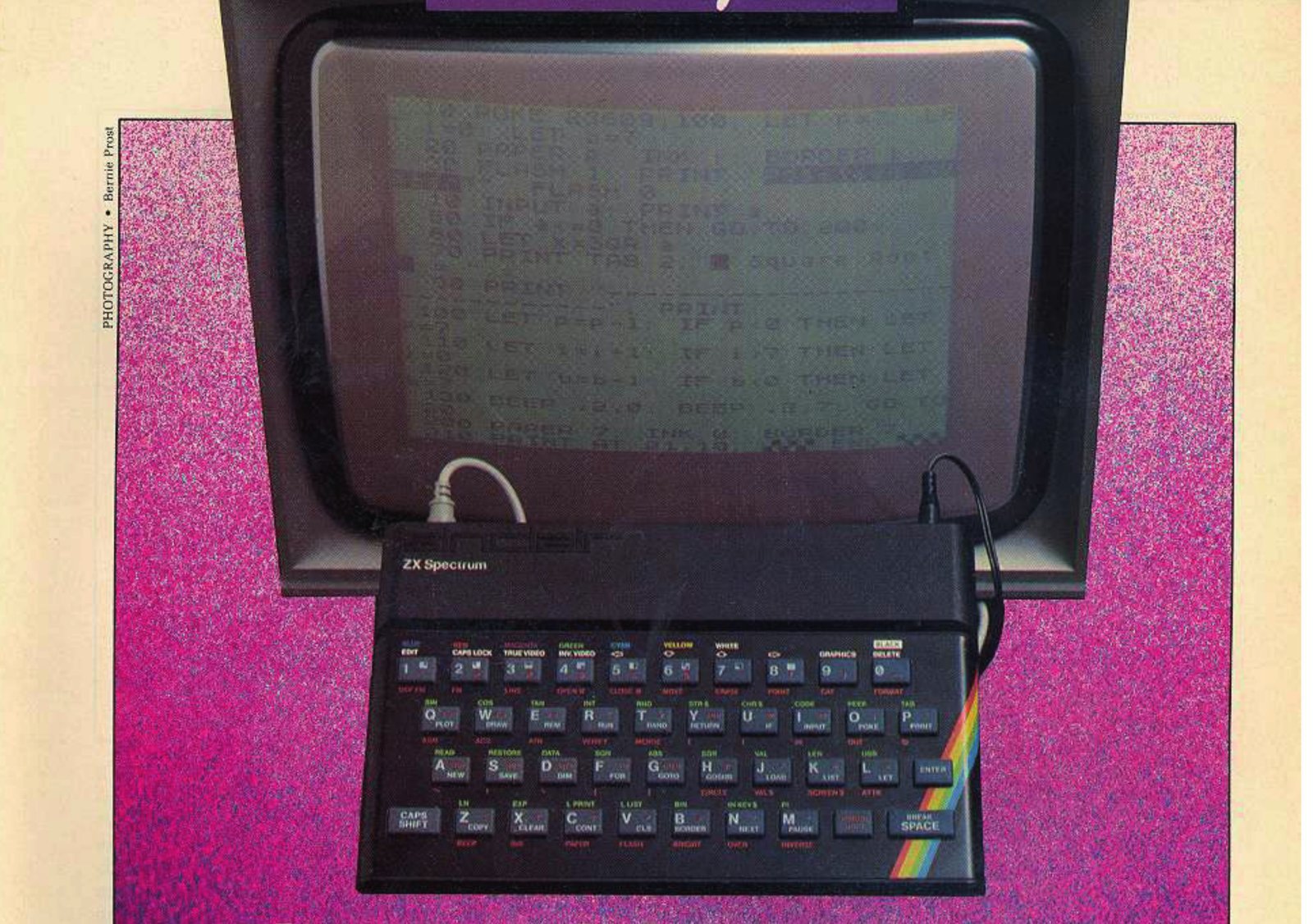
IF YOU own a T/S1000,ZX81, you know how puzzling the keyboard is until you get used to it. Many functions take two keys or a special sequence of keys. Well, the Sinclair Spectrum — the big brother to the T/S1000,ZX81 — has a keyboard with the same number of keys but more than 30 additional commands and statements. Among this extraordinary computer’s additional features are color, sound, lower-case characters, 16 or 48K RAM built in, special graphics and flashing characters. If you like the T/S1000,ZX81, you’ll absolutely love the Spectrum, T/S2000 — once you figure out the keyboard!
Although the Sinclair Spectrum is referred to in this article, the Timex Sinclair 2000 (due to be released soon) is expected to have a very similar keyboard and the same BASIC language — so, if you don’t have a Spectrum, hang onto this article until you get your T/S2000!
The first thing you notice about it is that it has keys that push down but are not full-stroke like a regular typewriter’s. The keys feel odd to the touch since they have a gray rubber coating and can rock when pressed. Their rectangular shape and rounded tops have inspired people to call them ‘chiclet keys’.
Most keys have at least three legends on them in white and red, with additional legends on the keyboard surface in white, green or red above and below each key. There are also additional color legends above eight keys on the top row. The result is a great mystery to the uninitiated but really very simple for those “in the know.” With the information in this article, you’ll have the keyboard under control. However, using the keyboard is really a lot simpler than explaining how to use it . . . so this article may appear more complex than it really is.
I’LL use a simple program as a training device to familiarize you with the keyboard. This program (see the listing) does not use all of the keyboard legends, but does use most of the combinations you’ll encounter when you enter your own programs. The keystrokes to enter this program into a Spectrum will be detailed — and you’ll end up being able to determine the square root of a number, with color and sound illustrating some of the programming potential. As an added bonus, I’ll explain what each line in the program does, so you’ll learn a little “Clive BASIC” programming as well.
  10 POKE 23609,100: LET p=7: LET i=0: LET b=7
  20 PAPER p: INK i: BORDER b
  30 FLASH 1: PRINT "[illegible]?": FLASH 0
  40 INPUT a: PRINT a
  50 IF a<=0 THEN GO TO 200
  60 LET x=SQR a
  70 PRINT TAB 2;"█ Square Root █ = ";x
  80 PRINT "--------------------------------": PRINT
 100 LET p=p-1: IF p<0 THEN LET p=7
 110 LET i=i+1: IF i>7 THEN LET i=0
 120 LET b=b-1: IF b<0 THEN LET b=7
 130 BEEP .2,0: BEEP .2,7: GO TO 20
 200 PAPER 7: INK 0: BORDER 7
 210 PRINT AT 21,10;"▞▞▞ END ▚▚▚[illegible]
The Cursor
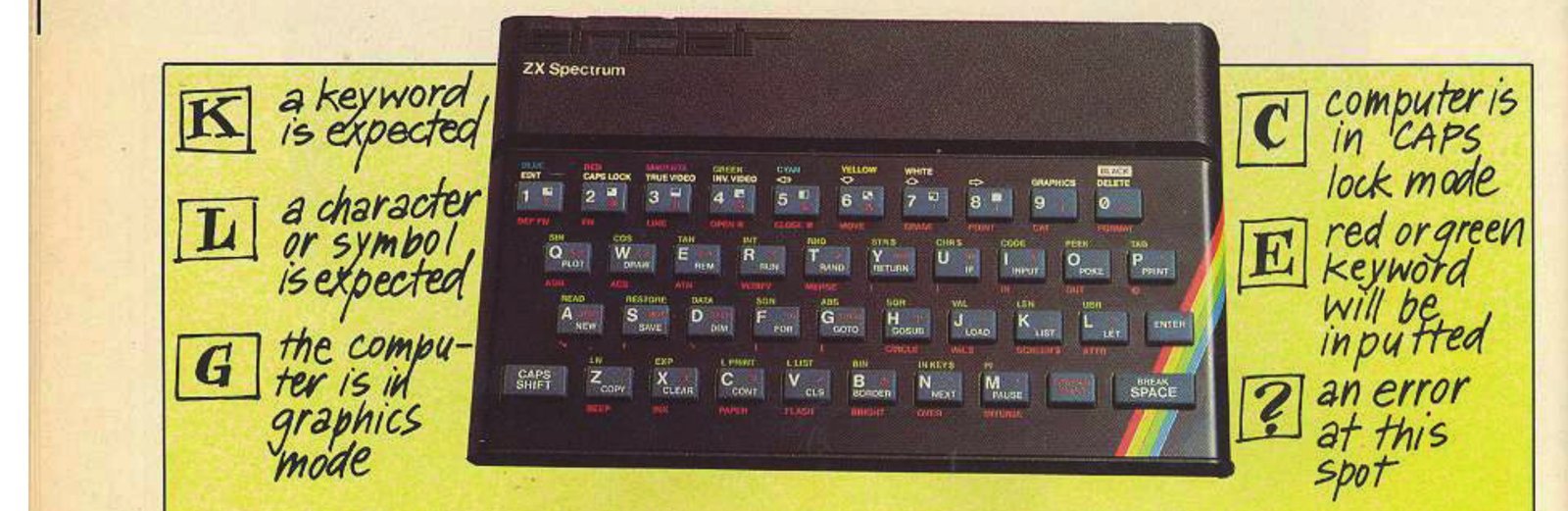
The cursor is a single character in blinking video on your screen at the location of your next entry, usually somewhere along the bottom two screen lines. The Spectrum has six different cursors to tell you the computer “mode.” The K-cursor tells you a “keyword” is expected next. A keyword is a word or abbreviation printed in white or red on the keys. The L-cursor tells you that a character or symbol is expected next. These will be capital letters if you hold the CAPS SHIFT key down or various symbols and punctuation (printed in red on the keys) if you hold the SYMBOL SHIFT key down. The C-cursor tells you the computer is in the CAPS lock mode — you get there by holding down the CAPS SHIFT key and pressing the 2 key (CAPS LOCK) once. The E-cursor indicates the next entry will be a keyword printed above the keys in green (unshifted) or below the keys in red (symbol-shifted). The G-cursor tells you the computer is in the graphic mode to access the symbols on keys 1 thru 8. The ?-cursor appears whenever you make an error in a program line entry and press ENTER. The ?-cursor pops in right where the error is! The line will not be accepted into the program until this error is eliminated, or the line deleted.
Confused? Sure you are. But it will clear up as we enter the program. Before we go any further, however, you should know how to delete keyboard entry errors. Easy. Just hold down the CAPS SHIFT key and press the 0 key in the upper right hand corner of the keyboard. Every keypress of the 0 will backspace the cursor, deleting that character. Also, you must adjust to the fact that there are two shift keys on the Spectrum: CAPS SHIFT is used to access the white functions and arrows shown directly above the top row of keys, SYMBOL SHIFT, to access the red keywords and symbols on the keys. When both shift keys are pressed together, the E-cursor is generated and the next keystroke is the green function above the keys or, if the SYMBOL SHIFT key is also held down, the red function shown below the keys.
Let’s Get Squared Away!
Let’s enter the Square Root program into the Spectrum. Get the computer up and running following the instructions in the manual. The video screen should display only the Sinclair copyright message on the bottom line. Adjust the brightness, contrast and tuning for the sharpest picture. If you’re using a Spectrum on an American or Canadian black and white television, you probably will also have to adjust the vertical hold. (The Spectrum is made in the United Kingdom, where the PAL color television signal is different from and incompatible with the American and Canadian NTSC color signal, so a Spectrum will not produce color on a North American set. The T/S2000, however, will be redesigned for American and Canadian color television.)
Follow me as we enter the program line-by-line, keystroke by keystroke:
Line 10: Press the 1 key, then the 0 key. Notice how the K-cursor has appeared, and moves to the right with each keystroke. Now press the letter O key, which has the white word POKE printed on it. This keyword now appears on the screen, with a space both before and after it, and the cursor changes to an L, since letters or numbers usually follow a keyword. Next press the 2, then the 3, 6, 0 and 9 keys. As you press each the number appears on the screen and the cursor moves to the right. Next you need to enter a comma. If you check the N key, you’ll find a comma in red. Since it’s in red on a key, you need to press SYMBOL SHIFT to access it. So hold down the SYMBOL SHIFT and press the N key and the comma magically appears on the screen. Now press 1 and 0 and 0 in sequence and you have the first part of line 10. What does POKE 23609,100 do? On the Spectrum, it provides a short audio tone when you press a key. Want to prove it? Hit ENTER and line 10 (as much as you’ve done so far) will appear at the top of the screen. Now press the R key and the word RUN will appear at the lower left corner of your display. Press ENTER and you have run your first program! What did it do? It entered the POKE into the computer memory — and from now on when you press a key it will beep when the computer acknowledges receiving it.
Look at the screen. Blank, except for 0 OK, 10:1 at the bottom. That means no errors, program okay, and last statement executed was the first statement in line 10. That’s called a ‘report,’ and the Spectrum gives very meaningful reports. Now what? Well, you should continue line 10, since there’s more to enter. Since line 10 was the last line entered or executed, it is the “current line,” and you can EDIT it by simply holding down CAPS SHIFT and pressing 1 (which has the white word EDIT above it). Line 10 appears at the bottom of the screen, with a blinking K-cursor following the line number. Since you want to add more characters at the end of this line, you must move the cursor to the end of the line. Do this by holding down CAPS SHIFT and pressing the 8 key (which has a white right-arrow above it). The K-cursor changes to an L-cursor and moves to the right as you press the 8 key. Hear the beep? Also, notice how the cursor jumps over the whole word POKE since it is a keyword? Move the cursor back and forth along the line with the left-arrow (5) and right-arrow (8) keys, remembering to hold down CAPS SHIFT. Finally, move the L-cursor to the right end of the line. Press SYMBOL SHIFT and the Z key and you’ll get a colon (:). This tells the computer you want another statement on that line. The cursor, knowing that a keyword must be next, has changed to a K. How’s that for smart?
Now press the L key for LET, then the P key. Hmmmm. That’s a small p — lower-case. Don’t worry about it. This is a “variable,” and the Spectrum does not distinguish between upper case and lower case variables. Now press SYMBOL SHIFT and L for the equals sign, then the 7 key. Now SYMBOL SHIFT and Z for the colon, then SYMBOL SHIFT and L for LET, followed by I, SYMBOL SHIFT and L, then 0. Similarly, program :LET b = 7 into line 10, then press ENTER.
Keystroke Notation
Whew! All that for one line? Seems tough at first. I’ll summarize by using some simple notation. C-SHIFT will mean CAPS SHIFT, S-SHIFT will mean SYMBOL SHIFT. I’ll use commas to separate keystrokes. Line 10, using this notation, would be as follows:
1, 0, 0, 2, 3, 6, 0, 9, S-SHIFT N, 1, 0, 0, S-SHIFT Z, L, P, S-SHIFT L, 7, S-SHIFT Z, L, I, S-SHIFT L, 0, S-SHIFT Z, L, B, S-SHIFT L, 7, ENTER
You’ve entered four statements on one line, incidentally, something that would take four program lines on a T/S1000,ZX81. You have POKEd for keyboard feedback and set variables p, i and b to initial values.
Line 20: Press 2, then 0. Now we get into the use of the E-cursor. Hold down both C-SHIFT and S-SHIFT and the K-cursor changes to an E-cursor — for one keystroke only. Every time you want an E-cursor you must press both shift keys. If you get an E-cursor by mistake, press both shift keys and it will toggle back to whatever cursor it was. Okay, so now you have the E-cursor blinking at you, and you want the word PAPER, which is printed in red under the C key. Red — hmmmm. Must mean the S-SHIFT key is needed. Right! Hold down S-SHIFT, press C and you’ve got PAPER on the screen. Now press P. Here are the rest of the keystrokes for line 20:
S-SHIFT Z, C-SHIFT S-SHIFT, S-SHIFT X, I, S-SHIFT Z, B, B, ENTER.
This line establishes the initial colors for the paper (user screen area), ink (printing) and border (outside user screen area) with the values from line 10. As shown on the keyboard, 0 is black, 7 is white.
Line 30: This line will print a flashing “prompt” on the screen when the program is run. The prompt is in “inverse video.” Start with: 3, 0, C-SHIFT S-SHIFT, S-SHIFT V, 1, S-SHIFT Z, P, S-SHIFT P.
Now you need to get into inverse video. Look above key 4. There it is in white. Hold down the C-SHIFT key and press 4 and you are now in inverse video, even though nothing seems to have happened. To get back to true video, you’ll use C-SHIFT 3 later on. Here’s the rest of line 30:
C-SHIFT P, O, S, I, T, I, V, E, SPACE, C-SHIFT N, U, M, B, E, R, C-SHIFT 3, S-SHIFT C, S-SHIFT P, S-SHIFT Z, C-SHIFT S-SHIFT, S-SHIFT V, 0, ENTER.
Line 40: This line allows you, when the program is running, to enter any positive number from the keyboard. Nothing really new here. The keystrokes are:
4, 0, I, A, S-SHIFT Z, P, A.
Line 50: This line lets you end the program by entering 0 or a negative number. The funny left-arrowhead-equals sign means “less than or equal to.” The keystrokes are:
5, 0, U, A, S-SHIFT Q, 0, S-SHIFT G, G, 2, 0, 0, ENTER.
Line 60: This line does the calculation of the square root.
6, 0, L, X, S-SHIFT L, C-SHIFT S-SHIFT, H, A, ENTER.
Note that the E-cursor is used to access the SQR above the H key, but not shifted since it’s in green above the key.
Line 70: This line prints the value of the square root, and uses the graphic square that appears on the 8 key. The keystrokes for the beginning of the line are straightforward:
7, 0, P, C-SHIFT S-SHIFT, P, 2, S-SHIFT 0, S-SHIFT P.
But how do you get the graphic square on key 8? The word GRAPHICS is in white above the 9 key, so hold down C-SHIFT and press 9. The G-cursor appears. Now hold down S-SHIFT and press the 8 key and there you have it! But now you need to leave the graphics mode. Hold down C-SHIFT and press 9. The cursor returns to an L. Here’s the rest of the line:
SPACE, C-SHIFT S, Q, U, A, R, E, SPACE, C-SHIFT R, O, O, T, SPACE, C-SHIFT 9, S-SHIFT 8, C-SHIFT 9, SPACE, S-SHIFT L, SPACE, S-SHIFT P, S-SHIFT O, X, ENTER.
Line 80: This prints a dotted line across the screen, then a blank line. The keystrokes:
8, 0, P, S-SHIFT P, S-SHIFT J (32 times), S-SHIFT P, S-SHIFT Z, P, ENTER.
Note: With the Spectrum you can hold down any key and it will repeat after a short delay. Try doing this to enter the 32 dashes.
Modular Programming
Line 100: What happened to line 90? There isn’t any. You don’t need to use all line numbers, or any special interval between them. “Modular programming” uses numbers in blocks. In this case lines 10 through 80 have really executed the program. Now the program will change the colors and do it again. This line decrements (decreases the value of) variable P by 1 and checks to see if it has gone below zero. If it has, it resets it to 7. Here it is:
1, 0, 0, L, P, S-SHIFT L, P, S-SHIFT J, 1, S-SHIFT Z, U, P, S-SHIFT R, 0, S-SHIFT G, L, P, S-SHIFT L, 7.
Lines 110 and 120 do the same sort of thing for variables I and B. The combination of lines 100 thru 120 changes the PAPER, INK and BORDER for each square root calculation. The keystrokes are so similar to line 110 it’s not necessary to repeat them.
Line 130: This line produces a two-tone sound at the end of the calculation and before the colors change. Keystrokes are:
1, 3, 0, C-SHIFT S-SHIFT, S-SHIFT Z, S-SHIFT M, 2, S-SHIFT N, 0, S-SHIFT Z, C-SHIFT S-SHIFT, S-SHIFT Z, S-SHIFT M, 2, S-SHIFT N, 7, S-SHIFT Z, G, 2, 0, ENTER.
The GO TO 20 returns the program for color changes and another calculation.
Line 200: This line returns the colors to normal (PAPER white, INK black, BORDER white) before ending the program. You should be able to enter this by now without individual keystroke notation.
Line 210: This line ends the program by printing END, with graphic characters, on the last user screen line. The only tricky part here is that the same graphic is used (key 6) both before and after the word END — but if you look closely you’ll see that they are the reverse of each other. This is done with the INV.VIDEO command above key 4. That should be all the hint you need to enter this line for your “final exam.”
ONCE you’ve entered the entire program, RUN it and watch the screen colors change with each calculation. If it doesn’t run properly, check each program line very carefully with LIST (on the K key). “Debugging” is great for learning programming . . . and will keep you humble!
Note: Type-in program listings on this website use ZMAKEBAS notation for graphics characters.