
I have owned and programed on the TS2068 since its introduction. But finally in the past month I have converted to disk drive. I obtained not one, but TWO disk interfaces – OLIGER and LARKEN. Until now I have relied on my lowly cassette recorder.
To avoid “technology shock”, I decided to concentrate on learning one T/S DOS at a time. I flipped a coin, and the Oliger system won out.
I’m glad that I did start with the Oliger. The DOS is a natural extension to cassette I/O commands. Simply add a “/” between the command and the filename (ex: LOAD/ “abc”), and the disk interface does the rest. (By the way, the most recent version of Oliger DOS is 2.55)
Instead of waiting 2 – 3 minutes for a program to load, I’m ready to work in 2 – 3 seconds! The Oliger also auto-verifys all SAVEs, so I save even more time!
For a New Year’s resolution, I have set a deadline of December 31, 1991 to have all of my software converted to disk. To make the goal even harder to attain, I am only going to use the NMI save when there is no way to break and modify a program.
To start my assult on this challange, I decided to convert all of the programs (except for the Larken utilities) on my BYTE POWER magazine tapes to Oliger format. I also converted their Desktop Publishing package, PRINT FACTORY.
I felt the best way to collect these programs on disk would be by catagory, such as Arcade Games, Graphics, Buisness, etc. With 12 tapes of material to work with (not including PRINT FACTORY), I knew I would end up with full disks for each catagory.
I knew that the Oliger DOS reserves Track 0 for the disk catalog, as well as room to include an Auto-Start menu program. I also wanted my converted disks to run and look as professional as possible. So I devised a very simple, yet good-looking menu system.
The simplicity comes from using INKEY$ to facilitate program selection. It allows almost instantaneous loading of a program, while providing efficient error-trapping.
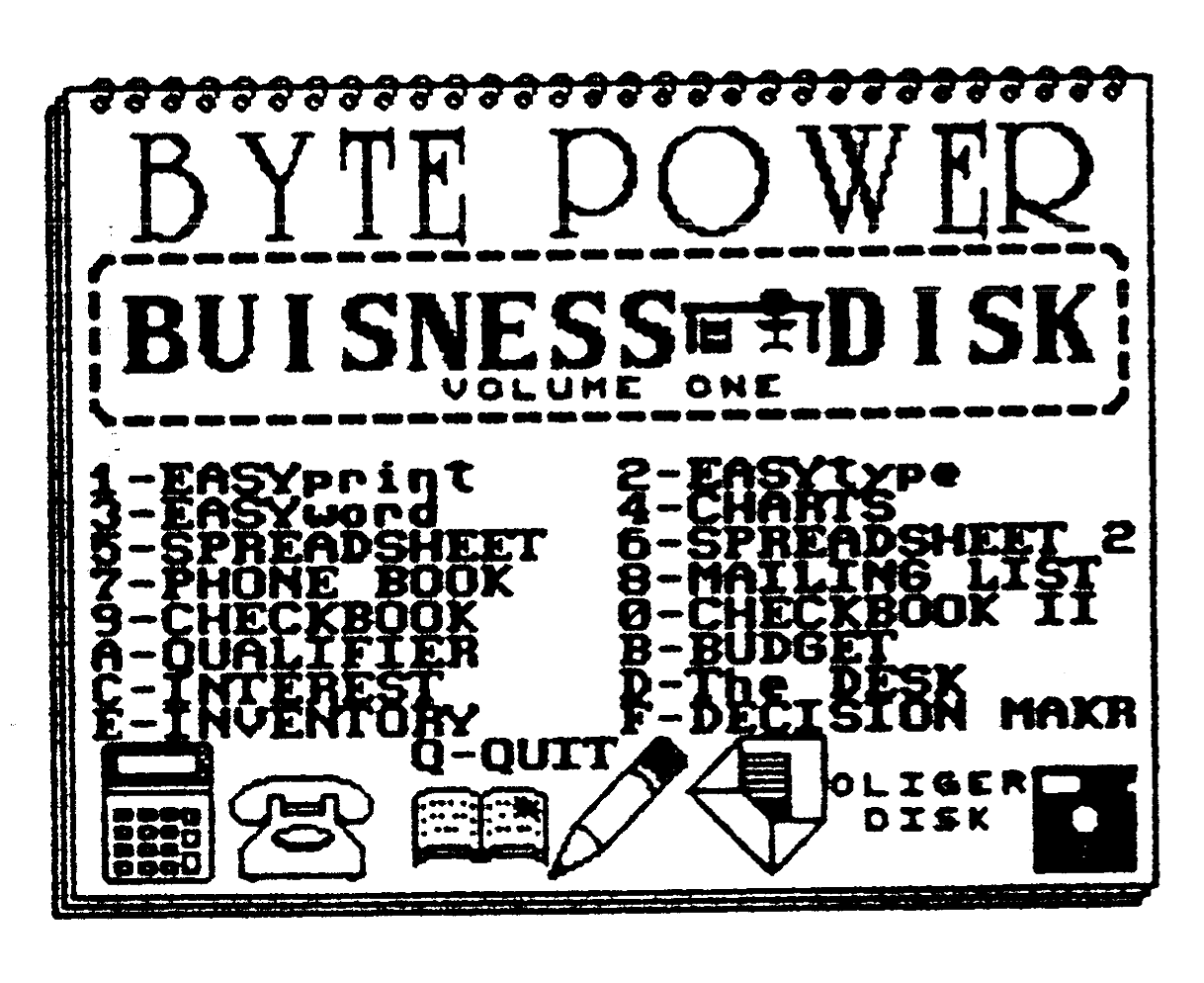
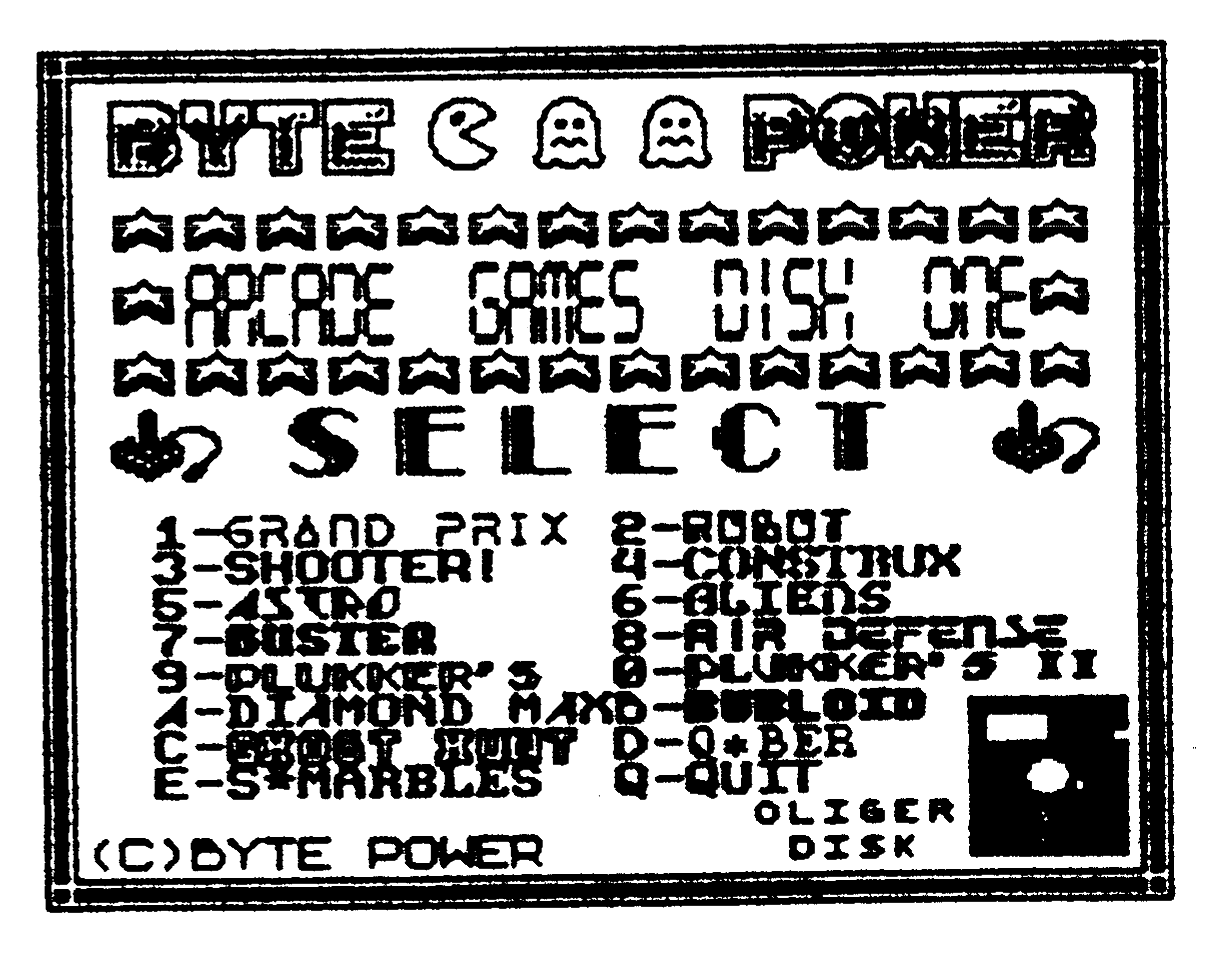
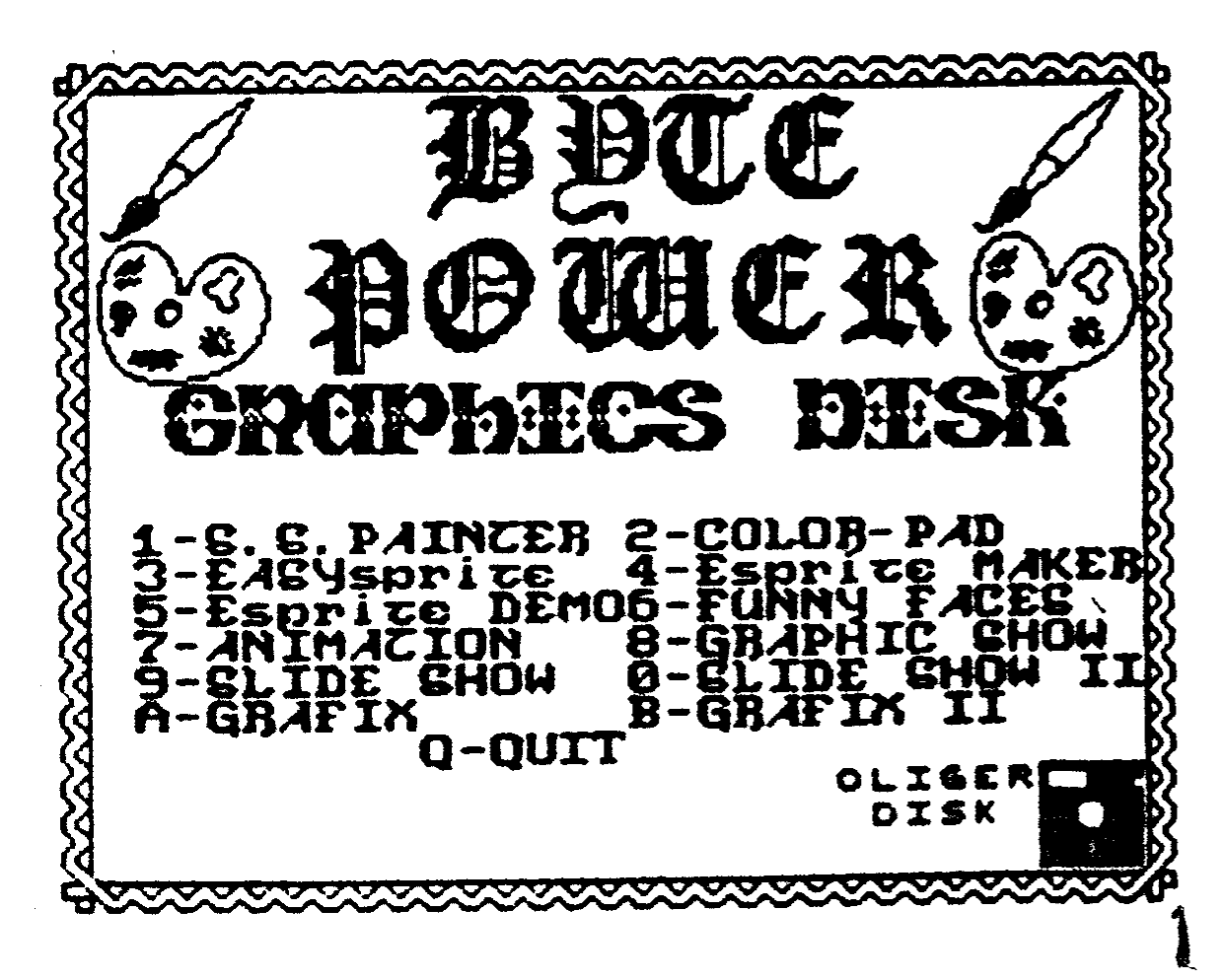
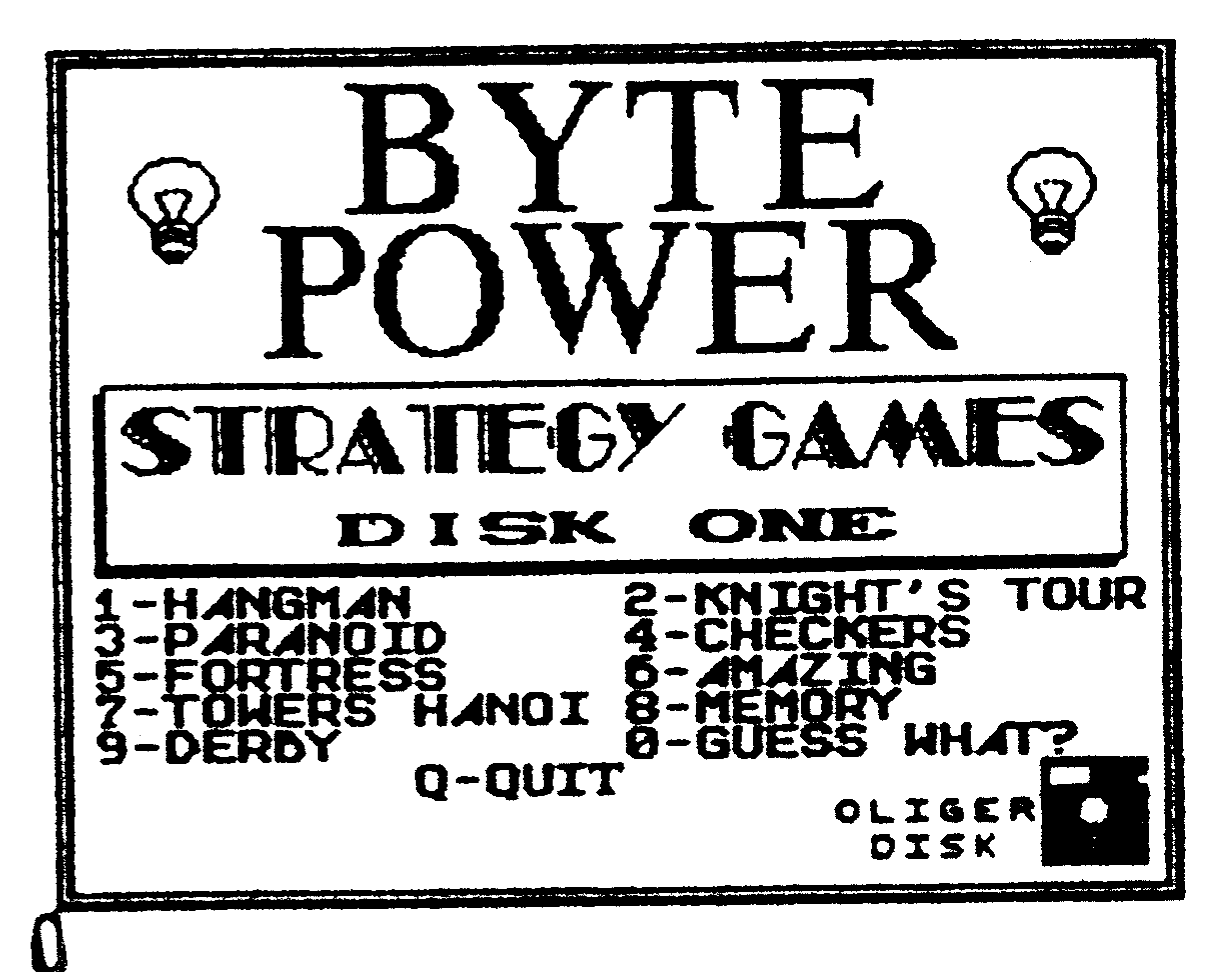
The professional look comes from the use of a SCREEN$ as the menu itself. The SCREEN$ can be created with any TS2068 graphics program (I used BYTE POWER’S “QUICK SCREEN”). Through the use of a variety of fonts and graphics, an attractive, yet functional menu can be designed.
The listing accompaning this article is the one I designed to use with the PRINT FACTORY package. It can be easily modified to suit your needs. I have also included a few of the “menu” SCREEN$ I created for various disks.
Once you have your listing completed, save it with: SAVE/ 0 . Then it can be loaded with: LOAD [ENTER].
To complete the system, you need to modify each program on the disk to return to the “menu” when you quit a program. Break into each program, and determine where it “quits”. At this point, add the command: CLEAR 65535: LOAD . This will reset the computer and reload the menu.
I hope you get as much use out of this idea as I have. Let me see what great looking “menus” you come up with for your disks!
OLIGER Menu Program for ‘PRINT FACTORY’
  1 BORDER 1: PAPER 1: INK 7: CLS
  2 LOAD /"PFMENU"SCREEN$
  5 IF INKEY$<>"" THEN GO TO 5
  6 IF INKEY$="" THEN GO TO 6
 10 IF INKEY$="0" THEN LOAD /"FIRST1.0"
 11 IF INKEY$="1" THEN LOAD /"FIRST1.1"
 12 IF INKEY$="2" THEN LOAD /"PRESS"
 13 IF INKEY$="3" THEN LOAD /"LETTER"
 14 IF INKEY$="4" THEN LOAD /"LABELER"
 15 IF INKEY$="5" THEN LOAD /"CARDMAKER"
 16 IF INKEY$="6" THEN LOAD /"BANNER"
 17 IF INKEY$="7" THEN LOAD /"QUICKSCRN"
 18 IF INKEY$="8" THEN LOAD /"CREATOR+"
 19 IF INKEY$="9" THEN LOAD /"FILEKEEPER"
 20 IF INKEY$="p" THEN LOAD /"COPIER"
 21 IF INKEY$="q" THEN GO TO 25
 22 GO TO 6
 25 PRINT AT 21,8;"Are you sure?(y/n)"
 26 IF INKEY$<>"" THEN GO TO 26
 27 IF INKEY$="" THEN GO TO 27
 28 IF INKEY$="Y" OR INKEY$="y" THEN RANDOMIZE USR 0
 29 IF INKEY$="N" OR INKEY$="n" THEN RUN
 30 GO TO 27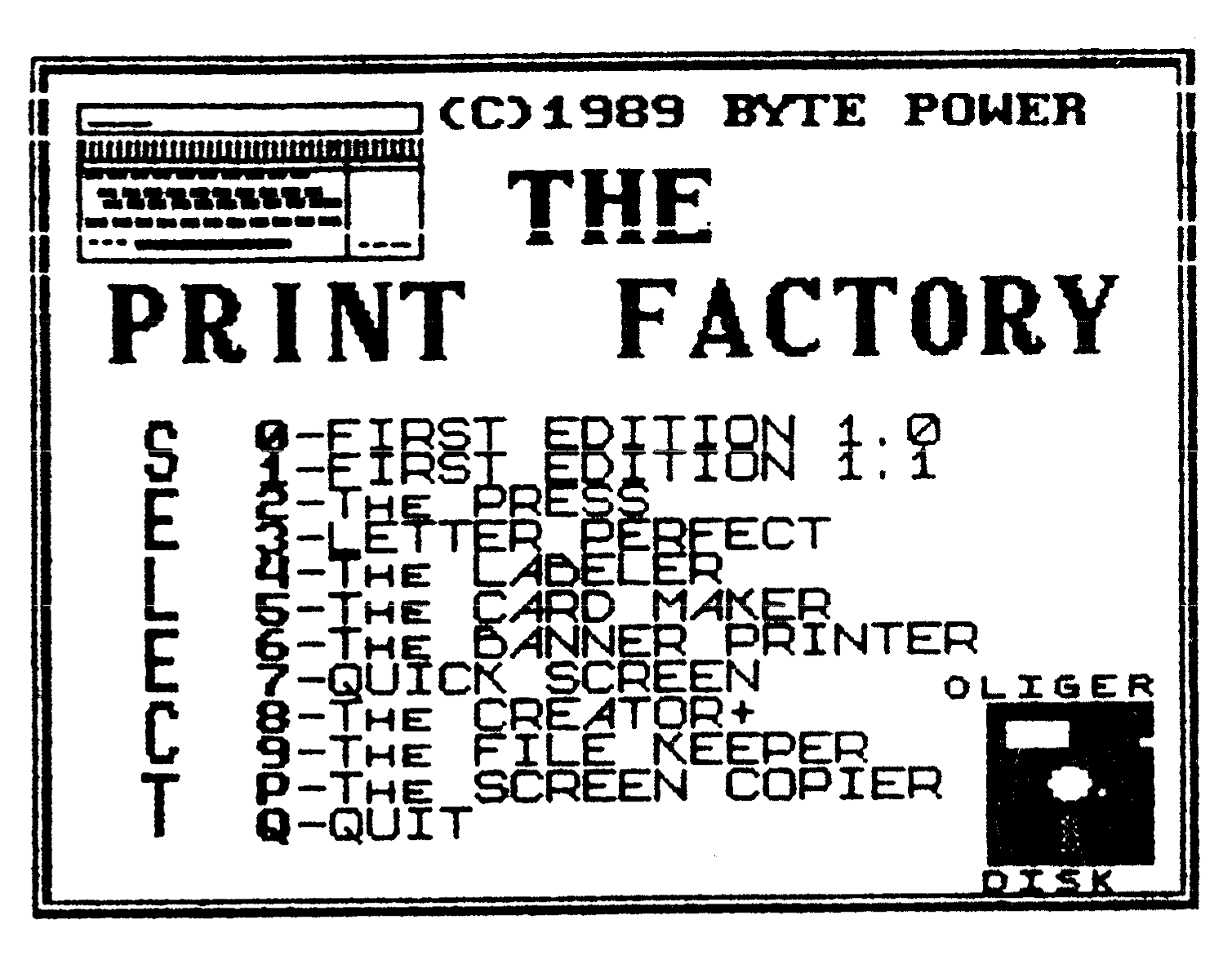
Note: Type-in program listings on this website use ZMAKEBAS notation for graphics characters.