
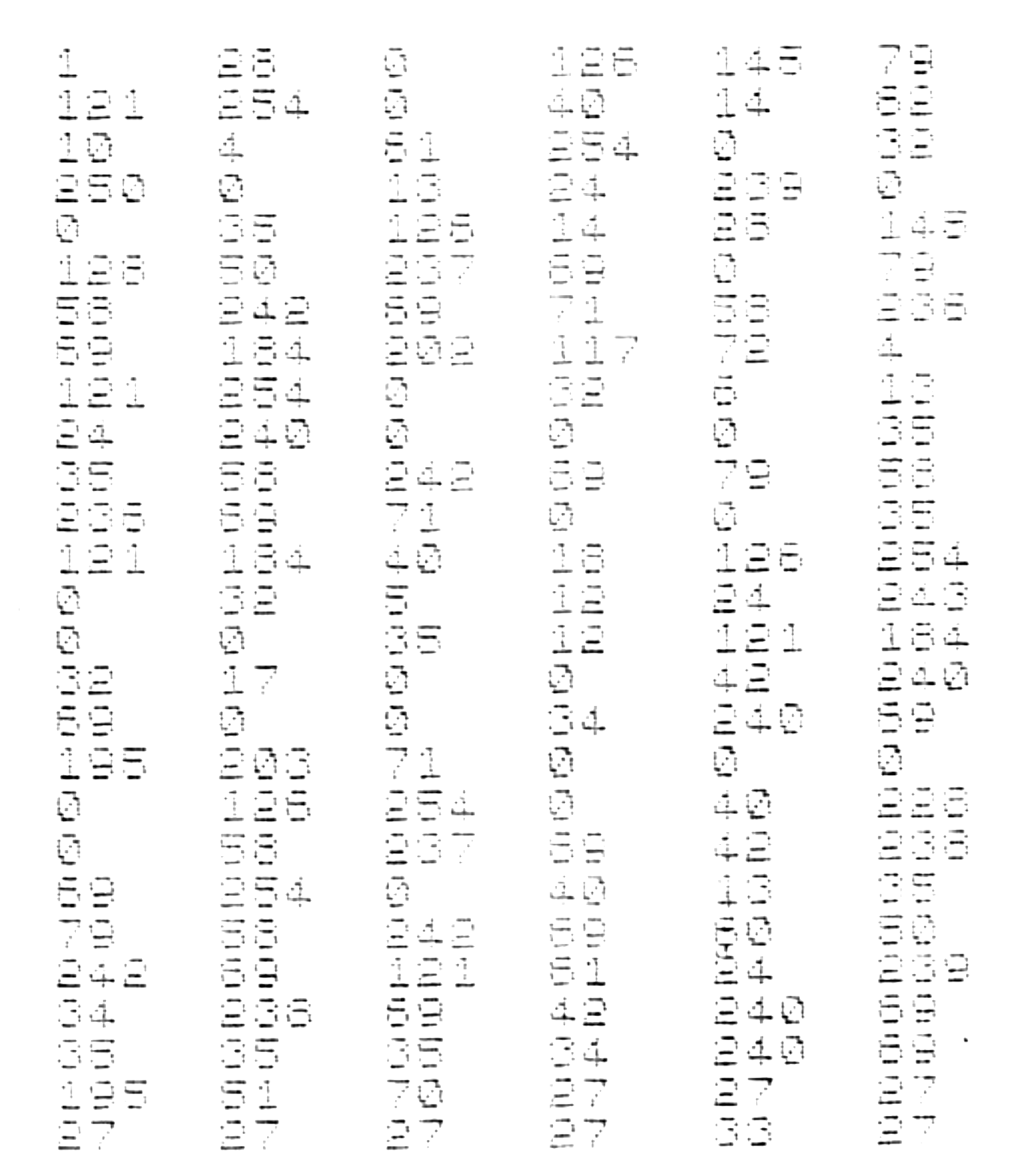
Here is the last installment of the word processor program for the TS-1000 computer. It includes all of the machine codes which begin at address 18455 (Line 4 REM). Last month (June issue), I gave you the bulk of the program that lies in REM lines 2 and 3. There were quite a few codes to enter and I hope you made no mistakes! REM line 5 codes are listed here also. You can live with or without them. They merely produce the graphics “WORM” as Rick has shown in the headers of these articles. The codes for this are also included in this last installment should you wish to include them. Lets get to work.
First, alter the assembler as listed in PART 1 so that you can fill line 4 with the machine codes.
9977 LET N= 18455If you enter RUN 9977, you can begin entering the codes from the listing. Again, these codes are to be entered one at a time left to right, top to bottom. When all entries have been made line 4 is complete! Check your entries with the listing program from page 15 of the APRIL/MAY issue (lines 8050-8065). Make corrections if necessary before attempting to RUN this program! This in itself may be quite a task of PEEKing and POKEing so I once again stress the importance of careful code entries. It would be great if I could enter the address along with each individual code, but this took 30 pages on graph paper and I am sure Rick would have the fits if I submitted it in this way for TS HORIZONS!
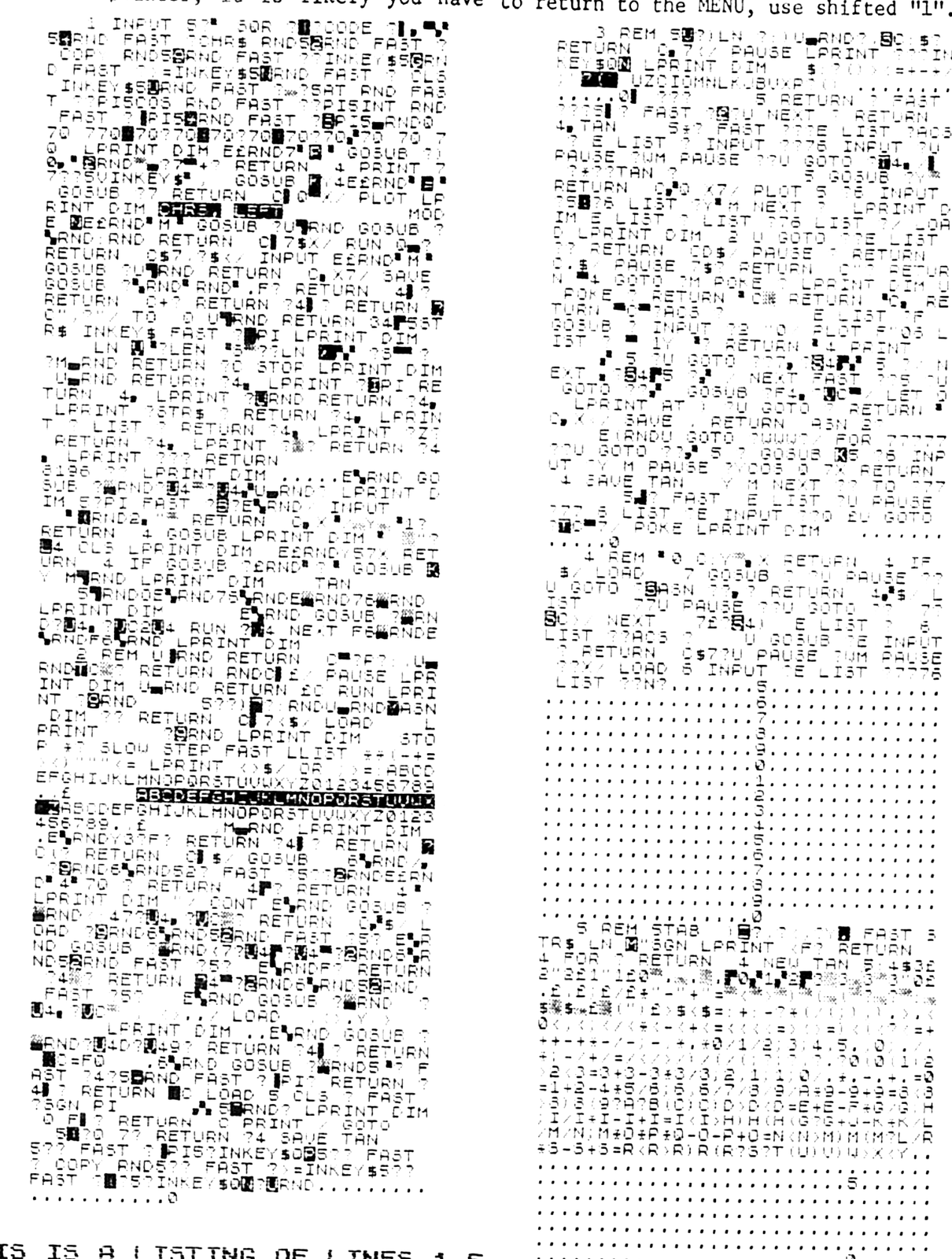
Right now you should have lines 1 through 4 filled with about 2,000+ machine codes. Figure 2 contains the BASIC program to use. You will have to remove lines, add lines and do this and that to put it all in place. You no longer need the assembler, checksum or listing routines (if your entries are correct, that is).
As listed, this is ready to run on the TS-2040 printer. For the moment, lets worry about getting the program running. Type in the BASIC program and enter GOTO 10. This will get things going. A MENU appears and asks if you want to;
INITIALIZE
WRITE
SAVE
PRINT
CONTINUE
CLEAR TEXT
Press (1) to Initialize. You are asked for the number of columns. When using the TS-2040, enter anything from 20 to 32. Text will be processed to this width for printing later. The next prompt wants to know if you have Upper/Lower case text capabilities. The TS-1000 has no lower case by itself with the 2040 so enter “N”. If you are using an interface which has the Sinclair to ASCII conversions along with the lower case text, you can go ahead and answer “Y” provided you alter the program lines 6020-6060 to accommodate your printer commands. The program now returns to the MENU.
WRITE simply goes into the text writing routine. If you answered “N” to the Upper/Lower case question in the initialization, the keyboard will not respond to shifted characters (used to make inverted video text which makes Upper case in interfaces). A text-remaining counter appears on the lower left along with the text mode to the right. A cursor denotes typing position. The typed line is always the same. It goes from left to right. When a complete line has been written, it scrolls, clears the typing line and begins at the leftmost column (like carriage return). You can use shift-arrow keys to move around (global edit). If you want to stop and make a new line like at the end of a paragraph, use two Pound signs. This flags the program to start a new line. You do not need to enter any spaces after the 2 Pound signs provided you do not follow them with more Pound signs! A single Pound sign which is directly followed by two numbers will cause a TAB, where the 2 numbers signify the distance from the last print position. Always use 2 numbers to TAB! A TAB of 5 should be represented by: 05 and not just 5. Always end your page of text with 3 Pound signs. This lets the computer know the end has been reached.
FIGURE 2: THE BASIC PROGRAM PORTION (LINES 1-5 NOT SHOWN)
  10 CLS
  15 PRINT TAB 8;"▒▒▒▒▒▒▒▒▒▒▒▒▒▒▒▒"
  20 PRINT TAB 8;"▒  WORM  MENU  ▒"
  25 PRINT TAB 8;"▒ ENTER CHOICE ▒"
  30 PRINT TAB 8;"▒▒▒▒▒▒▒▒▒▒▒▒▒▒▒▒"
  35 PRINT ,,TAB 8;"1. INITIALIZE"
  40 PRINT ,,TAB 8;"2. WRITE"
  45 PRINT ,,TAB 8;"3. SAVE"
  50 PRINT ,,TAB 8;"4. PRINT"
  55 PRINT ,,TAB 8;"5. CONTINUE"
  60 PRINT ,,TAB 8;"6. CLEAR TEXT"
  75 IF INKEY$="1" THEN GOTO 1000
  80 IF INKEY$="2" THEN GOTO 2000
  85 IF INKEY$="3" THEN GOTO 3000
  90 IF INKEY$="4" THEN GOTO 6000
  95 IF INKEY$="5" THEN GOTO 4000
 100 IF INKEY$="6" THEN GOTO 5000
 110 GOTO 75
1000 CLS
1010 PRINT "HOW MANY CHARACTERS PER LINE?"
1020 INPUT A
1030 POKE 17900,A
1031 DIM P$(A)
1032 DIM L$(A+2)
1033 DIM Z$(6000)
1038 PRINT ,,"UPPER AND LOWER CASE? (Y/N)"
1040 IF INKEY$="Y" THEN GOTO 1055
1045 IF INKEY$="N" THEN GOTO 1065
1050 GOTO 1040
1055 POKE  16517,1
1060 GOTO 10
1065 POKE 16517,0
1070 GOTO 10
2000 CLS
2010 PRINT "USE:     ▒ (SHIFTED 1) FOR MENU"
2020 PRINT "         £ FOR TABS"
2030 PRINT "        ££ FOR RETURN"
2040 PRINT "       £££ FOR END OF TEXT"
2050 RAND USR 16528
2060 GOTO 10
3000 PRINT ,,,,TAB 8;"PREPARE RECORDER"
3010 PRINT ,,"     PRESS ANY KEY TO SAVE"
3020 FOR N=1 TO 100
3030 NEXT N
3040 IF INKEY$="" THEN GOTO 3040
3044 SAVE "WORM"
3045 CLS
3046 RAND USR 19102
3047 PRINT AT 15,7;"BY GORDON YOUNG (1984)"
3049 FOR N=1 TO 50
3050 NEXT N
3055 GOTO 10
4000 CLS
4005 RAND USR 16535
4010 GOTO 10
5000 RAND USR 17725
5010 GOTO 10
6000 CLS
6010 RAND USR 17911
6020 LPRINT P$
6030 REM
6040 REM
6050 REM
6060 REM
6070 IF PEEK 17907=0 THEN GOTO 6100
6080 RAND USR 17918
6090 GOTO 6020
6100 GOTO 10
Lets back up for a moment. If you are using a full size printer, it is likely you have certain calls to make. You should delete Line 6020 which is used for the 2040 printer. My interface uses RAND USR 8222, yours may differ but should be written in the program to replace line 6020. Any initialization you require should be inserted in line 1001-1009.
When you are satisfied with the text and wish to return to the MENU, use shifted “1”. This is the only exit out of the machine code typing routing. One last comment about the typing routine is the MODE function. If you press ENTER, you change the punctuation mode such that you can print: +=”()$:;?/*<>.
From the MENU, SAVE will allow you to SAVE your page of text onto tape. PRINT throws the operation into a print mode. Each line is processed and printed line by line until the end of text. CONTINUE lets you return to your page of text from the MENU. You might print the page, notice an error and get back into the page with CONTINUE to make corrections. CLEAR TEXT. Do not press this one unless you want to erase the entire page of text! 6,000 characters are erased in about 1 second.!
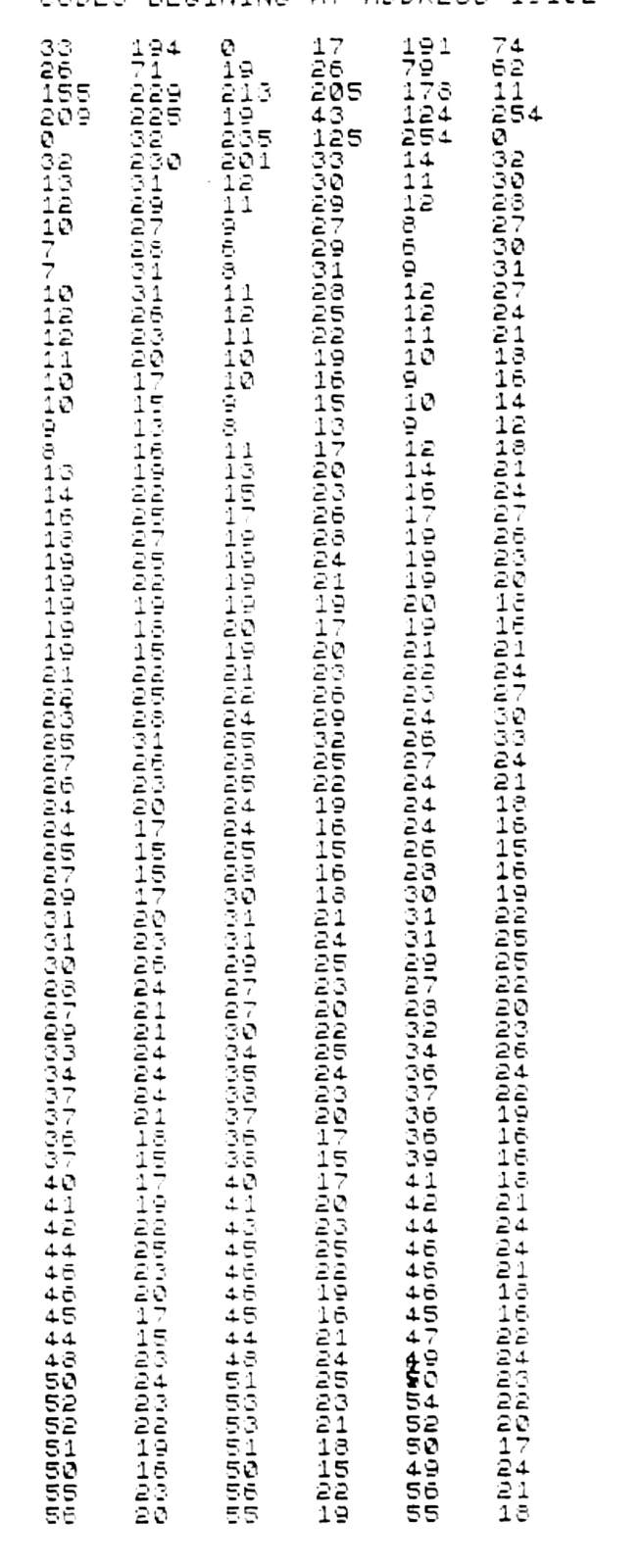
Figure 3 is the listing for REM line 5. If you do not enter these codes, remove BASIC program line 3046-3050!
With a little use, you will be writing quality text on any Sinclair printer system. WORM is a very good, simple and versatile word processor. I have used it over and over again to write letters, articles and other documents. I hope that some of you find it as useful as I did. This program is an alternative to expensive (but excellent) EPROM add on word processors (like MEMOTEXT), or some of the less than adequate software (which gets put in the “you gotta be kidding” drawer). I will offer this program to TS HORIZON subscribers for $8 since this really is quite a program challenge. Although slow, I will answer all inquiries concerning this program provided you accompany it with a stamped self-addressed envelope.
Next , I want to write about the TS 2068. This computer is better than the Commodore 64 and has jillions of uses!!
Note: Type-in program listings on this website use ZMAKEBAS notation for graphics characters.