
Invariably, almost any discussion of the basic characteristics of a computer’s operation includes references to a computer’s screen. Obviously, it would be helpful to know what a screen is, and how it operates.
For the sake of this discussion we are going to examine a program-generated screen to define its contents and operation.
CONTENTS OF A SCREEN
As illustrated below, a data processing screen is a display on the picture tube of your television set. It is roughly the equivalent of any form that normally is printed on paper (a familiar example would be an employment application form). The one characteristic that is common to all forms is the fact that information must be entered into blank spaces to complete the form.
A computerized screen display is no different. However, in a data processing environment, the form appears on the tube of your television set instead of being printed on paper. Likewise, a keyboard is used to type in the characters instead of using a pen or pencil to write on paper.
Look at the TV display as each character is typed and note that each character is displayed on the screen just as soon as it is entered. This permits you to observe the screen to determine that the data has been correctly typed.
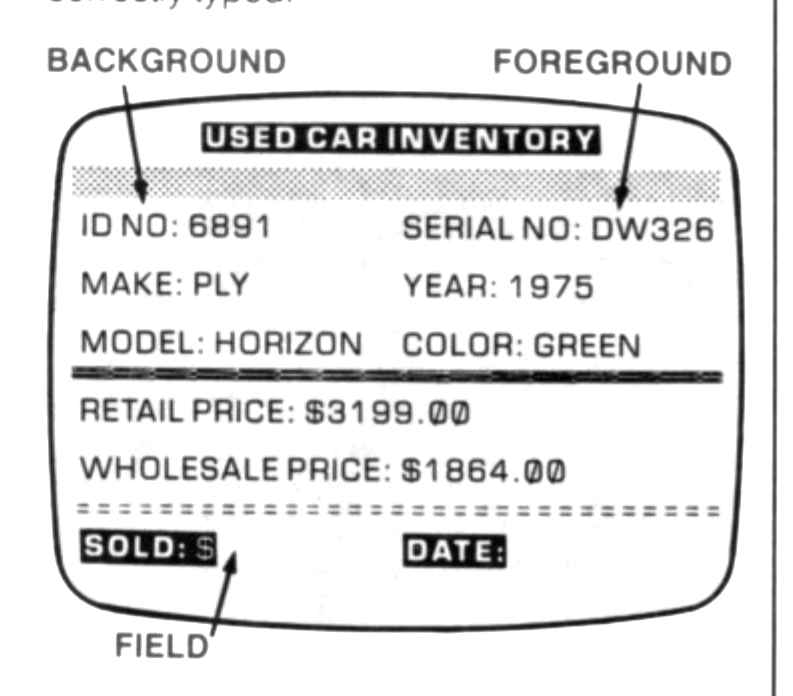
We will use the record layout which we created for the Organizer to represent our typical screen. Look at the illustration above and note that the screen’s contents can be classified as either background data or foreground data.
Background data is the equivalent of the labels that are preprinted on the form to categorize the type of information that must be entered to complete that portion of the form. These labels are equivalent to those that are preprinted on paper: They appear — in the same location — each time the screen appears; they cannot be erased, modified, or altered in any way.
Foreground data is analogous to the empty spaces on the form. Therefore, data must be entered to complete the form. To do so, type the necessary data at the keyboard. After typing the pertinent data, press the ENTER key to accept the data (data can be altered to correct an error, anytime prior to accepting the data).
When foreground data is entered, it is displayed in an area of the screen called a field. (A field, in this context, is an area on the screen, into which data can be entered.) You enter the current data to complete the field (please note that the computer is also capable of completing a field by automatically displaying the appropriate data at the particular location).
Field size can also be a consideration; at times, only a preestablished number of characters can be entered into a field. In other instances, the field size is not defined to permit the entry of whatever characters are necessary.
Finally, many TIMEX application programs display only a single line of the screen at any one time. This step-by-step approach makes it easy to complete the screen. However, each line displayed contains the needed background and foreground areas.
TYPES OF SCREENS
Several types of screens are utilized by the TIMEX Personal Computer. The most common ones are those for programming, menus, data entry, and display.
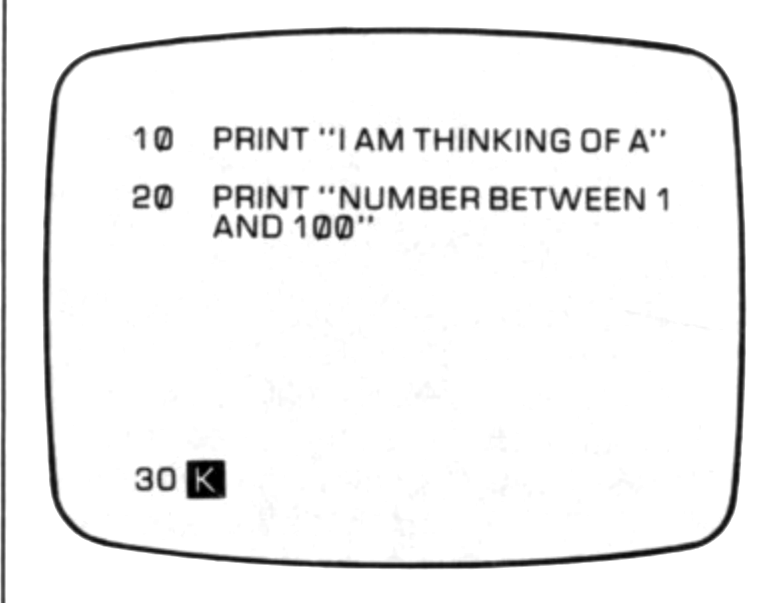
Programming screens are characterized as a (mostly) blank screen and a cursor at the bottom left-hand corner of the screen. As the name implies, and as illustrated, this type of screen is used to program and provide instructions to the computer.
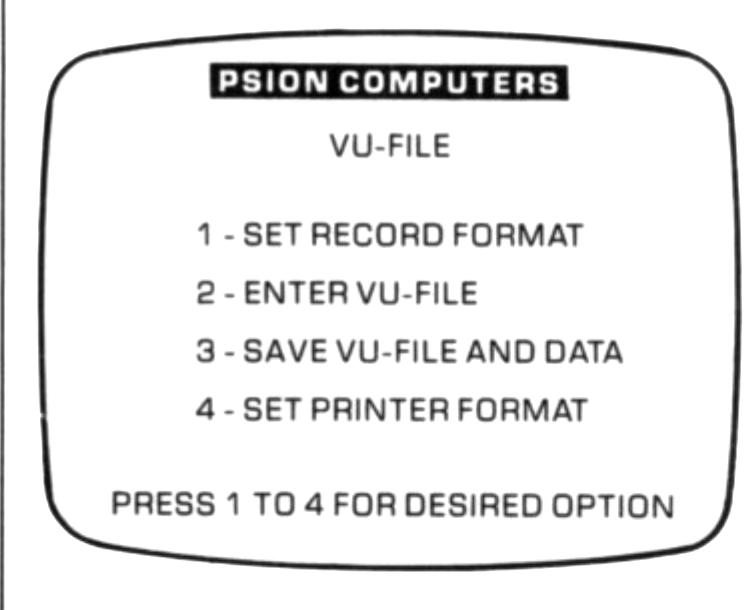
Menu Screens are similar to a menu of a restaurant; they permit the selection of a particular option from a number of alternate options. As typically illustrated, an option is selected by pressing the keyboard number key that corresponds to the number of the menu option (it is usually not necessary to press the ENTER key).
We have already described the data entry screen; they are screens — with a foreground and a background — into which data is entered.
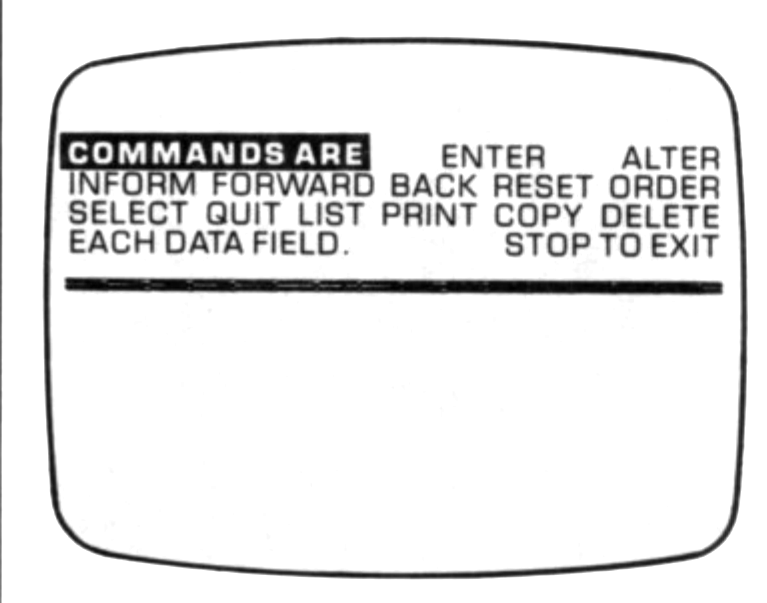
Finally, a display screen is one in which only background data is displayed. This data cannot be altered or erased. Examples of a display screen would be the Organizer Command Screen (illustrated) or the Checkbook Listing Screen (all transactions are listed).