
Hopefully, this won’t happen to you! But should your “home-grown” program be bugged by bugs (a bug is an error in a program such as a wrong character), there’s an easy way to utilize the computer to eradicate these pesky characters.
EDIT CURSOR — A DEBUGGING AGENT
In a previous issue of RAMBLINGS, we discussed five of the cursors that are utilized with the TIMEX Sinclair Personal Computer. However, there’s.one cursor that we didn’t describe. That’s the Edit cursor — the topic of this article.
Because this cursor is utilized as a “program editor,” small changes (i.e., modifying a statement or part of a statement) can be made without disrupting the remainder of the program. This is particularly useful during the debugging process — especially when a large program is involved.
When the Edit cursor is displayed on your television screen, it takes the form of an inverse “greater than” symbol [>].
We’ll illustrate the use of the Edit cursor through the following example: In the program below, Statement 80 contains a bug; the GOTO command should specify Statement 130 instead of 120. Here’s how we make the correction:
 10 PRINT "I AM THINKING OF A"
 20 PRINT "NUMBER BETWEEN 1 AND 100"
 30 PRINT "CAN YOU GUESS IT?"
 40 LET A = INT (RND*100) + 1
 50 INPUT B
 60 IF A<B THEN GOTO 90
 70 IF A>B THEN GOTO 110
 80 IF A=B THEN GOTO 120
 90 PRINT B; "TOO HIGH"
100 GOTO 50
110 PRINT B; "TOO LOW"
120 GOTO 50
130 PRINT B; "CORRECT"
[Figure: Program with a bug]
1. Simultaneously press the LIST (K) keys to list the program (the LIST command can be initiated when the K cursor is displayed on the screen).
2. Simultaneously press the SHIFT and the Down Arrow (#6) keys. The Edit cursor is now displayed at the first statement at the top of the screen:
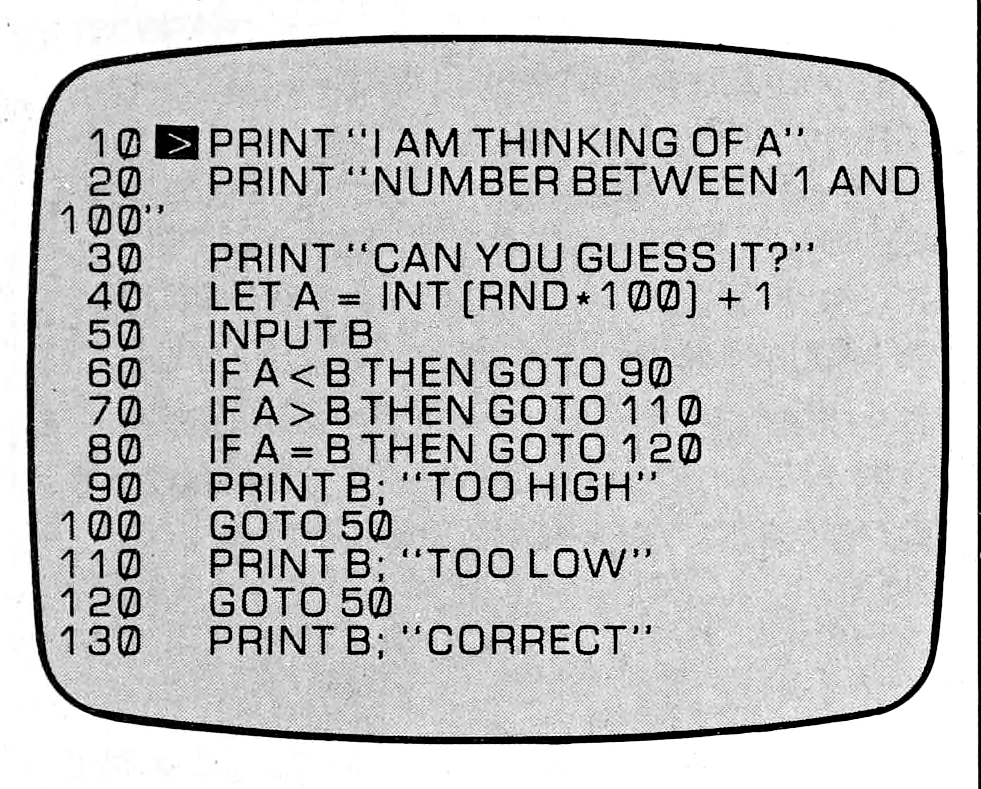
3. Repeat Step 2 until the Edit cursor is positioned at Statement 80, as illustrated below:
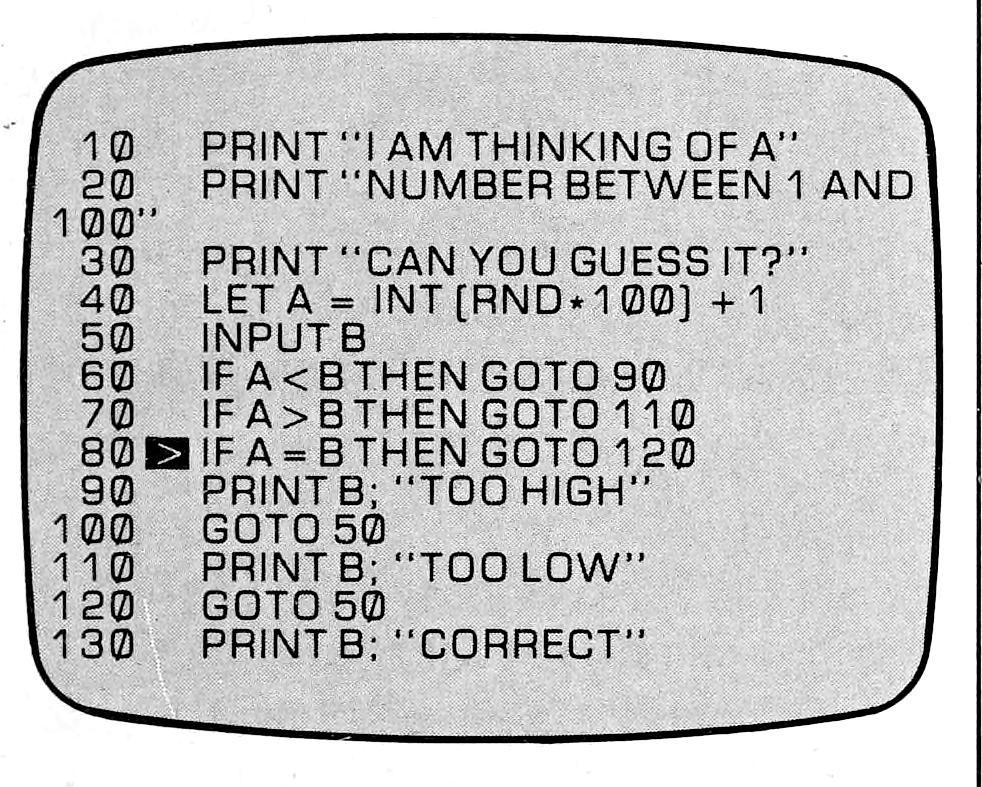
(If the bug is spotted when you are in the midst of working on a program, you can eliminate Steps 1 and 2. When performing Step 3, use the Up Arrow (#7) and SHIFT keys to move the cursor upward. When the cursor is positioned at the appropriate statement, proceed to Step 4, below).
(As an alternative to Steps 1 through 3, type the command LIST 80 and press the ENTER key to move directly to the statement that is to be edited. Then proceed with Steps 4, 5, and 6, below.
4. Simultaneously press the SHIFT and the EDIT (#1) keys to display the statement — to be corrected — at the bottom of the screen:
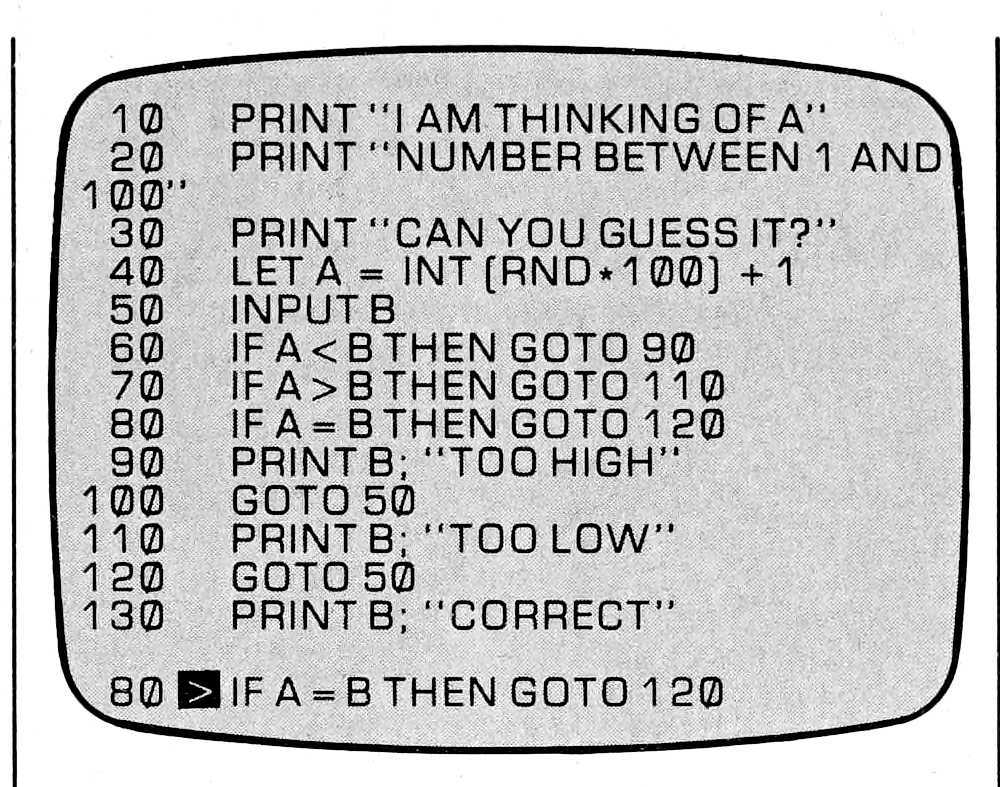
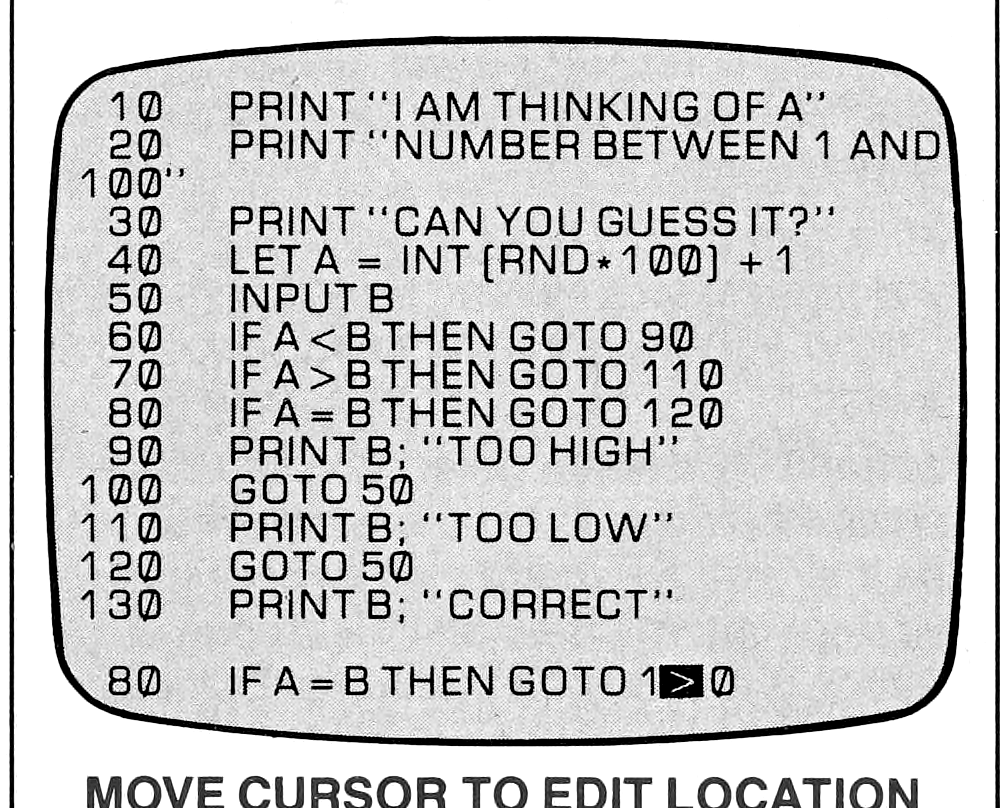
5. The illustration below demonstrates Step 5. Use the appropriate arrow key (#5 left arrow or #8 right arrow) to move the cursor to the position — on the statement line — where the correction is to be made. Then, proceed to type the correction (if necessary the deletion function — SHIFT and 0 keys) can be utilized to make the correction. You may need to move the cursor past the error before making the deletion. The Arrow key can be used to accomplish this.
6. Press the ENTER key to accept the corrected statement; the edited program is as illustrated in the following manner:
 10 PRINT "I AM THINKING OF A"
 20 PRINT "NUMBER BETWEEN 1 AND 100"
 30 PRINT "CAN YOU GUESS IT?"
 40 LET A = INT (RND*100) + 1
 50 INPUT B
 60 IF A<B THEN GOTO 90
 70 IF A>B THEN GOTO 110
 80 IF A=B THEN GOTO 130
 90 PRINT B; "TOO HIGH"
100 GOTO 50
110 PRINT B; "TOO LOW"
120 GOTO 50
130 PRINT B; "CORRECT"
[Figure: Edited program]
Incidentally, this program does work and is fun to use. To run it, copy the program and then press the RUN (R) key. When the L cursor appears at the bottom of the screen, simply enter a number (from 1 to 100) until you have guessed the correct answer.
Finally, the sidebar explains the logic behind this program. This explanation may be helpful to the first-time programmer.