
Reprinted from the February 1986 LIST
I. INTRODUCTION
Sir Clive, the man who brought powerful, but affordable computers to the masses (and still does, in mainland China for instance), appears not to be too pre-occupied with keyboards. Both the ZX80 and the 81 sported so-called membrane keyboards. Granted, they are inexpensive and quite reliable, but they really have no business being on a computer. They are user- UNfriendly and only belong on appliances, where the “keys” get activated only once in a while (blenders, toaster ovens and the like).
Membrane keyswitch assemblies are still around, but they have come a long way, now with full travel actuating keys. It is the membrane keyboard, which is directly activated by human fingers, that I despise. The Commodore 64 would not have enjoyed its immense worldwide popularity, if Jack Tramiel would have given it a membrane KB like the ZX81 (or TS1000).
Anyway, I think that a real, full travel keyboard (KB) is a must for any computer! It was one of the first things I did, back in 1981: put a professional KB on my ZX81. I still have it; it has 10 dedicated keys, i.e. keys that effect functions that would otherwise require the actuation of two keys simultaneously.
I know that many amongst you think that the TS2068 KB (which is not a membrane keyboard, but is not a full travel type either), is heaven compared to the KB on the ZX or TS1000. It is without a doubt a great improvement, but it still is a very inadequate KB for computers, certainly if the machine is used for word processing. Should I remind you of the so-called space bar with its annoying problems of sticking and multiple spaces or not working at all unless you hit it dead center? If you have never worked with a real KB, you just don’t know how pleasurable keying on a full travel KB is. Even the QL, with its membrane KB activated by wobbly rubber blocks is far from meeting the criteria of a pro KB.
I have improved a couple of computers with pro keyboards and would like to share with you a couple of circuits I have used for dedicated keys, give some pointers on KB’s in general and suggestions on improved keytops, all for the TS2068.
II. CHOICE OF KEYBOARD
The KB should be of the mechanical switch type, with full travel keys and positive action. There are many surplus or reject KB’s available from a variety of sources. Make certain that you get one with straight electrical contacts, so-called single-pole,single-throw (SPST) types. There are KB’s that use exotic ways of “making contact”, such as the ones using capacitive or Hall-effect “switches”. Not only are these expensive, but they are also very difficult to adapt to our needs.
Also, don’t buy so-called ASCII-encoded KB’s; the electronic circuitry on it is not needed and therefore wasted. Sometimes though, they can be had real cheap; just make sure that the keys are SPST mechanical switches and discard the electronics.
And beware of membrane KB’s (even though they might be of the full travel type), because their matrix is practically always part of the flexible membrane printed circuit. Since it can not be expected that the matrix of a keyboard, not originally built for a TS computer, would be identical to the matrix we need, you should expect having to modify the printed circuit board (PCB) of the KB you acquire. This entails cutting copper traces and making new wire connections. And that is something impossible to do with the membrane circuit.
As I am writing this (Dec.15’85), Radio Shack has a special purchase item 277-1020, a 75-key KB selling for $6. It is a membrane type with very good and light-touch, full travel, beautifully sculptured keys. It has however, an incompatible matrix and it can not be easily modified. A real pity…
As far as the tactile “feel” of the KB keys goes, that is a matter of personal taste, but maybe I can give you some guidance. One of the very best KB “feels” can be experienced with the KB of the Canon Typest*r 5 electronic typewriter.
You could therefore enter a store which carries them and try one out. Who knows? Maybe you will even buy one! (I think it’s a fabulous typewriter).
But since you are a member of that masochistic lot, also known as Sinclair computer addicts, and have endured pain with chintzy KB’s for heaven knows how long, you probably would go “gaga” about any full travel KB!
A good source for surplus keyboards is Jameco Electronics, 1355 Shoreway Road, Belmont CA 94002; their item KB54, a 54-key KB sells for $10.
Another one is ITC, 9119 De Soto Avenue, Chatsworth CA 91311, but they have no catalog and do not accept mail orders.
III. KEYBOARD MATRIX
In the foregoing, the word “matrix” has been used several times and therefore requires explanation, in case you don’t already know. The TS2068 has 42 keys, but 2 of them are in duplicate and wired in parallel, CAPS SHIFT and BREAK (or SPACE), so that a matrix of three groups of lines, one with 5 and two of 4 lines each, can be and is indeed used to enter the 40 (=5x2x4) principal key functions.
This matrix is shown in Figure 1.
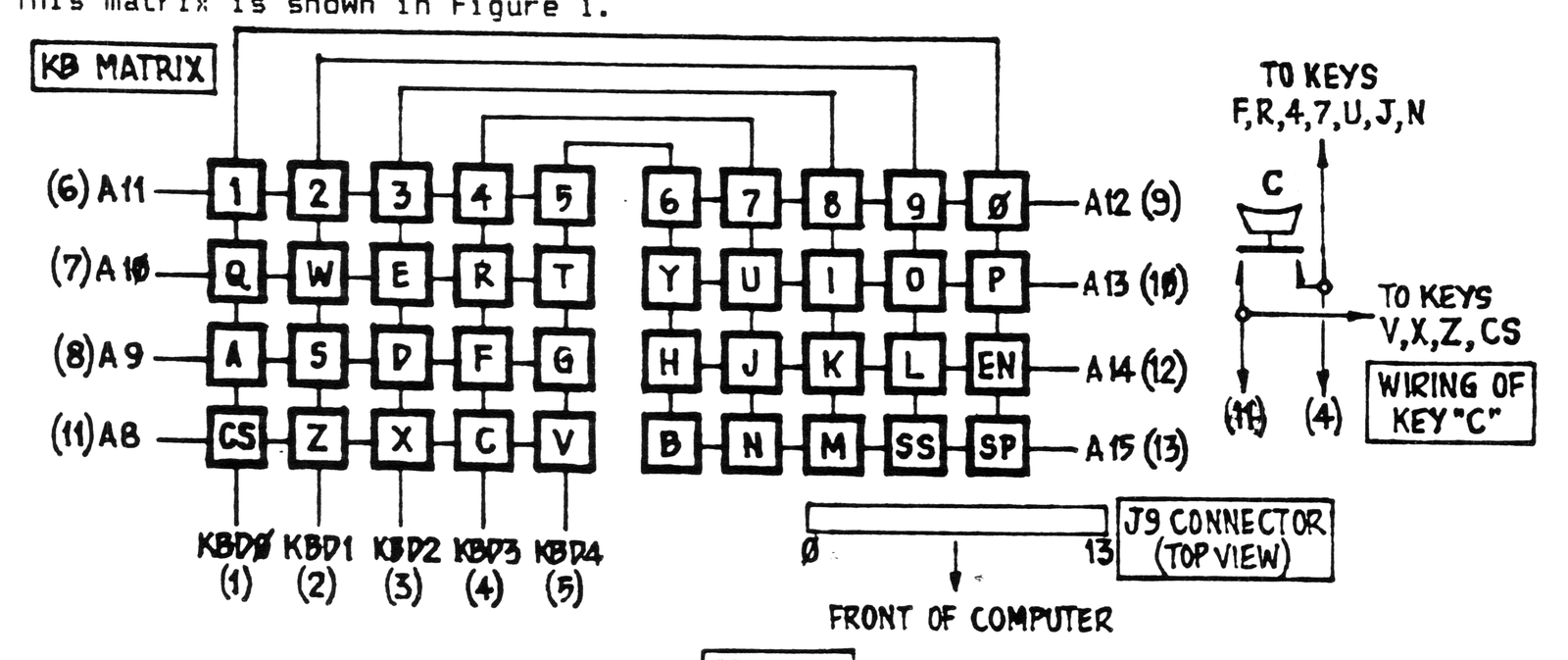
Each block depicts a key and is marked with the principal character on that key. Whenever a key is pressed, the two lines intersecting at the corresponding block become electrically connected. If you would press key “5”, lines A11 and KBD4 will connect, whereas pressing “6” joins lines A12 and KBD4. This matrix will be helpful in modifying the printed matrix of any suitable surplus KB you might purchase.
Incidentally, the matrix for the ZX81/TS1000 is almost identical to the matrix shown in Fig.1; the only difference is that a “period (.)” key is in place of the Symbol Shift key, and the line numbering is different.
Since we deal with logic circuits and extremely low electrical currents, the key contact need not have the low resistance normally encountered in mechanical switches. A contact resistance of several hundreds of ohms will still generate the desired function and under certain conditions will even be beneficial, as we will see later.
The lines connect to the 14-pin KB Interface Connector J9, which is on the main PCB inside the computer. This connector has .100″ pin spacing and normally mates with the flex cable of the original TS2068 KB, but the surplus KB can easily be connected with a flat cable and a connector made of headers for socket connectors, which come in strips of 36-pin size, notched for easy breaking to desired length. If you wish, you can of course unsolder and discard connector J9 altogether and solder a flat cable, much like an umbilical cord of the KB, directly to the computer’s PCB.
The connector pinout is also shown in Fig.1; #0 is ground, the remaining 13 (=5+4+4) pins are the KBD and A lines and these pin numbers are also shown in parentheses near the line identifications of the matrix.
The illustration also shows how the two terminals of each key-switch should be connected to the lines.
To facilitate the choice of connections and circuits for dedicated keys, and also the check-out of matrix wiring after it has been modified, the table of Fig.2 has been composed. It shows for each principal character and function, the required connections, which are indicated as groups of pin-out numbers of J9.
Thus, if for instance the Symbol Shift key is pressed, pins (or lines) 2 and 13 should show an electrical connection, which opens up again when the key is released.
A  1+8  | F  4+8  | K  3+12 | P  1+10 | U  4+10 | Z  2+11 | 5  5+6 | 0  1+9
B  5+13 | G  5+8  | L  2+12 | Q  1+7  | V  5+11 | 1  1+6  | 6  5+9 | SS 2+13
C  4+11 | H  5+12 | M  3+13 | R  4+7  | W  2+7  | 2  2+6  | 7  4+9 | CS 1+11
D  3+8  | I  3+10 | N  4+13 | S  2+8  | X  3+11 | 3  3+6  | 8  3+9 | SP 1+13
E  3+7  | J  4+12 | O  2+10 | T  5+7  | Y  5+10 | 4  4+6  | 9  2+9 | EN 1+12
Note: SS = Symbol Shift; CS = Cap Shift; SP = Space Bar; EN = ENTER
FIGURE 2
IV. DEDICATED KEYS
The question of which functions or symbols to put on dedicated keys is largely dependent on the number of extra keys available. Secondarily, it is a matter of personal taste; I have read a number of articles about keyboards with some simple dedicated keys and was always rather puzzled as to why the writers of those articles chose the functions and symbols as they did. You should really ponder this matter very seriously, but of course the more extra keys the KB has, the easier the choice is going to be. Determine which functions and symbols are used the most; they are obvious first contenders. Do keep the two Caps Shift keys, one on either side of the bottom row. I also suggest to have two Symbol Shift keys, one next to each CS key. DELETE would be my first choice for a dedicated key, then function GRAPHICS, the period (.), the comma, the colon, semi-colon, the 4 arithmetic functions with the =sign, the ?, the !, both parentheses, the quotation mark, the $-sign and the Extended Mode function.
The table of figure 3 shows suggested functions and symbols, together with the required KBD and A line junctions, again expressed in terms of the J9 pin numbers. Because they require the simultaneous actuation of either the SS or the CS keys, the required junctions each show TWO groups of connections, the first one of which is for either of these shift functions.
? 2+13/4+11 | ; 2+13/2+10 | = 2+13/2+12 | ( 2+13/3+9 | ← 1+11/5+6 | ED 1+11/1+6
! 2+13/1+6  | + 2+13/3+12 | ↑ 2+13/5+12 | ) 2+13/2+9 | → 1+11/3+9 | CL 1+11/2+6
. 2+13/3+13 | - 2+13/4+12 | " 2+13/1+10 | @ 2+13/2+6 | ↑ 1+11/4+9 | GR 1+11/2+9
, 2+13/4+13 | * 2+13/5+13 | ' 2+13/4+9  | # 2+13/3+6 | ↓ 1+11/5+9 | DE 1+11/1+9
: 2+13/2+11 | / 2+13/5+11 | $ 2+13/4+6  |            |            | EM 1+11/2+13
Note: ED = EDIT; CL = CAPS LOCK; GR = GRAPHICS; DE = DELETE; EM = EXTENDED MODE
FIGURE 3
The table shows for instance that in order to create the $-symbol, pins 2 and 13 should be connected (Symbol Shift), as well as at the same time pins 4 and 6 (the “4”-key). Another example is the semicolon; this character requires that pin 2 is again to be connected to pin 13 (SS), but ALSO to pin 10 (the “O”-key).
Still another example is the multiplication or asterisk symbol *; it requires that pin 2 should connect to pin 13, which in turn should also connect to pin 5 (“B”-key).
With the help of the table Fig.2 you can of course determine the junction combinations necessary for any symbol or function not shown in the table Fig.3.
In the next installment of this article series we will discuss exactly how to effect all these connections.