
What if Michelangelo and Leonardo da Vinci had owned some good graphics software? Would they have utilized a computer for their creative efforts? Would the Sistine Chapel be covered with fanfold paper? Would the Mona Lisa be stored as electrons on a disk instead of pigment on a canvas?
Those gentlemen were the masters of their media. Unless you have a comparable skill with pallette and paint brush, maybe you’d better rely on joystick and keyboard. PIXEL SKETCH And GRAPHICS EDITOR Version 2.0 employs both.
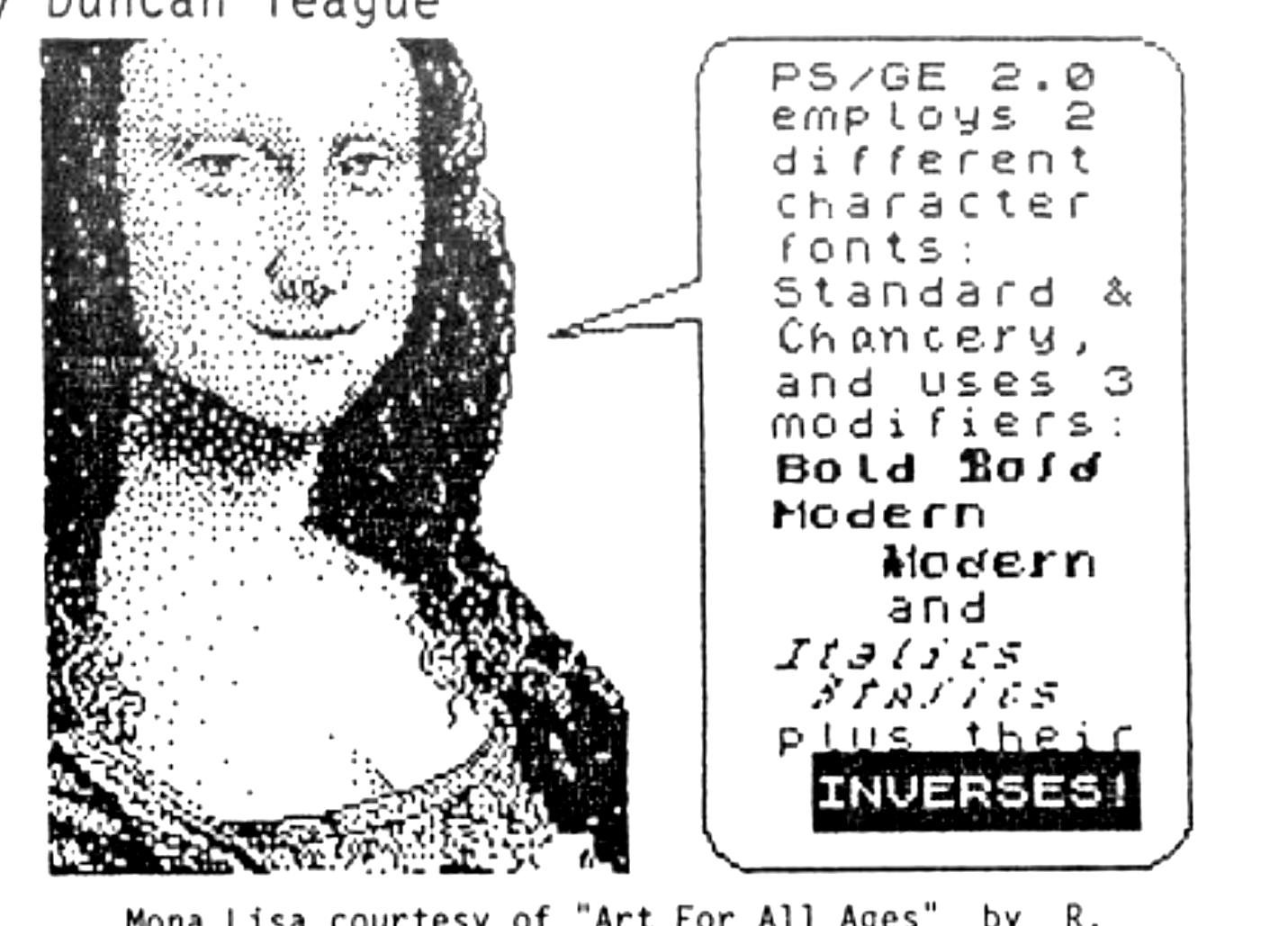
PS/GE lets you create, edit, and label original graphics and modify, merge, and analyze existing screens with electronic tools. Some of the editing functions on PS/GE are found in Apple graphics software like Mouse Paint and Dazzle Draw. PS/GE even provides some functions the 128K Dazzle Draw doesn’t include.
PS/GE operates in three somewhat compatible modes: standard color, extended color, and high resolution. Mode can be selected once the program has loaded. The standard color and extended color modes can be electronically switched at will while you’re working with PS/GE. The high resolution mode must be maintained once it is selected.
In the standard color mode, one ink color and one paper color are allowed in each 8 pixel by 8 pixel character position. The brightness and flashing attributes may be on or off.
In the extended color mode, PS/GE creates eight “elements” within each character position. Each element is 1 pixel high by 8 pixels wide. One ink and one paper color and one bright and one flash attribute are permitted in each of these elements.
One screen character could thus be printed with 8 ink and 8 paper colors with alternating bright and/or flashing horizontal elements. In this mode it’s possible to create new colors on the screen by juxtaposing the appropriate ink and paper colors. The manual suggests using red ink on green paper to make brown.
The high resolution mode amazes me. Although the hardware limits you to one ink and one paper color on the screen at any time, the software extracts the finest detail possible from the T/S 2068: 512 pixel horizontal resolution. All three modes offer the standard 176 pixel vertical resolution.
The incompatibility between modes is seen in the input and output routines. A standard mode picture is saved or laoaded as a standard SCREEN$: 6912 bytes at address 16384. An extended color graphic is saved or loaded as two files, each having 6912 bytes. One file at 16384 holds ink (pixel) and paper (no pixel) data. A second file at 24576 stores extended color and attribute data.
A high resolution display also saves or loads as two files. They extend the identical length and reside at the same starting addresses as an extended color screen. The first records the odd number column data; the second, the even number column data. The program tape includes a utility, PS/GE-32/64, which will convert one or two standard mode screens into a high resolution screen. (The listing for this utility appears in the March/April 86 TDM.)
If you’ve ever used MacPaint or a MacIntosh or Mouse Paint on an Apple II, you’ll be right at home with PS/GE. Although the former programs employ a mouse for input instead of a joystick, they offer nearly the same drawing, text, and editing functions.
The drawing functions of PS/GE are as follows: 1. Plot and Erase (free hand sketching and erasing); 2. Draw (disconnected) and Connect (-ed straight lines); 3. Circles; 4. Draw Arcs; 5. Fill/Shade (with textured patterns); 6. Paint (with solid colors); 7. Text (labeling).
The ink and paper color and the flash and bright attributes can be changed at will. Cursor speed can be adjusted from moving one pixel at at time to four times that rate. Cursor speed could be further changed by altering the program listing.
The plot (sketch) command is controlled by the fire button on the joystick. The joystick is also used to select other functions from a menu screen accessed by pressing the ENTER key. Keyboard commands can also change the cursor speed and activate the erase function without having to leave the drawing screen.
Two status lines at the bottom of the screen provide a constant readout of the cursor’s position, wether the plot and/or erase functions are in use. The cursor’s coordinates are important to know. Most of PS/GE’s editing functions operate optimally only when the edges of drawn figures coincide with the normal character position boundaries. I’ll explain later.
The text you use to label your creation can be the ordinary system font, or you may load an additional font from the program tape. The extra font is called “Chancery”. It looks like it flows from a calligrapher’s pen. You can alter either font from the menu. You may choose bold, modern, and italic versions of either the system font or the Chancery font at any time.
The editing functions of PS/GE are operated within an adjustable, but not elastic, window. PS/GE’s window moves 8 pixels at a time. Window boundaries are always aligned with the edges of the normal screen character rows and columns. If a portion of an area to be edited extends beyond a normal character row or column, the editing window must be large enough to extend to the next row or column boundary.
Here is a list of PS/GE’s window editing functions: 1. Block Copy (cut and paste); 2. Block Erase; 3. Block Rotate (90 degrees clockwise); 4. Mirror Image (horizontal only); 5. Inverse (exchange ink/paper); 6. Wide View (shrink); 7. Zoom (enlarge); 8. Digitize (analyze like a UDG-help create sprites?!); 9. Merge (a portion of one screen with another).
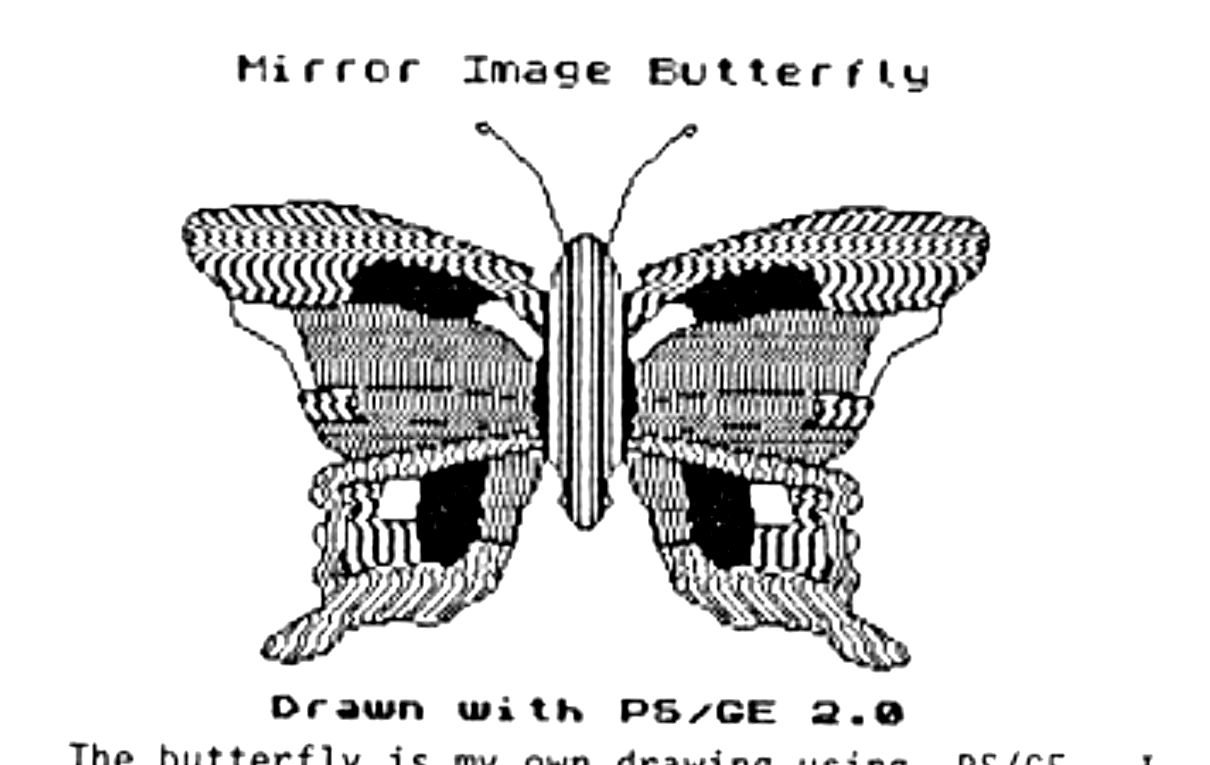
When you select any of these functions from the menu, a window appears on the drawing screen. The window’s size can be adjusted in one dimension at a time by using the unshifted arrow keys. The “S” and “L” keys will make the window smaller or larger by changing its height and width simultaneously. The joystick places the window in the appropriate position.
After using any of the editing functions, you’ll have a chance to reconsider. A “SAVE?” prompt will appear, and you may “undo” the last procedure by responding with any key except “Y”. The drawing functions, except Plot, Erase, and Text, can also be undone.
Hard copy can be obtained of any screen in any mode. Only the ink/paper pattern is reproduced. Colors are not represented by different dot patterns as in Tascopy or Z-Print 80. The screen can be printed on the 2040 printer or in small and large sizes on 80-column printers.
If you want to use an 80 column printer, you’ll become more familiar with your printer’s manual than you used to be. You’ll need to know how to adjust the line feed pitch and how to send the appropriate commands for bit graphics.
My printer has to know how may bytes will follow the bit graphic command. The correct number for my C. Itoh 8510 is 256 in the standard color mode, and 512 in the high resolution mode. Those numbers had to be doubled for the large printout.
To make the large printout of a high resolution mode screen (1024 bytes per line), fit on my printer paper, I had to set the printer’s DIP switches for proportional characters. This gives a print density of 1280 dots per 8-inch line, slightly more than required for this mode.
If your bit graphics mode prints each line upside down, as mine did, there’s a simple solution. Alter the programs’s machine code with the following POKE’s, which are courtesy of program developer Stan Lemke:
Memory     Old     New
Address    Value   Value
-------    -----   -----
62919      249     193
62923      241     201
62938      249     193
62961      144     128
62966      144     128
AERCO FD-68 owners will easily be able to convert PS/GE to disk. The utility for converting standard screens into high resolution screens is another matter. PS/GE-32/64 uses OUT 255,0 and OUT 255,54 to alternate between 32 and 64 column modes. The FD-68’s OUT 244,1 command interferes. Disk access must be switched off with OUT 244,0 before performing the conversion process. Loading two screens is much more difficult. I used short machine code routines to store one at 40000 and then recall it for conversion.
I really enjoyed using PS/GE. Cursor movement is slow, especially across the 512 pixel-wide high res screen, but the sophisticated editing functions surpass those of any other T/S 2068 graphics program I own. The functions for creating and editing screen segments, merging one screen with another, converting standard mode screens to high resolution screen, and printing out with excellent dot density exceed my present ability to exploit them. But I’m learning. My joystick finally has something to do besides play games.
PIXEL SKETCH And GRAPHICS EDITOR Version 2.0 is available from Lemke Software Development, 2144 White Oak, Wichita, KS 67207. The T/S 2068 program comes on a cassette with users manual for $19.95 ppd. A joystick is required.