
Available as UPDATE Issue Disk, see QL ISSUE DISKS
QLUSTer is a utility program which has been designed to provide easier file management than found in other front-end utility programs. QLUSTer works well within the QRAM environment and may be may be satisfactorily run as a TASK within TASKMASTER (some limitations). QLUSTer is TURBO-compiled and MINERVA compatible.
QLUSTer was designed to provide fast, selective file management. To that end, any valid source or destination medium may be readily accessed or designated. Up to eight screen pages of 76 files each (4 columns x 19 rows) are accessible.
The five, primary functions are ‘COPY’ (source to destination), ‘de-FILE’ (DELETE file), ‘Hard-COPY’ (the “missing” LLIST command), ‘re-FORMAT’ (FORMAT a medium), and ‘pre-VIEW’ (convenient for confirming the contents of a file prior to COPYing, de-FILing, or hard-COPYing). The implementation of a utility on a file usually involves simply pressing the {bracketed} key which precedes a particular filename. In addition, a convenient clock setting routine using the ‘up’ and ‘down’ cursor keys (and of course, ‘ENTER’) is included.
QLUSTer also implements five SuperTOOLKIT keywords [WCOPY, WDELete, SPooL, RENAME, WSTATus]. QLUSTer requires SuperTOOLKIT coding installed via a TK2_EXT (FLP_EXT, okay) call, external ROM, or RAM code, prior to LOADing.
A SAMPLE RUN-THROUGH
After LOADing, a “white screen” with the version number and other miscellaneous information will flash by. You will then see another “white screen” with a bar similar to what is illustrated (below). ‘CHANGE_DEVICE’ will be highlighted, and a message prompting you to press the ‘Space Bar’ will be near the bottom of the screen.
-----------------------------------------------------------------------------
TAB >  HELP  EXIT  AUTO_EXEC  UTILITIES  CHANGE_DEVICE  CLOCK  < shft TAB
-----------------------------------------------------------------------------
You can navigate to almost any function within the program from this screen by ‘TABbing’ along the command bar to the appropriate function name, and then pressing the ‘Space Bar’. A ‘shift TAB’ key combination will move the highlighted bar to the left.
When first LOADed, the program’s default medium is a null ‘xxx’. This must be “changed” to a valid storage medium. Pressing the ‘Space Bar’ will open the ‘CHANGE_DEVICE’ window.
After pressing an appropriate letter (e.g., ‘f’/’F’ for ‘flp1_’), the highlighted bar will move to ‘AUTO_EXEC’.
Now, pressing the ‘Space Bar’ will reveal a screen similar to the following illustration (of course, the filenames on the screen will correspond to the disk you currently have in the selected drive).
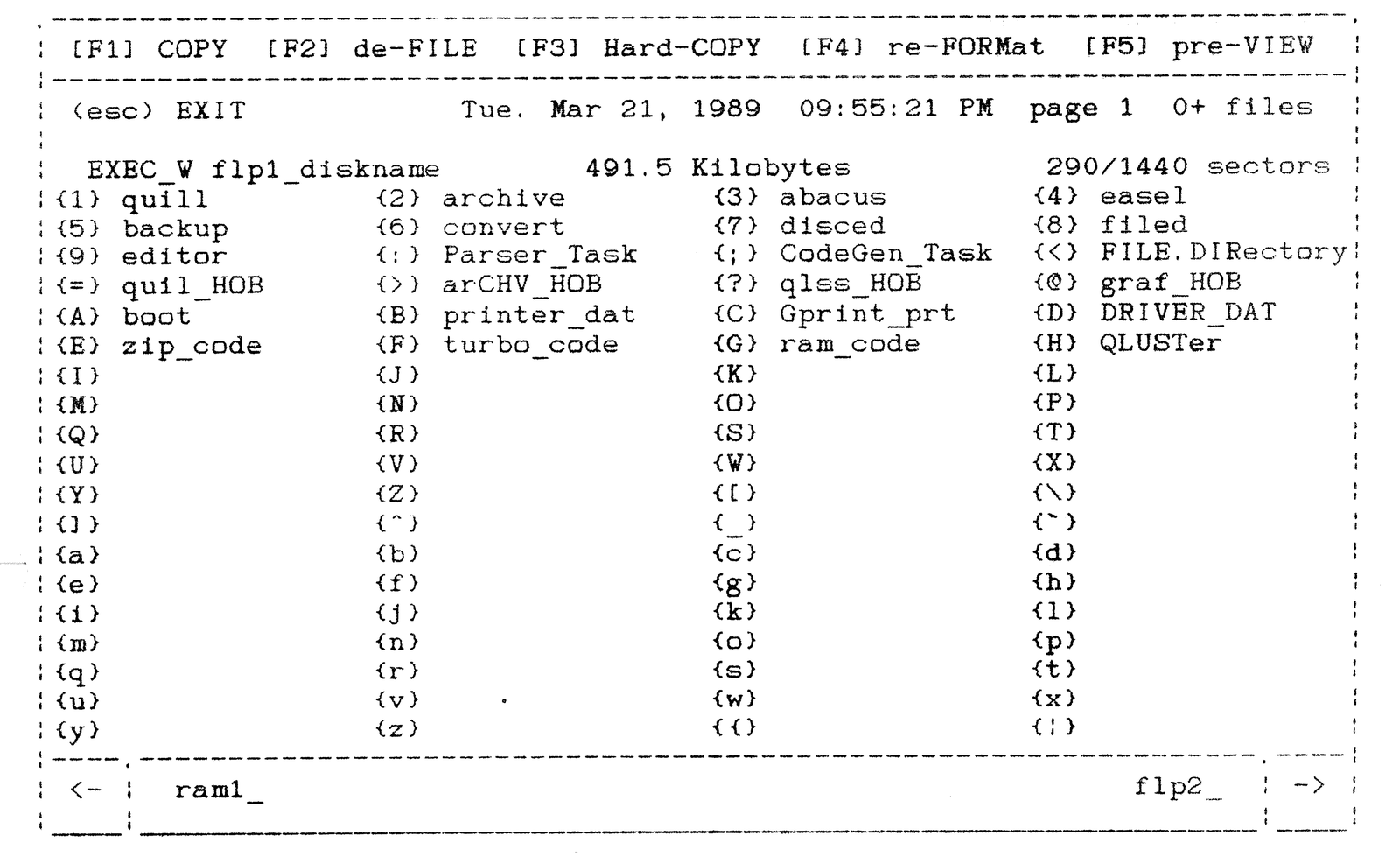
The first of two, obvious aspects about the program becomes clear as you scan the screen; that is, the filenames are NOT presented in an alphabetical order. With the exception of the replacement of DELETEd files, the relative chronology of the files on the disk will be readily apparent.
Second, the sheer number of filenames may at first be overwhelming. While 76 filenames may initially seem like a lot to look over, you will probably find the broad perspective of a disks contents more satisfactory than a small bunker window which shows less than a dozen filenames at a time.
The “absolute” number of files on a disk are not indicated. Only the number of files NOT visible on the current screen. If you have more than 76 files on the disk, the number is indicated after the current page number and followed by ‘+ files’. A number greater than zero indicates that another page may be accessed.
Pressing ‘F5’ reveals a similar screen format.
[F1] COPY [F2] de-FILE [F3] Hard-COPY [F4] re-FORMat { } pre-VIEW
The line above the menu window will indicate which utility you are accessing with an empty ‘{ }’ rather than ‘[F5]’, and the name highlighted within a colored block. Aas you move to other the utilities, the block and empty ‘{ }’ will change accordingly.
Pressing the key indicated within any of the {bracketed} prefixes preceding a filename activates the function upon the file. If you choose the bracketed character for the BOOT, you should see a LISTing of the BOOT program. If you ‘view’ a machine coded program, you will see spaces filled with mostly unintelligible ‘non-ASCII’ characters. A Quill_doc will be unformatted, with the text strung together. Quill_lis files will be ASCII files roughly formatted to show the layout.
The “Pre-VIEW” function allows you to view the contents of a file without actually having to LOAD it and then LIST it to the screen. Often times you do not need to “look at” an entire file. If this is the case, then press the ‘(esc)ape’ key to pause or abort the pre-VIEW. Of course, you may use the QL’s “standard” ‘CTRL F5’ key combination to pause.
Pressing the ‘/’ key will change the highlighted word (“pre-VIEW”) in the top line to WSTATus.
[F1] COPY [F2] de-FILE [F3] Hard-COPY [F4] re-FORMat { } WSTATus
Accessing the WSTATus utility allows you to determine the file size (bytes), and the date the program was saved.
If you press ‘/’, again, you will see that it has changed back to pre-VIEW.
Pressing ‘F1’ will put you into the COPY utility. You will see a flashing cursor after the word “to” near the top of the main window. You must respond to this by either pressing <ENTER>; or, ‘m’,’r’,’f’ and then <ENTER>; or, ‘o’ <ENTER> followed by the drive type and <ENTER> and the number and <ENTER>, again. This becomes the temporary default.
Pressing ‘F3’ again reveal a now familiar screen format.
[F1] COPY [F2] de-FILE { } ser1 COPY [F4] re-FORMat [F5] pre-VIEW
To change the SERial connection being used by your printer, press the double quote key (shift ‘). You will see the top line will now indicate the change. You can always toggle back by pressing the double quote key (combination) again.
[F1] COPY [F2] de-FILE { } ser2 COPY [F4] re-FORMat [F5] pre-VIEW
You will probably note that there is a “blank space” between the ‘(esc) EXIT’ prompt and the clock. This is occupied by a “CAPS ON” message when appropriate.
The same screen format is used for all standard utilities. The exeception is WCOPY and WDELete which allow for somewhat less discriminate file handling.
To access the SuperTOOLKIT’s WCOPY facility, press the “toggle” key after you are in the COPY utility and after you have indicated the destination. Upon entering this portion of the program, you will see that you may choose:
                            _[d]oc    _[a]ba    _d[b]f
                            _[g]rf    _[o]ther/serial
       WCOPY flp1_@ PLATYPUS_[extension type]   []<<<     . . .
Or, press ‘ENTER’, if you wish to execute a indiscriminate WCOPY from the the first file onwards.
If you choose ‘d’, the WCOPY will be all files having the ‘_doc’ extension; ‘a’ will be all the files having the ‘_aba’ extension; and, so on.
If you choose ‘o’, you can either press ‘ENTER’ and access all the files; or, you may either choose another extension (e.g., ‘bin’). Although the second prompt asks for the ‘_[extension name]’ you may INPUT the beginning portion of any filename ‘string’ (partial or whole) which follows an underscore/’_’; thus, if you INPUT either “QLU” or “QLUSTer” (or, some other portion of the name), you should get both ‘QLUSTer’ and ‘QLUSTer_doc’ if they are both on the disk; and, any files which begin with “QLU” (if that was the partial ‘string’).
The process is similar for WDELete.
QUIT a utility by either selecting another utility via the function keys, or by using the ‘(esc)’ key to access the “opening page” to access the ‘AUTO_EXECute page’.
After you QUIT an EXECutable program, you will be RETurned to QLUSTer’s ‘(esc)’/”QUIT” page. Proceed.
To set the time, first access the opening screen. Then ‘TAB’ to the ‘CLOCK’. If the time on the QL’s clock is incorrect, you may RESET the clock to “day one”; change to current time, or ignore.
To reset the time to ‘Sun. Jan 1, 1961 00:00:00’ simply use a ‘shift ENTER’ key combination. To access the time setting routine, press the ‘Space Bar’; then, simply use the ‘up’ or ‘down’ cursor key(s) to adjust the numerical value, and then press ‘ENTER’ to let your QL know that you wish to proceed. Alternatively, you may ‘TAB’/’shift TAB’ to another choice.
FILE.DIRectory
The ‘FILE.DIRectory’ is an active file. The medium being accessed by the program must NOT be WRITE PROTECTED. If you “pre-VIEW” the ‘FILE.DIRectory’, you will see that it is a list of all of the files on the disk.
FILENAME Length
Filenames longer than 19 characters are NOT recognized by the program. While more explicit (i.e., longer) names are nice, the “real” world only allows 12 character filenames, so longer filenames is a bad habit to get into. The suggested maximum length is still only 14 characters.
CHANGE_DEVICE <ConTRoL>(esc)
The ‘right cursor’ and ‘left cursor’ keys are used to move from one drive to another of a similar medium.
To access ‘device3_’ from ‘device2_’ via the cursor keys you must use a ‘shift right cursor’ key combination. This prevents unwanted access of a potentially non-existent device.
If you wish to access a device other than ‘flp1_’/’mdv1_’/’ram1_’, then press ‘o’/’O’. Accessing a device which is not on your system will cause the QL to either crash (if there is no SuperTOOLKIT), or to set up a file which reads “ram3_FILE.DIRectory” on the disk in ‘flp1_’ (if, for example, you requested “ram3_”).
Great effort has been taken to reduce the likelihood of “crashing” the program. Nonetheless, it can happen by attempting to duplicate a filename of an existing file on the same medium when RENAMing, or by COPYing to a non-existent medium.
Send comments, questions, or queries to:
Al Feng
15 Wake Robin Court
Woodridge, IL 60517
U.S.A.
(708) 971-0495