
Time to look back to some of the programs you have found here in the past, especially the LIBRARY and RECOVER program needs to be updated. “Haste makes waste”, this has been a good demonstration of it.
But enough about that, lets do it. This month an update of the LIBRARY program, which as I mentioned last month, had a few features added to it since you have seen it in this column. In fact the changes are great enough to reprint the entire program ones more, and also the instructions to use it.
Next month I will review the RECOVER program, perhaps in its entirety, depending on the amount of changes I will make to it. Some of you have perhaps noted, it does not work with single sided drives, fact is it was written for quad-density drives, and its major feature is to rebuild the directory ones lost.
I feel this is important enough, since SDOS (Safe DOS) in its syntax does not ask for the drive number when the command “FORMAT/”name” is entered. Criticism? I hope it is not viewed that way since I think John Oliger has done a fantastic job writing the DOS, just a sugestion, if space and time permits to perhaps change the syntax, at least for “FORMAT” to “FORMAT/2″name”, which of course would make the user aware to specify the drive number when doing such a major task like formating a disk, rather than expecting flaky computer users to do a “LET/D=2” before formating, something easely forgotten.
I have managed to do this twice with an important disk in the other drive, but then I have been called flaky in the past, especially since I still use such an outdated computer as the 2068 Timex/Sinclair. Little do they know.
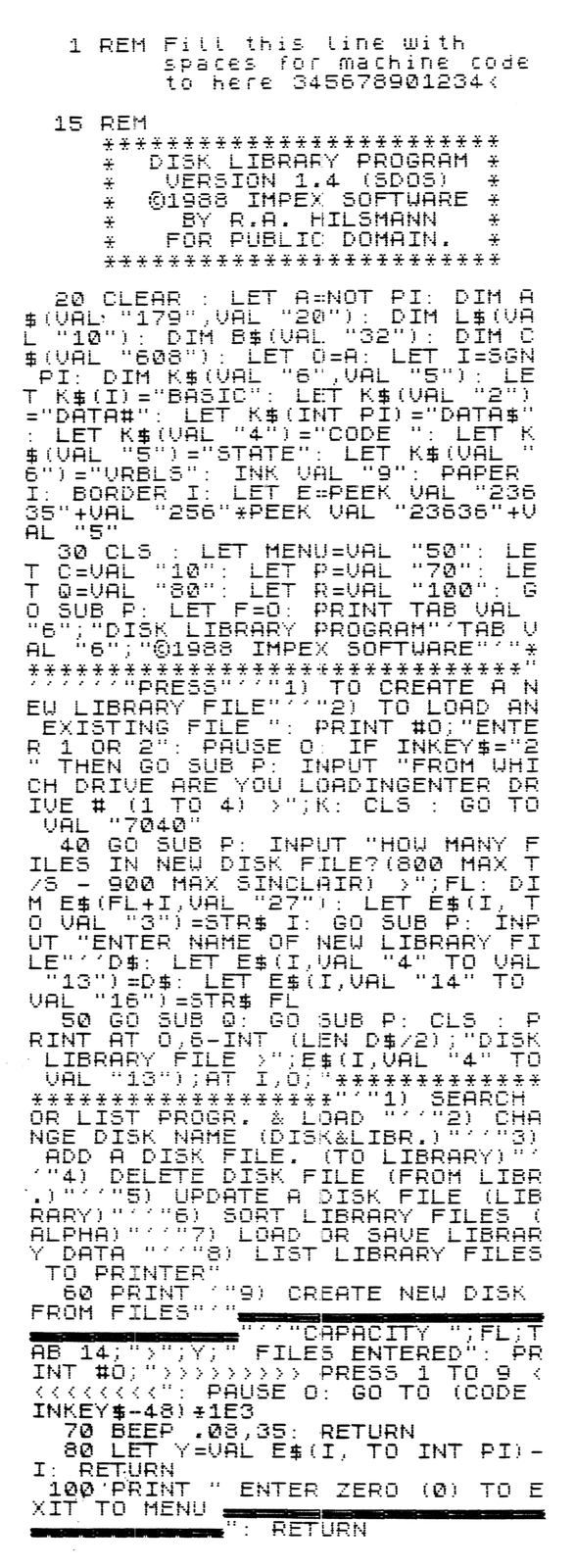
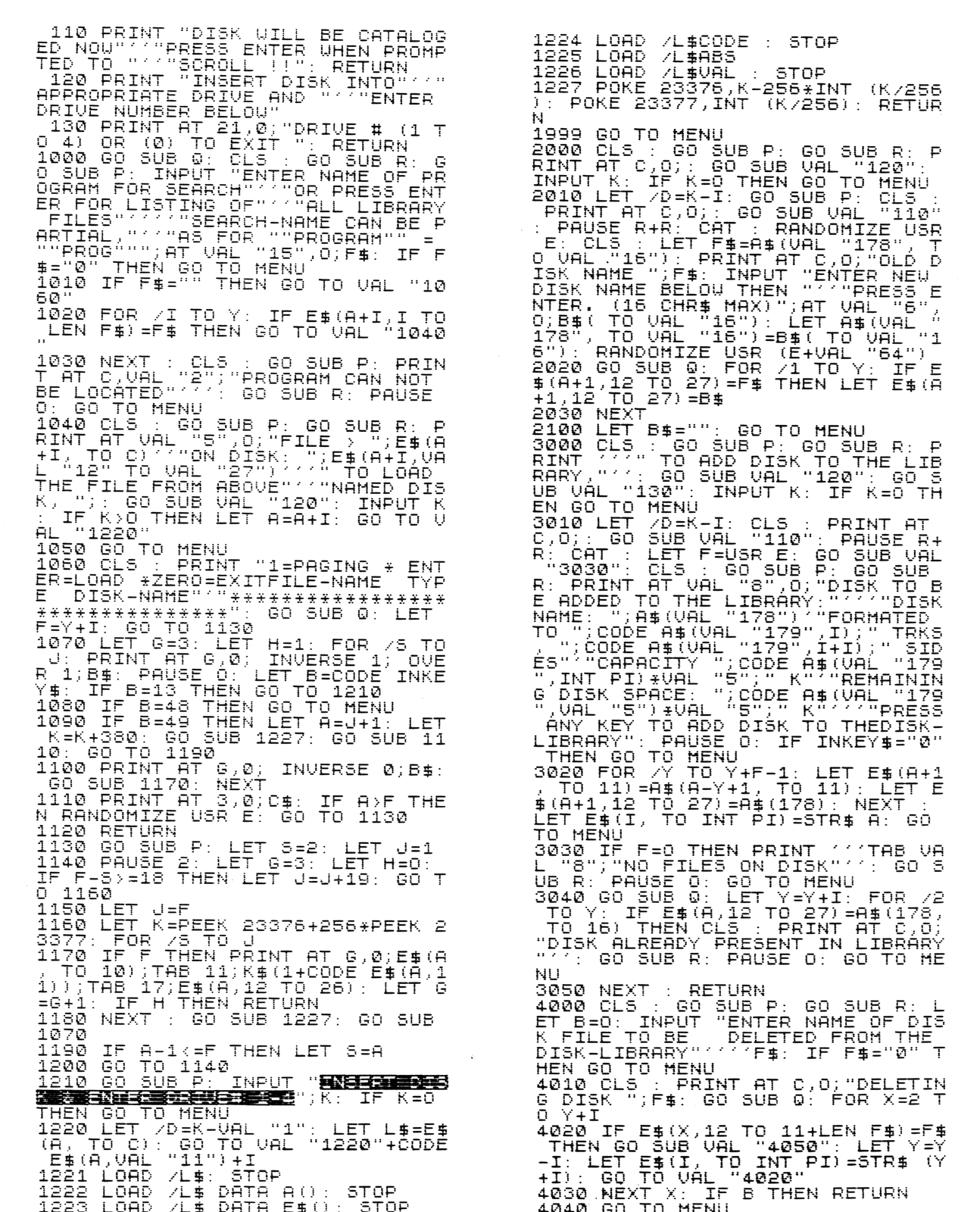
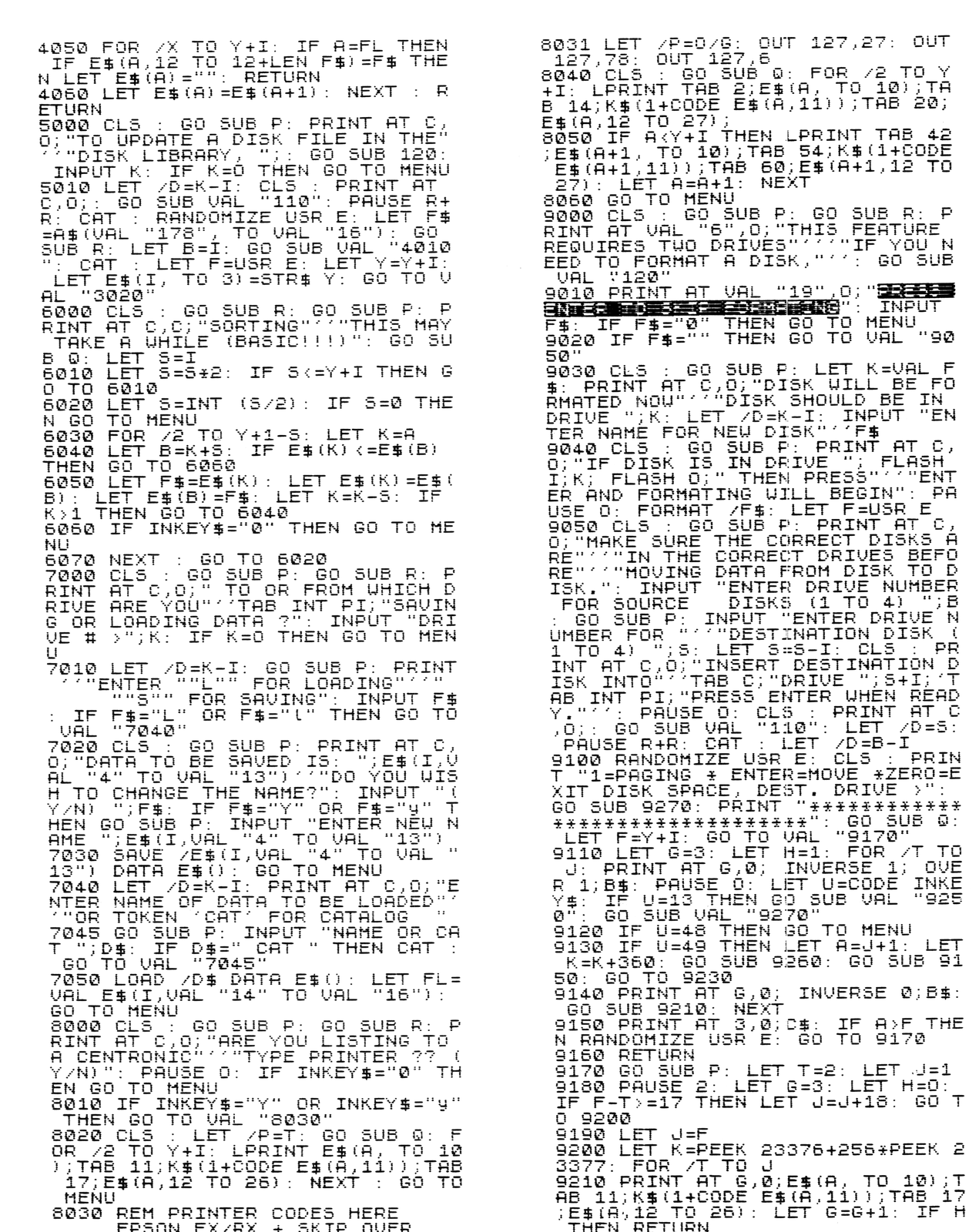
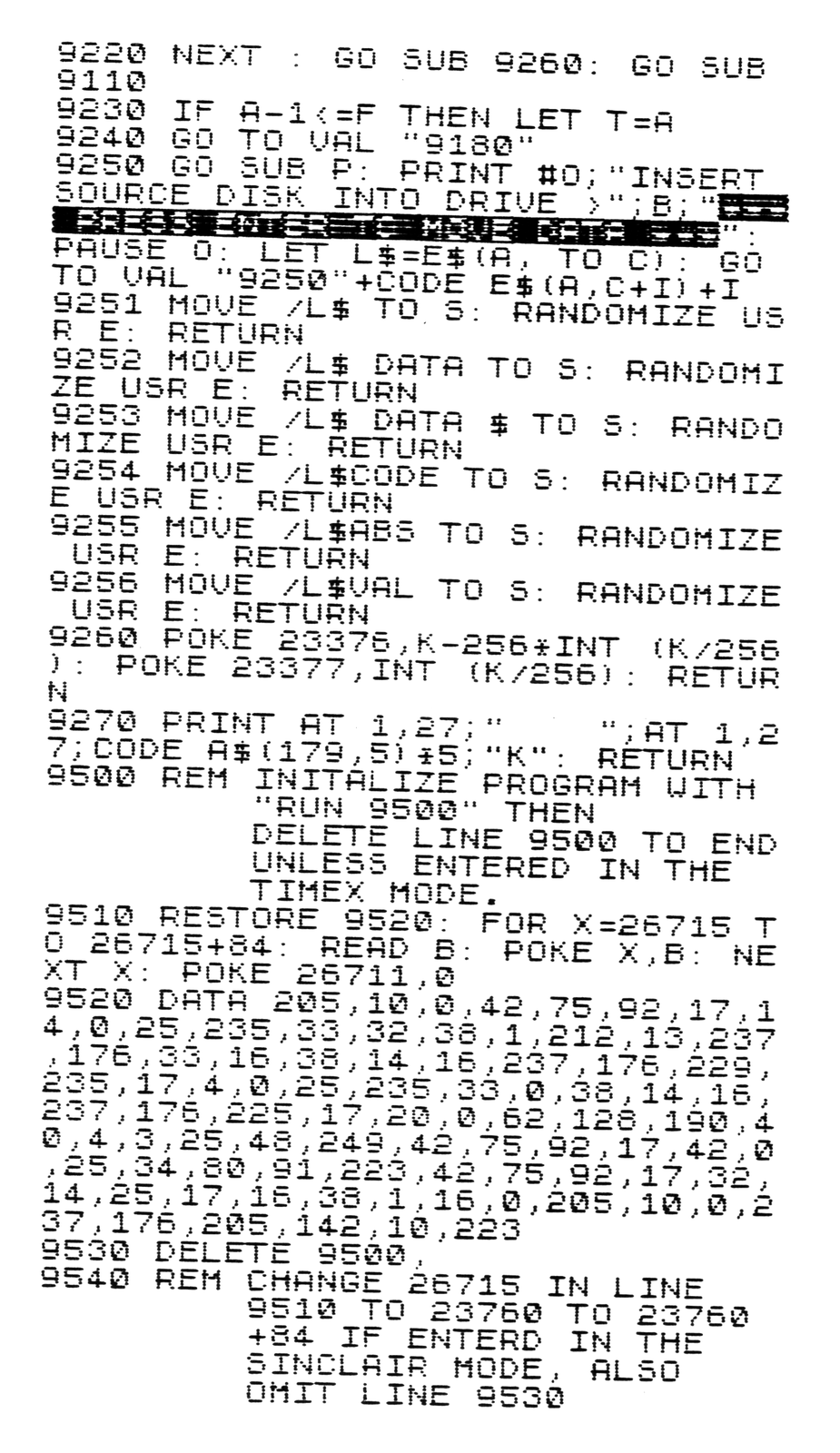
Enter the program with the 2068 in the TIMEX mode if possible, since this mode suports the delete necessarry to delete lines 9500 to end. The program will work in either mode ones saved and reloaded to be used. Needles to say, the program will work only with Safe DOS or SDOS as I prefer.
Here now the instructions to run the LIBRARY program.
Ones typed into the computer and initialized, save the program to disk, using;
CLEAR: SAVE/"LIBRARY" LINE 20Reset or NEW your computer, and enter;10 LOAD/”LIBRARY”, save this line to file 0, unless you elect to keep the LIBRARY program on a disk with other programs. Keeping it on a disk by itself will allow you to just type LOAD & ENTER to load it.
Version 1.4 has a few features the previous published program does not have, besides it has been debuged, but perhaps some more will surface as time goes on. Let me know if you find any.
Sorry about the basic sort in the program, but as soon as time permits I will write a machine code portion for it, like I said before, have a cup of coffee while it sorts in the meantime. Now a view hints on how it works!
Upon running, the program will ask you if you like to start a new file or like to load an existing one. Naturally you have to start a new one first, so press “1”. Enter the number of entries you wish to make to the file next, keep in mind that when in the TIMEX MODE you wont have the luxory of having as much memory available as in the SPECTRUM MODE, it may be best to use a maximum of 800 files, since you may like to load a program while in the TIMEX MODE.
Having reached the MAIN MENU, you will see all the options available to you. Insert a disk into a drive and press option “3” to enter the files on that disk to the LIBRARY. Always scroll through the files when the program catalogs your disk, and follow the prompts.
The program should have returned you to the MAIN MENU now, where you will see the number of files you have entered just above the bottom line. Press “1” at this time and then press ENTER again. You will now get a listing of all the files you have entered. Pressing any key will permit you to scroll through the files with an inverted cursor, pressing ENTER will load the program at the cursor position from the named disk. Pressing “1” will page through the files should you have more than 19 files in the LIBRARY, but lets get back to the MAIN MENU pressing the “0” key. Lets add a few more disks to the LIBRARY at this time.
I should mention that after pressing the “1” key, you have the option to use the search function and are able to load the searched program after inserting the named disk.
Try deleting a file after you have loaded it, or try the update a disk feature to get the feel for it now. Options “5” and “6”.
Do you have a disk which has a funny name, like “test” and you always wanted to change that name? Yes you may do so now, using feature “2”. This feature will not only change the disk name in the LIBRARY, but will also change the DISK NAME on the DISK (SDOS version 2. & up). Have the DISK to be changed in a drive and the LIBRARY FILE present at the same time, this will prevent confusion in your listings at a future time.
Lets see how fast a basic sort is next. Press “6” and watch the blinkenlight on John’s board if you have nothing better to do. Believe it, this is the fastest sort there is in basic for this particular purpose, yes I tried a few others, but this one beats them all. Having close to 800 files in the LIBRARY and using the sort then, should really warm up the chips in your computer, so much for basic. Sorted listings let you find things a lot easier on a print out, but it will be better to have unsorted files to create a new disk from the LIBRARY since some programs have basic, screenfile and code to be moved, having different names for each.
If you have a printer hooked up and dont mind waisting some paper, press “8” now, and see what a printout looks like, but before, if you do not have have an EPSON type printer, check the printer codes on line 8030, don’t wory about breaking into the program, “GO TO MENU” or “GO TO 50” will get you back to the MENU, but never use RUN, this will of course wipe out all the data. Change the printer codes on line 8030 if needed, consulting your printer manual of course. Also change the “LET/P=0/G” to whatever you have used in the past.
Next find a new disk, and press the “9” key. First, you will be able to format this new disk, but if you have a formated disk ready, or like to MOVE some files to a disk which already has some files on it, then just press ENTER to skip the format option. The destination DISK will be cataloged next, this will read the destination disk for the amount of disk space available on the disk, which will be constantly updated and displayed above the listings, this will make life easier.
You should see a listing of all your files next. Yes this is the same routine as the file 0 menu loader, one exception, pressing the ENTER key will MOVE the file at the cursor from the SOURCE drive to the DESTINATION drive now.
Just follow the prompts when using this function, make sure though, you always insert the appropiate disk into the source drive, otherwise you will get an error report. Typing “GO TO MENU” will get you back to the menu if this happens, or you may try using “CONTINUE” after inserting the correct disk, this should work, something I have not tried at this time.
Function “7” will of course allow you to save a LIBRARY FILE to disk, or allow you to load another FILE into the program.
One word of caution, do not tamper with line “20”, but if you cant resist, do not define any variables ahead of the ones already defined, the machine code in line 0 looks for the defined variables in line 20 in a certain area of memory, so keep your poken fingers away from that line. Also do not take line 0 down to edit, not that this is possible, but if some of you poke a different line number into line 0, you will be able to do so, this will surely wipe out the code!!
Good luck, I hope you enjoy this program as I do. It was born out of necessity to clean up my disk library.
Let me know if you like it, this would be about all the profit I would make from writing it.
Your #3
R.A. HILSMANN (Rudy)
Note: Type-in program listings on this website use ZMAKEBAS notation for graphics characters.