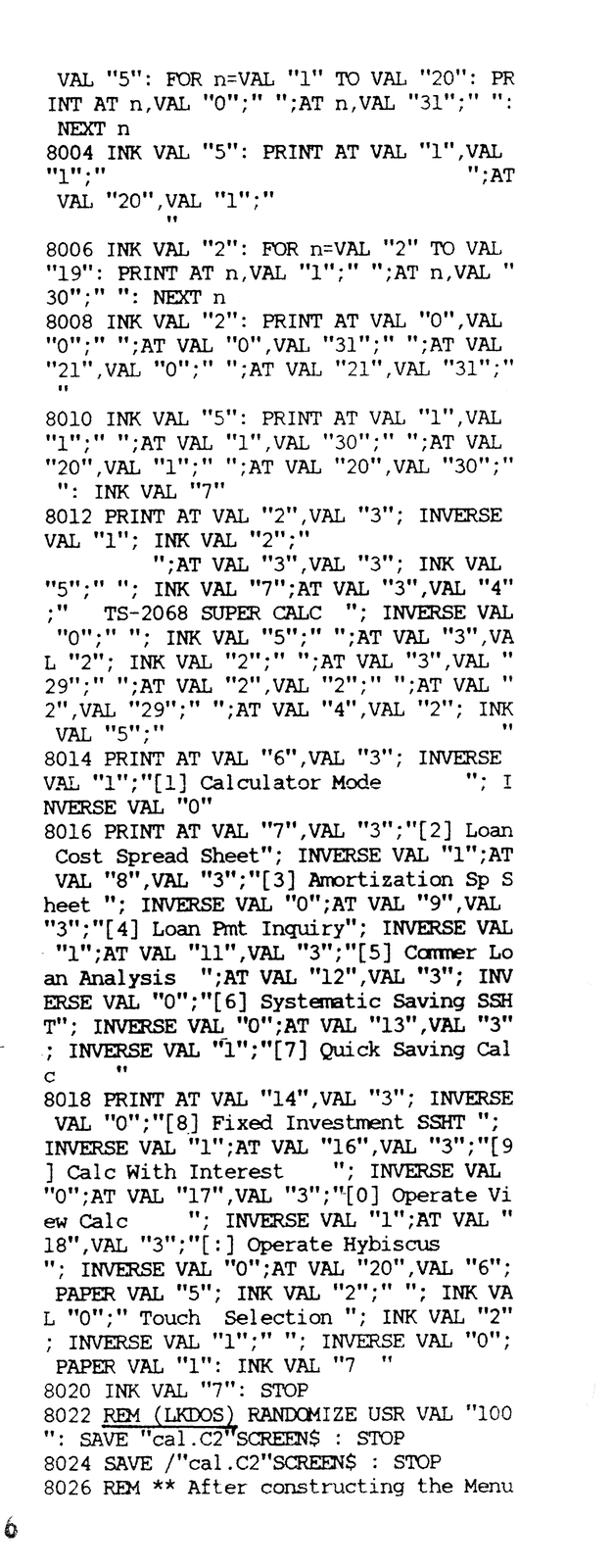
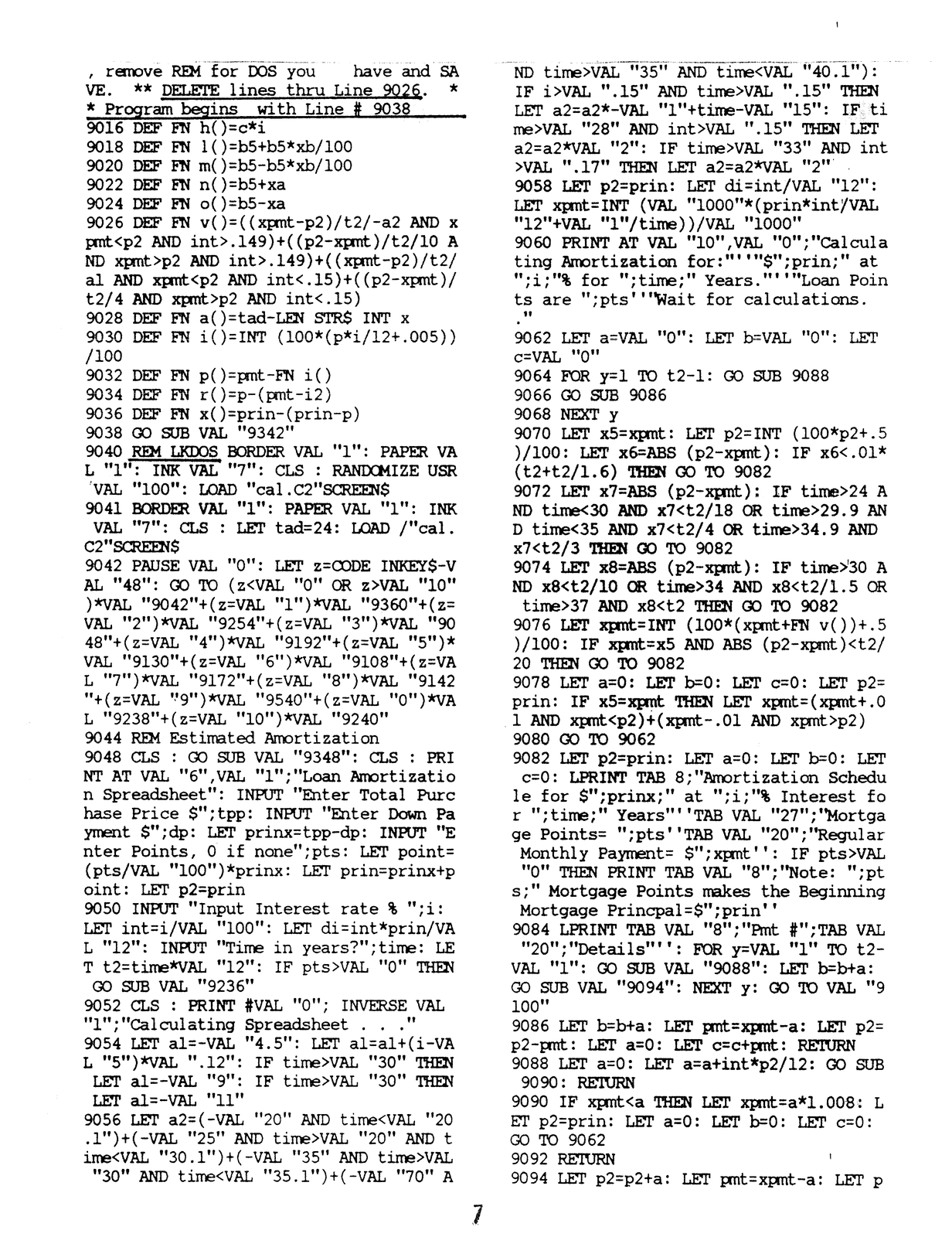
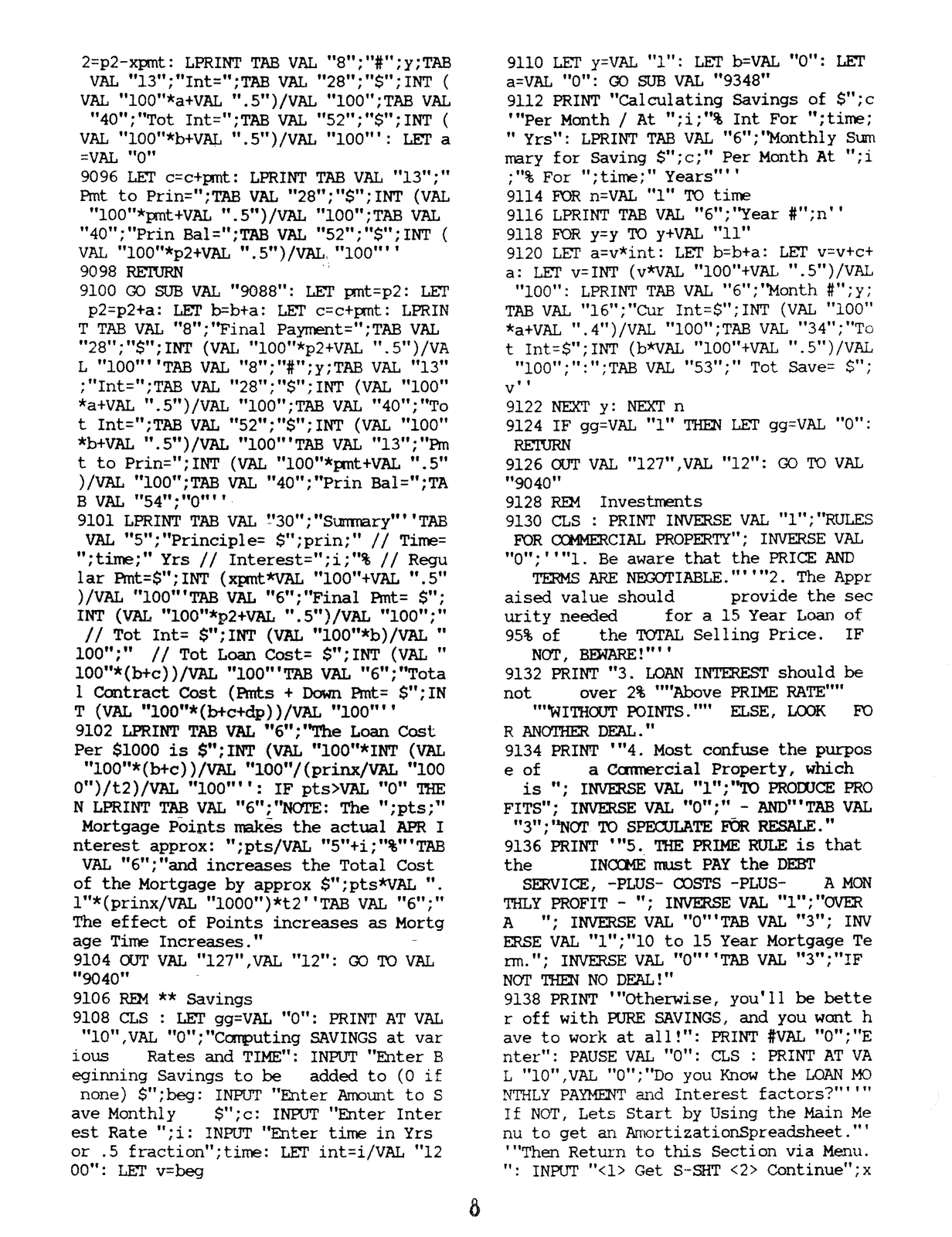
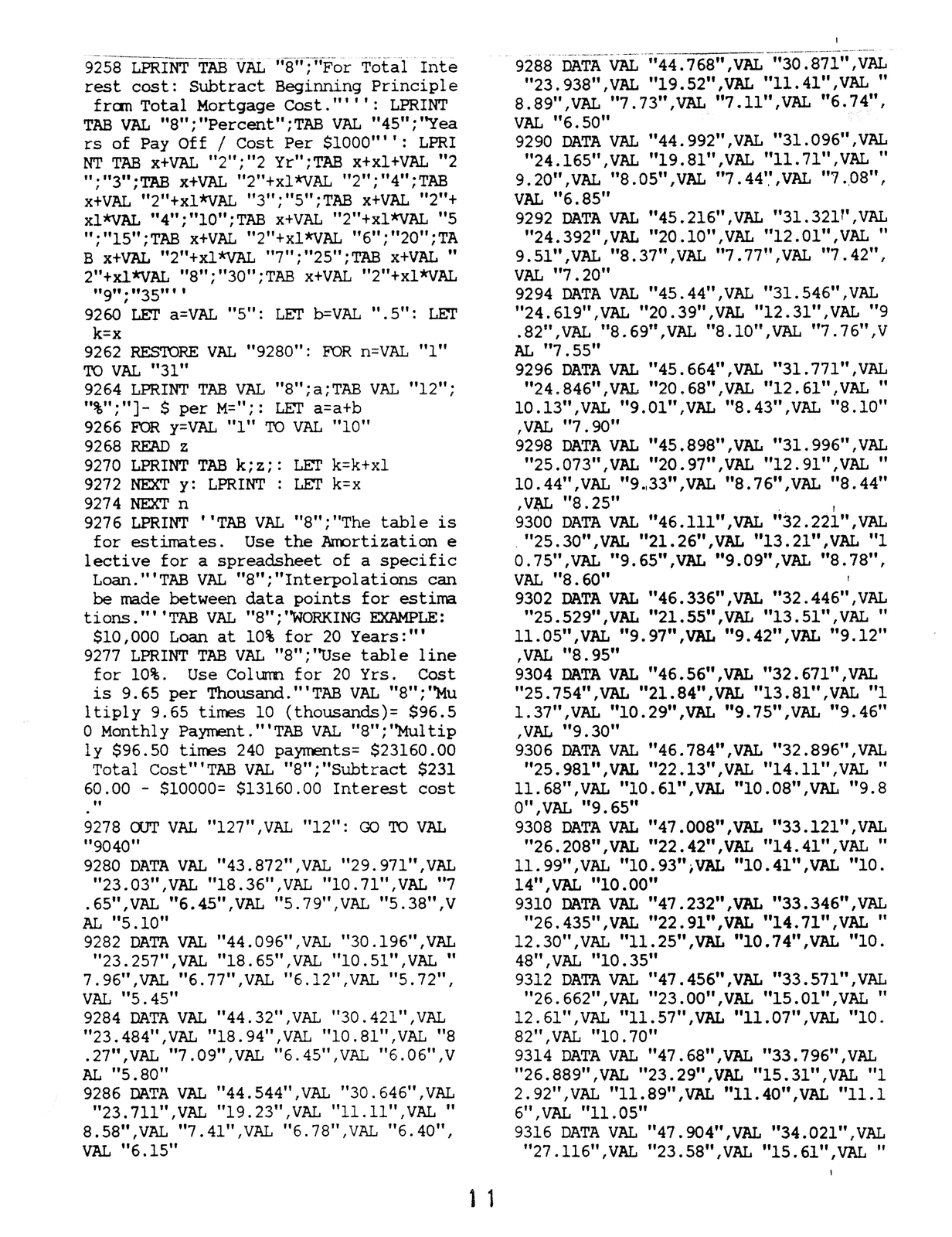
The two Menus kinda tells the story for this new software. It is a long Key in project (about 27K), so you might want to order the disk from Update Magazine and save time. But if you want to key it in you will learn more about the program as you are dunning it.
Most of us have used the classic View Calc by PSION. View Calc is a nice program but everytime I operate it I think about the things that I would like for it to do that it cannot. So, this program is designed to do those jobs for me. Actually what prompted me to get started was two recent occasions when family members were contemplating borrowing money. My Son was buying a car and my Daughter was about to buy some real estate. Both really needed some guidance as they were about to hitch themselves to a heavy load for a very long time.
So, for discussion we will go down the electives of the two menus, item by item.
1. Calculator Mode: This provides most of the functions of hand held calculators, but with more versatility of input. The Computer allows input of math calculations, like Sqr Root, Exponent formula, + and – numbers, multiplication, numbers minus or plus other numbers, etc. These inputs exceed the versatility of most calculators. Another plus for calculating with the computer is its ability to display more information. One mode of calc is to use Constants to add, multiply, divide, or subtract. The screen displays two windows showing the math “with constant” and “without constant”
2. Loan Cost Spreadsheet: When this function is elected the printer prints out a spreadsheet of “Cost Per Thousand” of a loan. The table has a range of from 5% through 20%, and from 2 years through 35 years. The table can be used (away from the computer) for estimating the parameters of almost any loan that one is contemplating.
3. Amortization Spread Sheet: Enter the total price, Down Payment, Interest Rate, and Time. If the Loan has “Points” then the effect of Points is computed. The print out of the spreadsheet is “by payment number” through to the end, giving Interest by month and the reduced principal. An Ending Summary includes Total Interest, Total Cost, Cost per $1000, and an analysis of the effect of Points if any.
4. Loan Payment Inquiry: A quick Screen displays the status of any Loan at any Payment number. The display gives: Balance at that payment number, Total paid to Interest, and Total paid to principal.
5. Commercial Loan Analysis: This feature analyzes a proposed buy of property or a business and provides profit or loss projections. It also provides a comparison between the proposed purchase and the savings of the debt service at 6% interest. The net profit-loss is compared to savings over the time of the proposed loan term and by year. The summary also provides Capitol Gains by year and by loan duration. It is a complete guide for analyzing commercial investments.
6. Systematic Savings Spreadsheet: Prints out sinking fund accumulation (something thay Yuppies need to think about).
7. Quick Saving Calc: Same as <6> but gives screen info for input time.
8. Fixed Investment Speadsheet: This is for money mart and other fixed investment when guaranteed interest is known.
9. Calc with Interest: See Secondary Menu, which is self explaining.
Notes for Key In Guidance
The Listing is prepared for DUAL use of Oliger and LKDOS, or for individual use of either DOS.
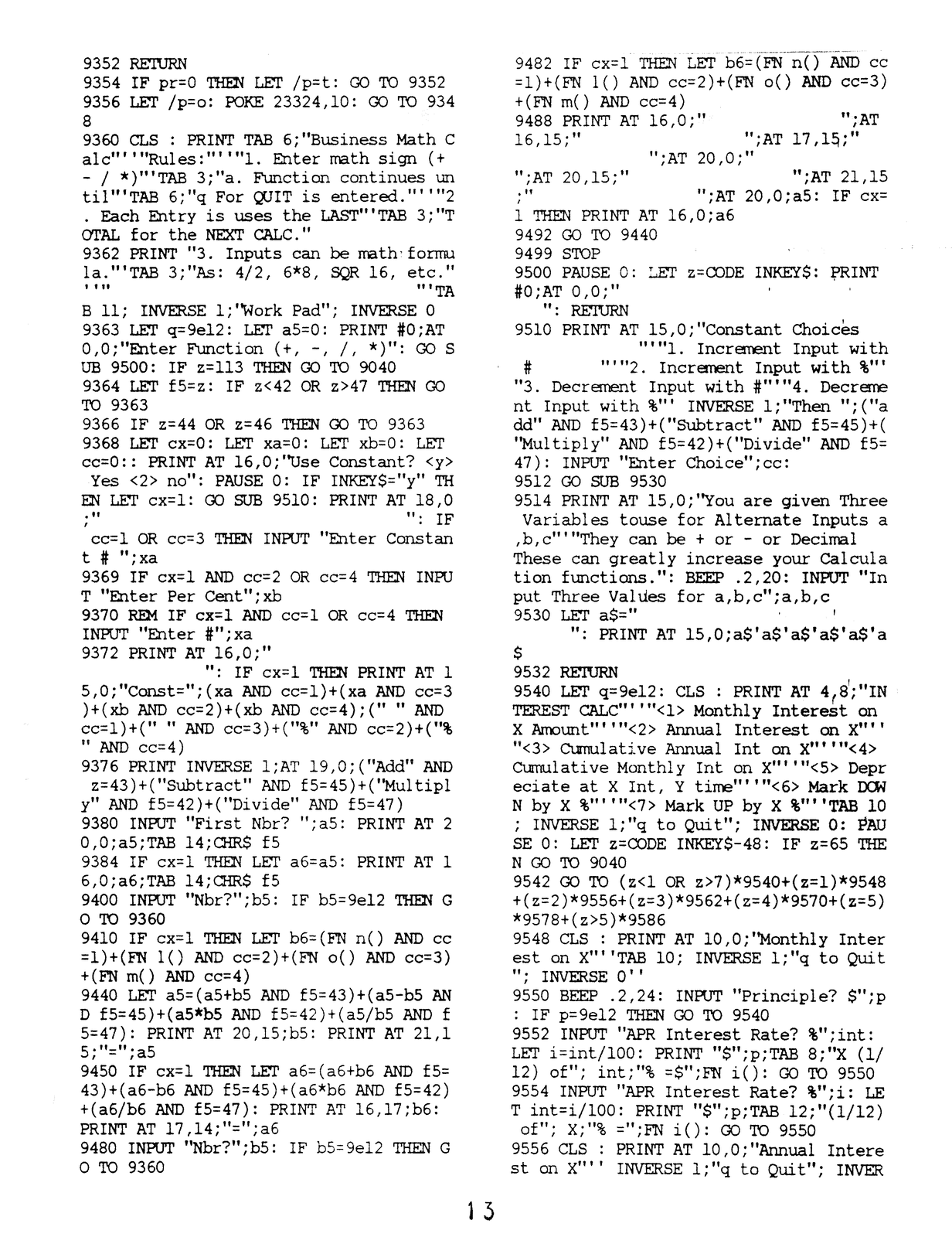
The first group of program lines “builds the main menu”. After the menu is built, it is SAVED as a screen to disk. After keying in lines 8000 through 8024 you should RUN the program and check out the appearance of the Menu. If O.K. then remove the REM of either line #8022 or 8024 (for LKDOS or Oliger DOS). Then RUN the program again, and this time type CONTINUE ENTER to SAVE the Menu Screen. Once that is done the lines 8000 through 8026 should be DELETED.
Once the Menu is SAVED, the program actually begins at line #9038. The earlier DEF FN () lines are ignored except when FN() is used in a program line.
PRINTER / INTERFACE INITIALIZATION
When the program first runs, line #9038 operates to exercise the SET PRINTER routine. This routine is Lines 9342 through 9356 and bears some explaining.
First, lets look at line #9350. This is a “Check Printer Status” routine. You may need to change the figure “237” for your TS-2068. Try this: With the Printer ON, But OFF LINE, and the Computer initialized for your DOS, type: PRINT IN 127 ENTER. If you get anything BUT 237, then EDIT line #9350 and insert that number instead of 237. You can do this even before you key in the listing and make a pen and ink change in the listing.
Next, CHECKING your PRINTER COMMANDS: Line #9348 has a “Style Selection” menu to set a print style. The variable “ps=” is set to three possible styles of print: ps=1=pica, ps=2=elite, ps=3=micron. It is likely that you will need to change the <3> selection from micron to CONDENSED in line 9348.
Then in line #9348, the first groups of commands are to “SET LETTER QUALITY”, which for my printer is <OUT 127,27: OUT 127,120: OUT 127,1>. Check your own printer manual and substitute the proper command codes to SET LETTER QUALITY.
Then in Line #9349, the maximum line length variable “lx” is set “for the print style elected”. If you have changed from micron to CONDENSED for the small print style, erase “120” and substitute “136”.
Then in line #9338 we Command the printer to SET THE STYLE of Print as elected: ps=1=PICA, ps=2=ELITE, ps=3=micron or Condensed. We begin the SET COMMANDS with <OUT 127 Commands>. You should compare your Printer Manual Commands (for each of the 3 styles) to those used in the program line. Substitute the correct commands: I use for Pica: <OUT 127,27: OUT 127,80>. For ELITE: <OUT 127,27: OUT 127,77>. For Micron: <OUT 127,27: OUT 127,103>. Edit and Substitute your own correct command numbers for setting these styles of print.
Then the last three commands of Line #9349 are <OUT 127,27:OUT 127,120: OUT 127,1>, to set LETTER QUALITY. Check your own printer’s commands to SET LETTER Quality and substitute.
The Printer and Interface section, line numbers #9342-9356, can be extracted and used for your other programs to “Initialize the Interface and Provide a Menu for changing Print Styles”. It works for either Oliger Dos and LKDOS, or both.
OLIGER DOS commands, using the slash bar “/” after load or save commands will not ENTER if the Oliger DOS is not active. To solve this, key in the program line and then back up to the line number and insert REM. Then the line will ENTER.
Other than explained above, the program has no tricks and is easy to key in and operate.
The Amortization Spreadsheet takes about one minute for the program to build the SS. The calculation of Amortization is a “calculus’ of variations of curves” math problem having insufficient finite information to compute the values. The calculation begins with a “Guess at the mortgage payment” and proceeds to run a “trial spreadsheet”. The first spreadsheet is always WRONG, and the “Guess” is up-dated until the actual payment is as correct as is possible. At that time the program jumps to the Print Out routine. It should be interesting for you math connoisseurs to check out my (amateur) method of solving this problem. Kids today think that Mathematics is where General Lee Surrendered, and calculus is what makes them have to go to the dentist. It would behoove us all to stock up on Math Programs, as the Mathematician is now an endangered specie. Enjoy! -BJ_
TS-2068 Super Calc For Oliger and LKDOS
Donated to Public Domain By: Bill Jones
The Main Menu
TS-2068 SUPER CALC

[1] Calculator Mode
[2] Loan Cost Spread Sheet
[3] Amortization Sp Sheet
[4] Loan Pmt Inquiry

[5] Commer Loan Analysis
[6] Systematic Saving SSHT
[7] Quick Saving Calc
[8] Fixed Investment SSHT

[9] Calc With Interest
[0] Operate View Calc
[:] Operate Hybiscus

Touch  Selection
The Secondary Menu
        INTEREST CALC

<1> Monthly Interest on X Amount

<2> Annual Interest on X

<3> Cumulative Annual Int on X

<4> Cumulative Monthly Int on X

<5> Depreciate at X Int, Y time

<6> Mark DOWN by X %

<7> Mark UP by X %

          q to Quit
The LLISTING