
Send a description of your computer hardware problems to the TS COMMUNIQUE, c/o TIME DESIGNS, 29722 Hult Rd., Colton, OR 97017. Joe Williamson will discuss and possibly offer a solution for your TS1000/1500, TS2068, QL, and associated peripherals. Joe is the owner and operator of a successful electronic and video repair service in Gainesville, Florida; and a bonafide Sinclair computer enthusiast.
Can the MW-100 Mindware printer be used on the 2068 computer? It was originally used on the TS-1000 printing 16 columns wide.
Andrew Jubb
Dear Andrew,
That mindware printer connected to the TS-1000 in the same way the 2040 printer did and although I haven’t tried it on the 2068, I don’t see any reason why it wouldn’t unless it requires the 9 volts that appears on pin four, bottom side of the rear edge connector and can easily be supplied. Good luck! -Joe
From reading one of your TS Communique replies, I gather that you have a Sears TV/Monitor/RGB, as I have. Mine is Model C539-14544, which may be slightly different than the units sold in the USA.
Normally I use it with my TS2068. However, on occasion I use it with my ZX81. Thats when I encounter a problem. It works perfectly except when I load a program from tape. When I do that the screen rapidly turns black, and stays that way until loading is completed.
I have attempted to cope with the problem by using seperate patch cords in the computer and TV, laying them close together, thus getting a capacitative coupling effect. However, this results in a snowy picture when running the program. Any ideas?
George Chambers
Scarborough, Ontario
Dear George,
The Sears monitor has a mute circuit in it that mutes the picture when no sync or improper sync is detected. It is in there to help protect the set from damage. During the LOAD/SAVE operations, the monitor “sees” the black bands as improper sync and mutes the video. You can disable the mute function, but that may cause problems down the road.
The mute also works in video and RGB mode, so if you experiment with connecting your 2068 to work with RGB, and have no picture, it is most likely due to poor sync. -Joe
How would you construct an interface to drive one of those monitors sold by BG Micro? I’m talking about the type of TTL CRT that would require you to take the NTSC signal from the 2068 and split it out to drive these monitors.
John Shepard
Coldwater, MS
Dear John,
Until just recently I had always assumed that TTL monitors worked just like RGB monitors but with just one luminance signal instead of three color signals. Vertical and horizontal sync are seperate on TTL monitors and alot of RGB monitors although most have composite sync inputs as well.
I recently had a friend ask me to take a look at his IBM TTL monitor which had a bad fuse in it. After it was back in working order, I decided to see how it would work on my 2068. To make a long story short, It didn’t work! Apparently the TTl Monitors operate at a different scan frequency. If anyone has had success at connecting one of these monitors, let us know! -Joe
I recently purchased the Hacksel centronics interface for the 2068 and I am attempting to use it with a Radio Shack DMP 105 printer.
After loading all three codes (LPRINT, COPY, and HI-RES COPY), I can enable various print sizes (bold, elongated, etc.) when using MSCRIPT but have been unable to utilize them in BASIC programs, getting a standard print character regardless of the code sent (using LPRINT CHR$ xx).
The instruction sheet from RMG Enterprises says that the copy routines will work with an Epson compatible printer (not mentioned in the advertisement), which I guess the DMP 105 is not as I have been unable to make any screen copies. Each time I do, I get an “Integer out of range” error.
I have seen screen dumps of graphs made on the DMP 105 using a centronics interface so I know the printer is capable of this. Any assistance would be greatly appreciated.
William Haines
Schenectady, NY
Dear William,
By far the most popular printer standard is Epson, so most are Epson compatible, although this isn’t really saying much as most printers have their own idiosyncrasies anyway. The DMP 105 claims to be IBM compatible and should mean that it is Epson compatible since Epson caters to the IBM market.
I believe that the Radio Shack printers are made by Seikosha and the software should be configured to this brand if that option is available. LPRINT and LLIST should work on just about any printer, Epson compatible or not. The differences come in when graphics are concerned. That is where all the variations exist – think about how long it was before anyone came up with a COPY routine for the Olivetti Inkjet printer!
If you don’t have any options in your software, try different software like Zebra’s Zprint 80 which does support Seikosha printers. Also when calling for
different type styles from BASIC, most are double byte instructions. To set double width printing, you need to use: LPRINT CHR$(27);CHR$(14); or you could also use: OUT 127,27:OUT 127,14.
When using MSCRIPT, you don’t need to load any extra codes as MSCRIPT already has them built into the program. I have had alot of letters about the DMP 105 and the problems associated with them, read on. -Joe
I have an interface problem involving my TS1000 and a Radio Shack DMP 105 printer. When using the Memopak centronics printer interface, the printer does not execute a carriage return when it reaches the end of a line of text. This occurs when using Word Sync II.4, Memotext, Memocalc or just the interface from BASIC using LPRINT.
The computer and printer work fine when using an Aerco CP-ZX interface, and the Memopak interface works fine when using a Gorilla Banana printer.
Refering to the DMP 105 control codes, the printer expects to receive carriage return (13d, 0Dh) at the end of a line. Perhaps you or one of your readers would know what to poke where to make these work.
Bob Barnett
Fort Myers, FL
Dear Bob,
It has been a long time since I’ve seen a Memopak but I recall there being dip switches in it to control various functions to the printer. Check and see if there is a linefeed/carriage return suppress switch available. Also, check the printer dip switches and try different configurations with them.
From the samples you sent, it appears that a line feed is being sent with no carriage return. Or, if the printer is bi-directional, something is keeping the print head from printing back the other way but this is not probable. Memotext itself may also have some dip switches you can try. Also try sending from BASIC: LPRINT CHR$ (13) which should send a carriage return and line feed each time it is executed. Put that in a FOR-NEXT loop and try changing dip switches until the correct combination is found. This technique is called mad-dogging but works better than pulling one’s hair out which is what this problem sounds like! -Joe
The article regarding the non-linearity of the 2040 printer appeared in the May/June ’85 issue of TDM on page 12.
Here is a sample printout and a listing of the program which produced it. Maybe this information will help Don Balmer to solve his problem. His TV and/or printer may require some experimentation to find the exact correction factors.
Paul Synder
Chattanooga, TN
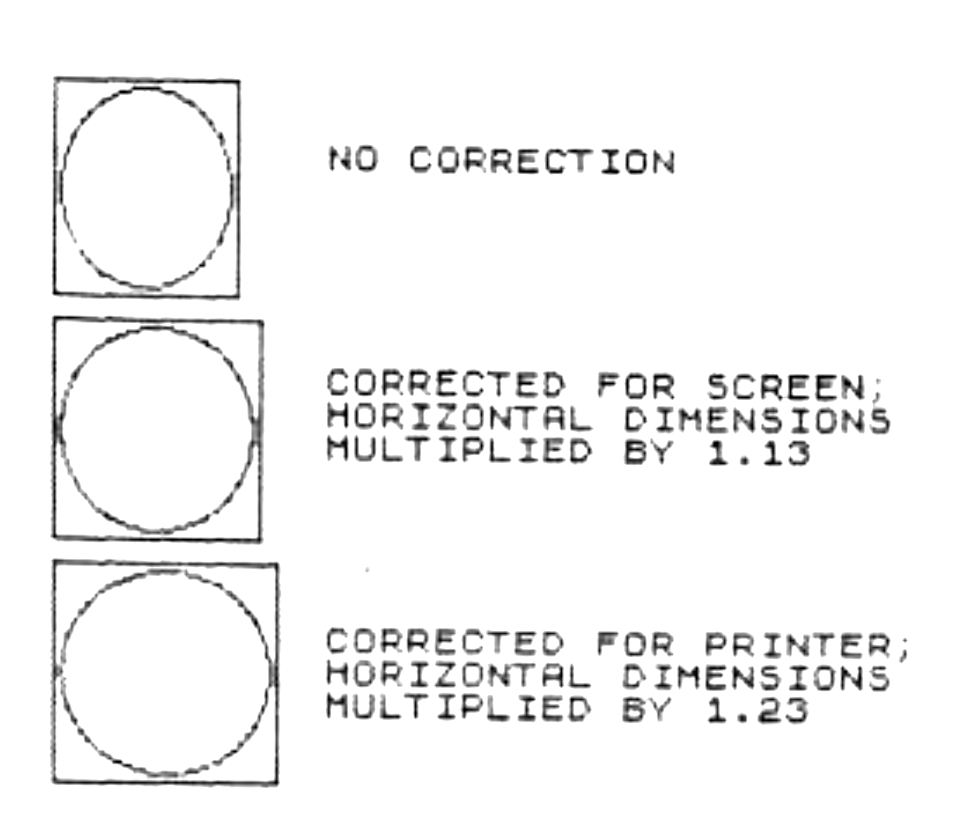
200>PLOT 0,174: DRAW 54,0: DRAW 0,-54: DRAW -54,0: DRAW 0,54
202 LET C=27: LET R=25: FOR N=0 TO 2*PI STEP PI/90: PLOT C+R*COS N,147+R*SIN N: NEXT N:
210 PLOT 0,114: DRAW 54*1.13,0: DRAW 0,-54: DRAW -54*1.13,0: DRAW 0,54
212 LET C=27*1.13: LET V=25: LET H=V*1.13: FOR N=0 TO 2*PI STEP PI/90: PLOT C+H*COS N,87+V*SIN N: NEXT N:
220 PLOT 0,54: DRAW 54*1.23,0: DRAW 0,-54: DRAW -54*1.23,0: DRAW 0,54
222 LET C=27*1.23: LET V=25: LET H=V*1.23: FOR N=0 TO 2*PI STEP PI/90: PLOT C+H*COS N,27+V*SIN N: NEXT N
230 PRINT AT 2,10;"NO CORRECTION";AT 9,10;"CORRECTED FOR SCREEN;";AT 10,10;"HORIZONTAL DIMENSIONS";AT 11,10;"MULTIPLIED BY 1.13";AT 17,10;"CORRECTED FOR PRINTER;";AT 18,10;"HORIZONTAL DIMENSIONS";AT 19,10;"MULTIPLIED BY 1.23"
240 LPRINT '': COPY : LPRINT '': LLIST 200
299 STOP
Dear Paul,
Thanks for finding that for us. That May/June ’85 article was written by Dick Wagner of Canby, Oregon and covered several points on graphing different calculated functions. Joan kealy also wrote in and said that Oleg Jefmenko also had an article out which I believe was in Syntax a few years back which is the article I remember seeing. I’m surprised Tim didn’t remember Dick’s article of a few years ago! -Joe
Dear Joe,
Guess the ‘ol memory is slipping. I’ve heard that “early senility” is a complication that editors can contract. Meanwhile, Dick Wagner sent in these comments regarding non-linearity of printers. -Tim
Dear Joe,
Concerning Don Balmer’s comments about the non-linearity of the TS2040 printer (large printers are not necessarily linear either) in your last TS COMMUNIQUE column, please refer to my article in the May/June ’85 issue of TDM, entitled “A Graphic Problem for the T/S 2068”. Paragraphs four and five comment on this.
My 2040 prints a rectangle taller than wide when I screen draw a square. What I am doing in this article is to multiply the X axis by 1.24 to make it print 24% wider. The COPY command makes this a square on the printer from a rectangle on the screen. For my Panasonic printer, the X axis is wider so I multiply the Y axis dimension by 1.18. Of course, the opposite axis can be divided by the same numbers, depending upon the desired final printed size.
Use the multiplyer in the DRAW part of a program as DRRAW 1.24*80,0 for a longer horizontal line, or DRAW 0,1.18*80 for a vertical line. This won’t work for the CIRCLE command, so apply the same approach to the circle formula. Multiply the COSine part of the formula by 1.24 for the 2040 printer, or the SINe part of the formula by 1.18 for the Panasonic printer.
To calibrate a printer, print a large square on the screen and then COPY to the printer. Use a metric or decimal scale (preferred) to measure the printed image. The ratio of the larger dimension to the smaller (divide) will give the correction factor.
Keep up the good work on your TS COMMUNIQUE column. It shows that there are still many of us computer buffs who require help.
Dick Wagner
Canby, Oregon
Note: Type-in program listings on this website use ZMAKEBAS notation for graphics characters.