
If you’re like me you have many more books on the TS2068 than just the User Manual that came with your computer. And maybe you have read everything on User Defined Graphics in these books. Maybe even given it a try but gave up because it was just too much trouble? All those binary numbers to be punched in! Error prone, what?
Well, weep no more, friends. The listing on the right is a program that was inspired by publications of the 2 authors shown in line 1. I combined the good things in their programs, added instructions and a few lines which make the new program run better and be of more help.
I submitted a simpler version to LIST, on tape, in the form of a contribution to a library tape. It was never included in any of the finalized library tapes and I have no idea what happened to my contribution! But here then, is the complete listing.
   1 REM *** UDGMAKER ***
by CEDRIC R. BASTIAANS, inspired
by JOHN WENTWORTH (SUN VOL.2 #3)
and BILL POWERS (CATS NEWSLETTER
MAY 85)
  10 PRINT AT 2,1;"THIS PROGRAM
PRESENTS AN EASY";AT 3,1;"  WAY
TO MAKE  USER DEFINED";AT 4,8;"G
RAPHICS (UDG's)"
  12 PRINT AT 6,0;"THE UDG's WIL
L NOT  BE LOST WITH""NEW"", ""CL
EAR"", ""SAVE"" OR ""LOAD""ONLY
""RAND USR 0"",  RESETTING OR TU
RNING OFF THE COMPUTER WILL!"
  15 PRINT AT 11,3;"PRESS ANY KE
Y  TO CONTINUE": PAUSE 0: CLS
  20 PLOT 95,55: DRAW 65,0: DRAW
 0,65: DRAW -65,0: DRAW 0,-65
  30 POKE 23658,8: DIM A$(8,8):
LET R=1: FOR L=0 TO 7: POKE USR
"A"+L,255: NEXT L
 100 PRINT AT R+6,10;">"
 105 PRINT AT 0,1;"USE KEYS 1 TH
ROUGH 8 TO DARKEN THE APPROPRIAT
E SQUARE. AGAIN TOCANCEL YOUR CH
OICE."
 107 PRINT AT 4,0;"MOVE THE ARRO
W WITH KEYS A AND Z"
 110 PAUSE 0: LET I$=INKEY$
 120 IF I$>="1" AND I$<="8" THEN
 LET A$(R,VAL I$)=(" " AND A$(R,
VAL I$)="\::")+("\::" AND A$(R,VAL I
$)=" "): PRINT AT R+6,12;A$(R):
GO TO 110
 130 PRINT AT R+6,10;" ": LET R=
R+(1 AND I$="Z" AND R<8)-(1 AND
I$="A" AND R>1)
 135 PRINT AT 16,0;"IF YOU ARE S
ATISFIED WITH YOUR  DESIGN. PRES
S <ENTER> AND THE   COMPUTER WIL
L PRINT THE DECIMAL NUMBERS FOR
YOU TO RECORD FOR   FUTURE USE."
 140 IF CODE I$<>13 THEN GO TO 1
00
 200 DATA 128,64,32,16,8,4,2,1
 210 FOR J=1 TO 8: LET L=0: REST
ORE 200: FOR R=1 TO 8: READ X: L
ET L=L+(X AND A$(J,R)="\::"): NEXT
 R: PRINT AT J+6,23;L: NEXT J
 220 PRINT AT 16,0;"


                              "
 222 PRINT AT 16,0;"WHAT KEY DO
YOU WANT TO CARRY   THIS NEW CHA
RACTER? (A-U ONLY!)"
 225 INPUT B$
 230 FOR J=1 TO 8: LET L=0: REST
ORE 200: FOR R=1 TO 8: READ X: L
ET L=L+(X AND A$(J,R)="\::"): NEXT
 R: POKE USR B$+J-1,L: NEXT J
 250 FLASH 1: BEEP .5,12: PRINT
AT 19,0;"UDG HAS BEEN STORED AS
GRAPHIC ";B$
 300 PRINT #1,AT 1,0;"\{20}\{1}M\{20}\{0}ODIFY \{20}\{1}C\{20}\{0}OPY \{20}\{1}A\{20}\{0}NOTHER \{20}\{1}Q\{20}\{0}UIT?": PAUSE 0: FLASH
 0: IF INKEY$="M" THEN PRINT #1;
AT 1,0;"
  ": LET R=1: GO TO 100
 303 IF INKEY$="C" THEN COPY
 305 IF INKEY$="Q" THEN STOP
 310 FLASH 0: CLS : GO TO 10
 320 SAVE "UDGMAKER" LINE 1
Transcription note: Commas in lines 120, 210, 250 and 300 are corrected to semicolons. Those in 120, 300 and the first in 250 show on the printed page. The one in 210 and the second in 250 are guesses from the layout in Figure 1, because their upper dots did not print. In line 300, \{20}\{1} turns inverse video on and \{20}\{0} turns it off; the codes are not typed. LET R=1 in line 300 is not in the printing. It is added because Modify stopped with Subscript wrong.
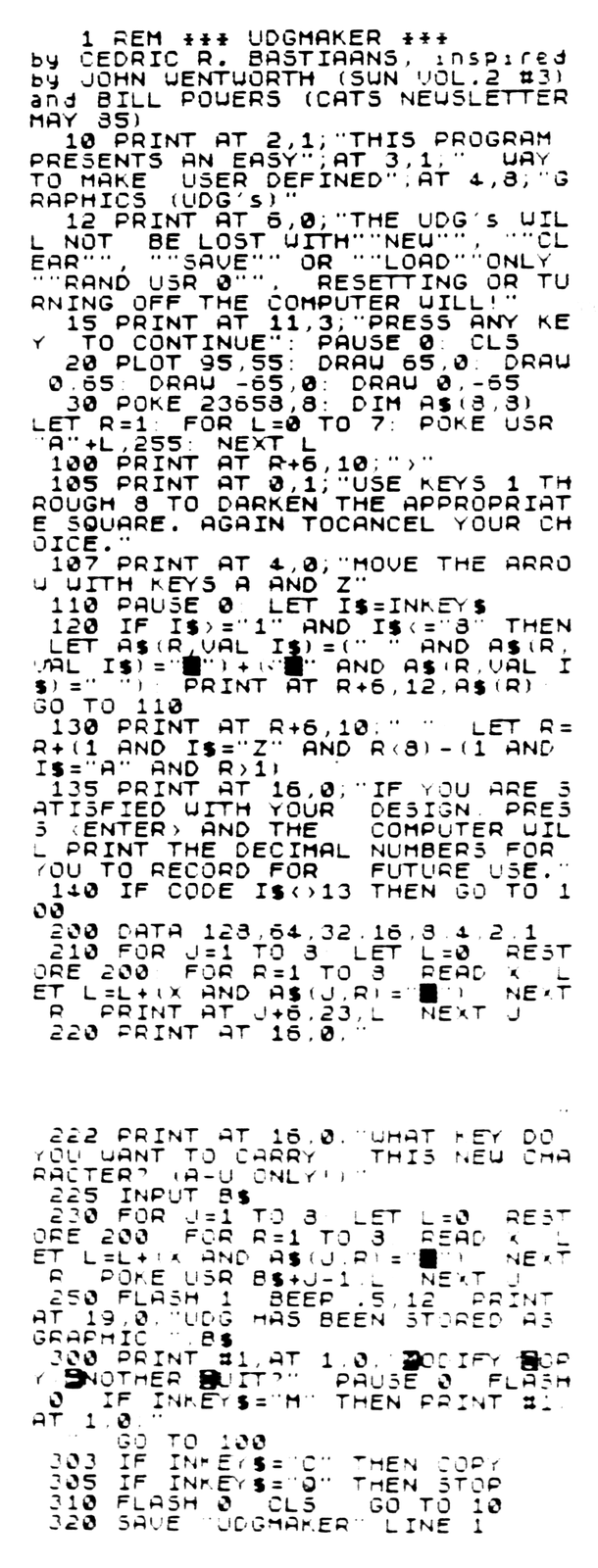
Key it in and RUN. You will be greeted by a brief explanation; follow the prompt. A square is drawn on screen and as you work with it you will find that it is an enlarged 8×8 matrix for the creation of a PIXEL MAP. Try the number keys 1 through 8 and notice how easy it is to lay down a black (ink) square or remove it again. Notice that when you have moved the arrow down, additional text appears which gives you instructions how to proceed when you have completed your pixel map. Ignore it for now and make the map shown in FIG. 1.
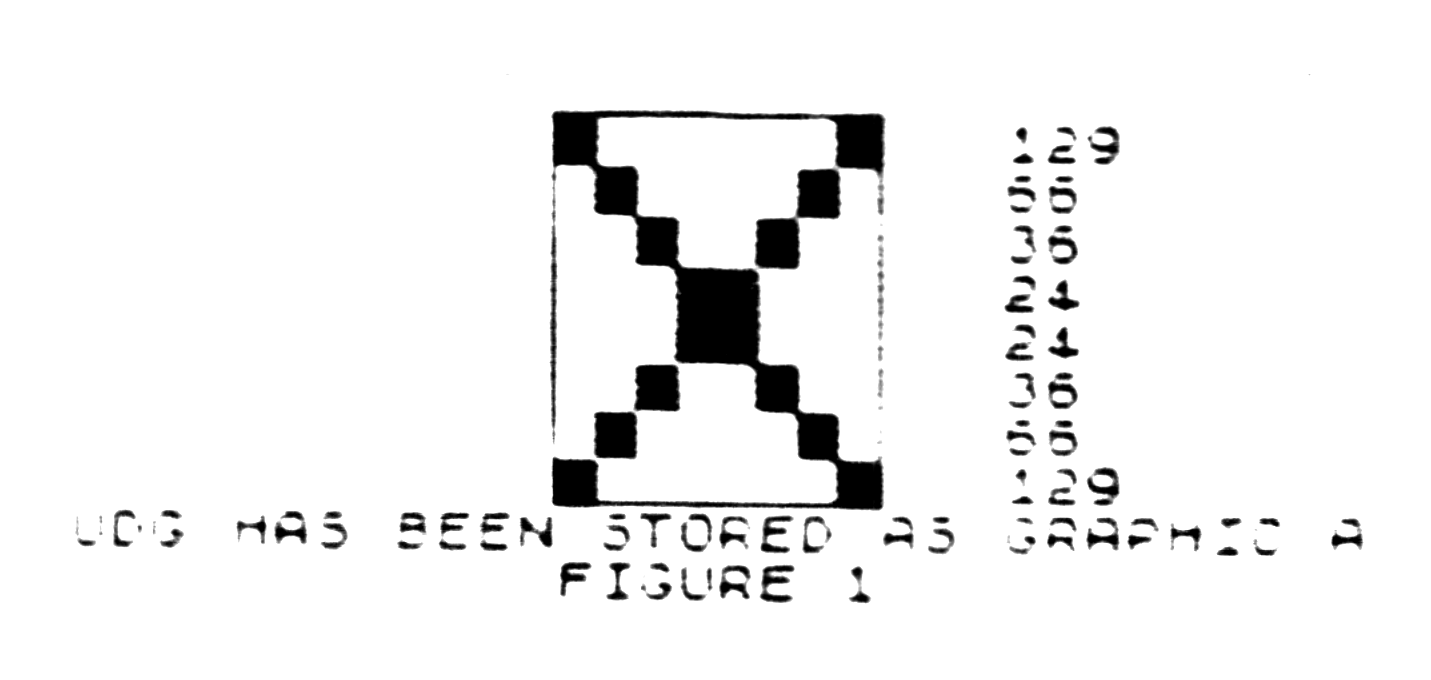
Then press ENTER and watch the computer list all the bit information necessary to record it in the computer, in decimal numbers and not in binary! When prompted for a character to carry this UDG, key in the character “A”. You can choose any character between A – U (A and U included).
The computer will get back to you with the indication that the UDG has been stored and you will be asked to either modify, copy, quit or do another UDG. I suggest you press Q and try your UDG in actual print by keying in SHIFT 9 (that’s the GRAPHICS mode) and then “A” (or if you chose a different character, key in that character). If you keep the key down you’ll see that this UDG could make a simple but nice border.
NOTE: If, after trial printing your UDG, you need to modify it, key in GO TO 100 to get the original pixel map back. After (C)opy, it will be erased and return you to the start of the program.
Now, if you need this UDG in your program, use the following program lines (we’ll assume that you have chosen the character “A” for this UDG storage):
1 DATA 129,66,36,24,24,36,66,129
2 RESTORE 1:FOR N=0 TO 7: READ D: POKE USR "A"+ N, D: NEXT N
Each time you use the graphics “A” in your program, the large X will be printed.
UDG’s may be combined to make much larger graphics. Try the following:
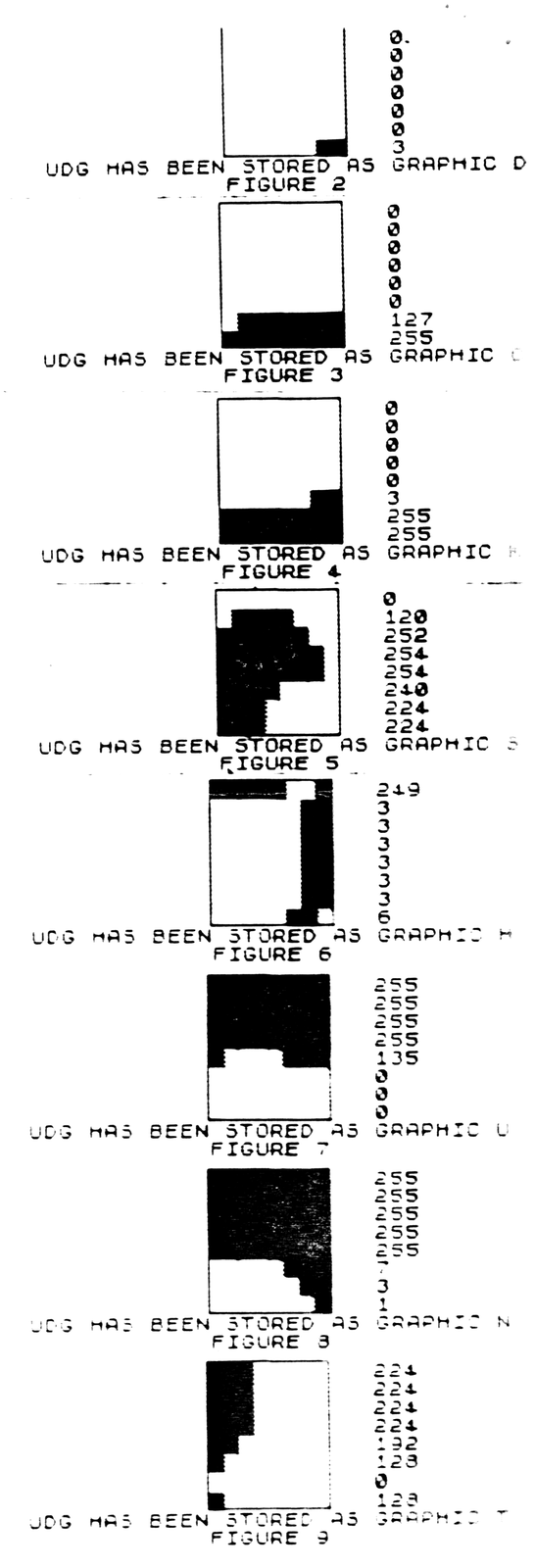
Key in the pixel map shown in FIG 2; store “D”
Next, key in the map shown in FIG 3; store “O”
Then, key in the map shown in FIG 4; store “K”
Next, key in the map shown in FIG 5; store “S”
Next, key in the map shown in FIG 6; store “H”
Furthermore, the map shown in FIG 7; store “U”
Also, key in the map shown in FIG 8; store “N”
Finally, do the map shown in FIG 9; store “T”
When you have finished this, CLS and enter the following in the direct mode:
PRINT AT 7,10;"D" (ENTER)
PRINT AT 7,11;"O" (ENTER)
PRINT AT 7,12;"K" (ENTER)
PRINT AT 7,13;"S" (ENTER)
PRINT AT 8,10;"H" (ENTER)
PRINT AT 8,11;"U" (ENTER)
PRINT AT 8,12;"N" (ENTER)
PRINT AT 8,13;"T" (ENTER)
NOTE: ALL THESE STRINGS ARE GRAPHIC CHARACTERS!
                       [illegible]
                       0
                       0
                       0
                       0
                       0
                       0
                       3
UDG HAS BEEN STORED AS GRAPHIC D
           FIGURE 2

                       0
                       0
                       0
                       0
                       0
                       0
                       127
                       255
UDG HAS BEEN STORED AS GRAPHIC O
           FIGURE 3

                       0
                       0
                       0
                       0
                       0
                       3
                       255
                       255
UDG HAS BEEN STORED AS GRAPHIC K
           FIGURE 4

                       0
                       120
                       252
                       254
                       254
                       240
                       224
                       224
UDG HAS BEEN STORED AS GRAPHIC S
           FIGURE 5

                       249
                       3
                       3
                       3
                       3
                       3
                       3
                       6
UDG HAS BEEN STORED AS GRAPHIC H
           FIGURE 6

                       255
                       255
                       255
                       255
                       135
                       0
                       0
                       0
UDG HAS BEEN STORED AS GRAPHIC U
           FIGURE 7

                       255
                       255
                       255
                       255
                       255
                       7
                       3
                       1
UDG HAS BEEN STORED AS GRAPHIC N
           FIGURE 8

                       224
                       224
                       224
                       224
                       192
                       128
                       0
                       128
UDG HAS BEEN STORED AS GRAPHIC T
           FIGURE 9
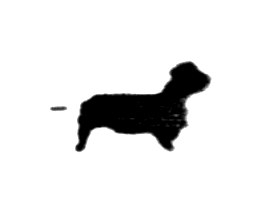
When you did everything right you will see on your screen the realistic figure of a dachshund! Like this:
Have fun with this program!
Transcription note: Solid bars are typed \::. They could be block graphics or inverse spaces, which print the same.
Transcription note: The first value of Figure 2 is cut off in the scan.
Media
Note: Type-in program listings on this website use ZMAKEBAS notation for graphics characters.